
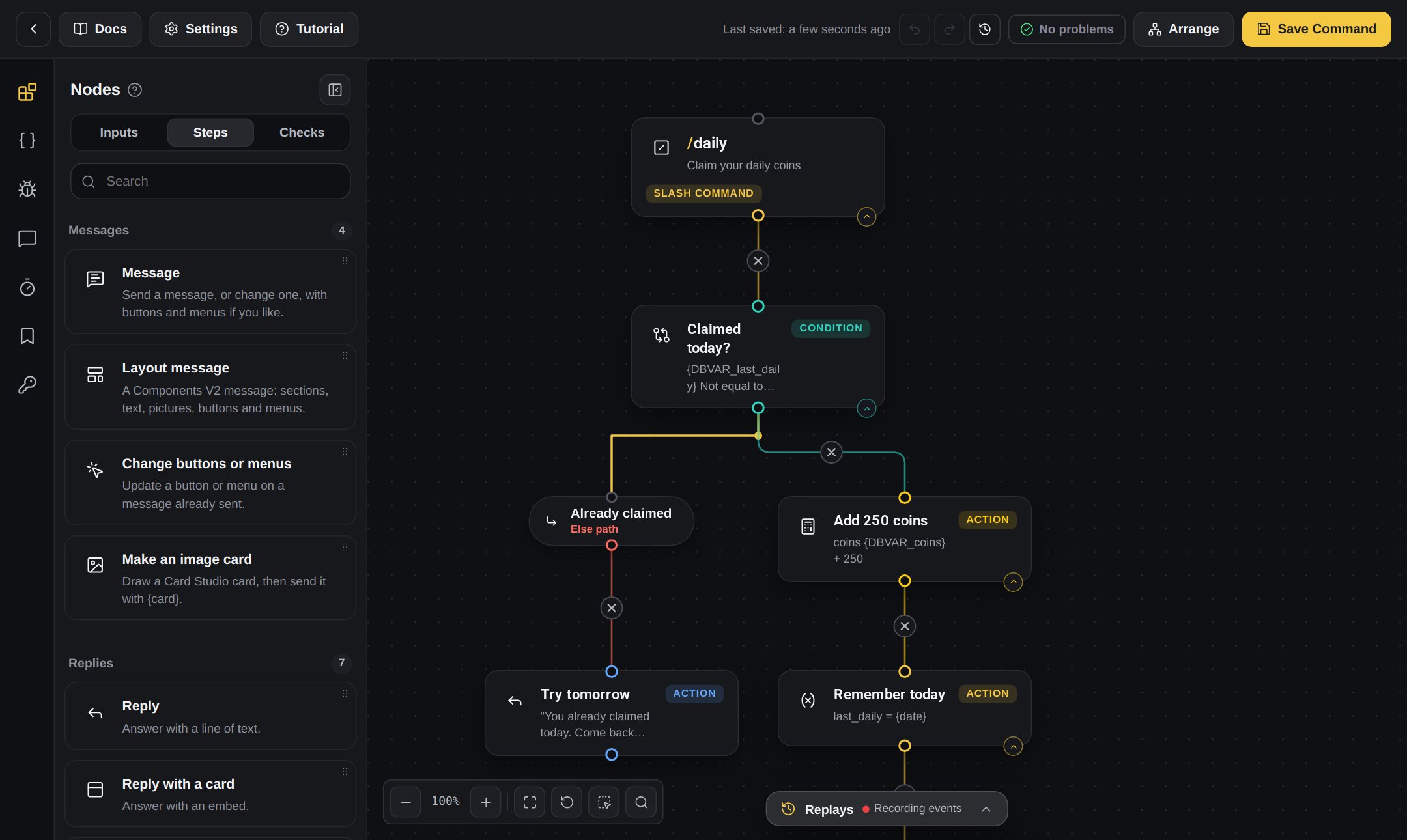
A command in the builder. The block list is on the left and the board is in the middle.
The three kinds of blocks
In the block list, the blocks are in tabs:Inputs
Boxes the person fills in when they use a slash command, like picking a member or typing a number. Only slash commands have Inputs.
Steps
Blocks that do something, like send a message, give a role or save a value.
Checks
Blocks that ask a question and go one way or the other, like “does this person have the Moderator role?”.
Right-click (context) commands and the Event Builder only show Steps and Checks.
Most used blocks
New here? These are the blocks you will use again and again.Save a value
How to save and change variables with blocks.
Send cards from your bot
How the Make an image card block works.
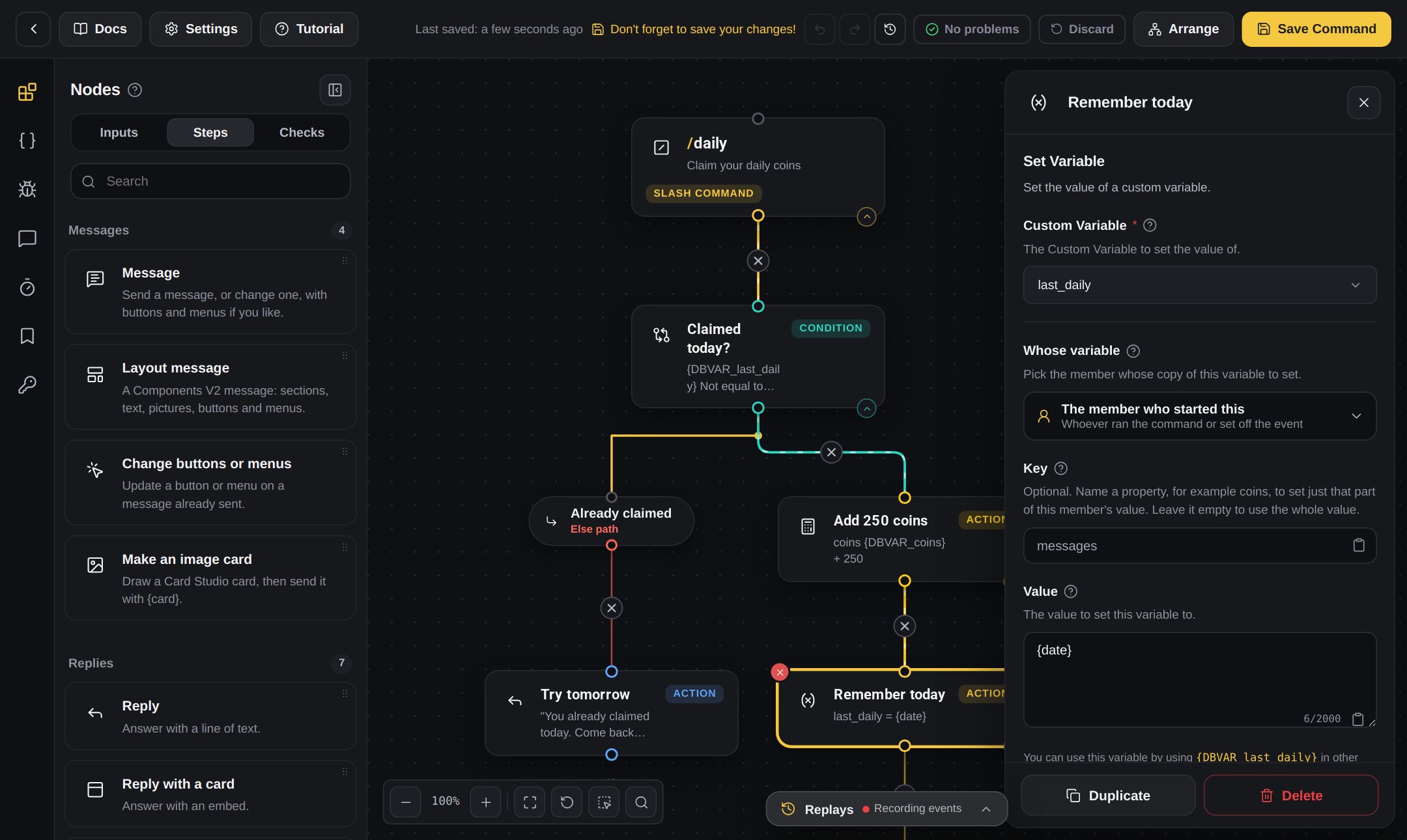
The Save a value block and its settings.
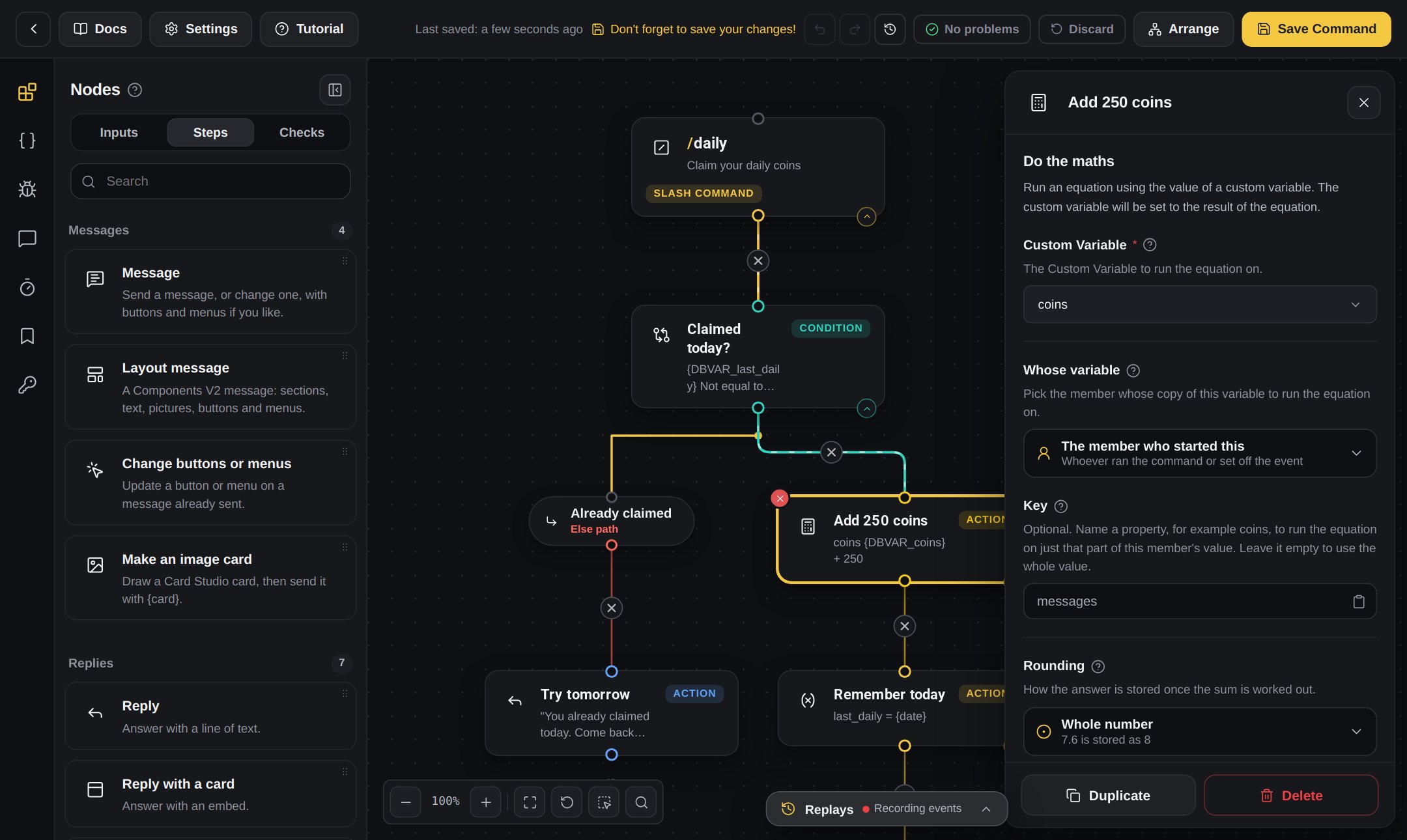
The Do the maths block and its settings.
What a block looks like
Every block has a white icon, a name, a short line about what it does and a small pill that tells you what kind of block it is: Action, Condition, Event or Slash command.- Blocks connect with lines between round, hollow dots.
- Press the dashed + circle under a block to add the next one, already connected.
- Press the round × on a line to remove it.
- The block you are editing gets a gold ring.
- Arrange lines all your blocks up in neat rows.
Checks have two ways out
A Check block has two ways out: one for yes and one for no. Connect different blocks to each.Example
After Compare “coins 500 or more?”:
- Yes: “You bought VIP!”
- No: “You need 500 coins.”
Worked and failed paths
Many Step blocks can also show a green path (it worked) and a red path (it failed). Each has its own +. Use the red path for things like “if the ban fails, tell the moderator”.Find blocks by group
Message blocks
Replies, messages, buttons and menus.
Command input blocks
Text, Number, User, Channel, Role, Choice and Attachment.
Repeat and wait blocks
Loops, pauses and the typing dots.
Event triggers
Every event your blocks can run under.