
What you will build
Someone types:
/pingYour bot answers: Pong!1
Make a new command
In the sidebar, press Commands, then New command. Pick Slash command.
2
Give it a name
The builder opens. At the top of the board you see the first block. This block is the command itself. Press it.On the right, type the name:
ping. Then type a short description, like Check if the bot is awake. People see this description in Discord.Command names must be small letters, with no spaces. Use a dash if you need two words, like
daily-coins.3
Add a Reply block
On the left side is the block list. Open the Steps tab and find the Reply block. Drag it onto the board, under the first block.
4
Join the blocks
Every block has little round dots. Drag from the dot at the bottom of the first block to the dot at the top of the Reply block. A line appears. This line tells the bot: “after the command, do the Reply”.
5
Write the answer
Press the Reply block. A gold ring shows around it, so you know it is the one you are editing. On the right, type your message:
6
Save
Press Save at the top right. If you see No problems, everything is good.
7
Try it!
Go to your Discord server and type
/ping. Pick your bot’s command from the list and press Enter. Your bot answers Pong!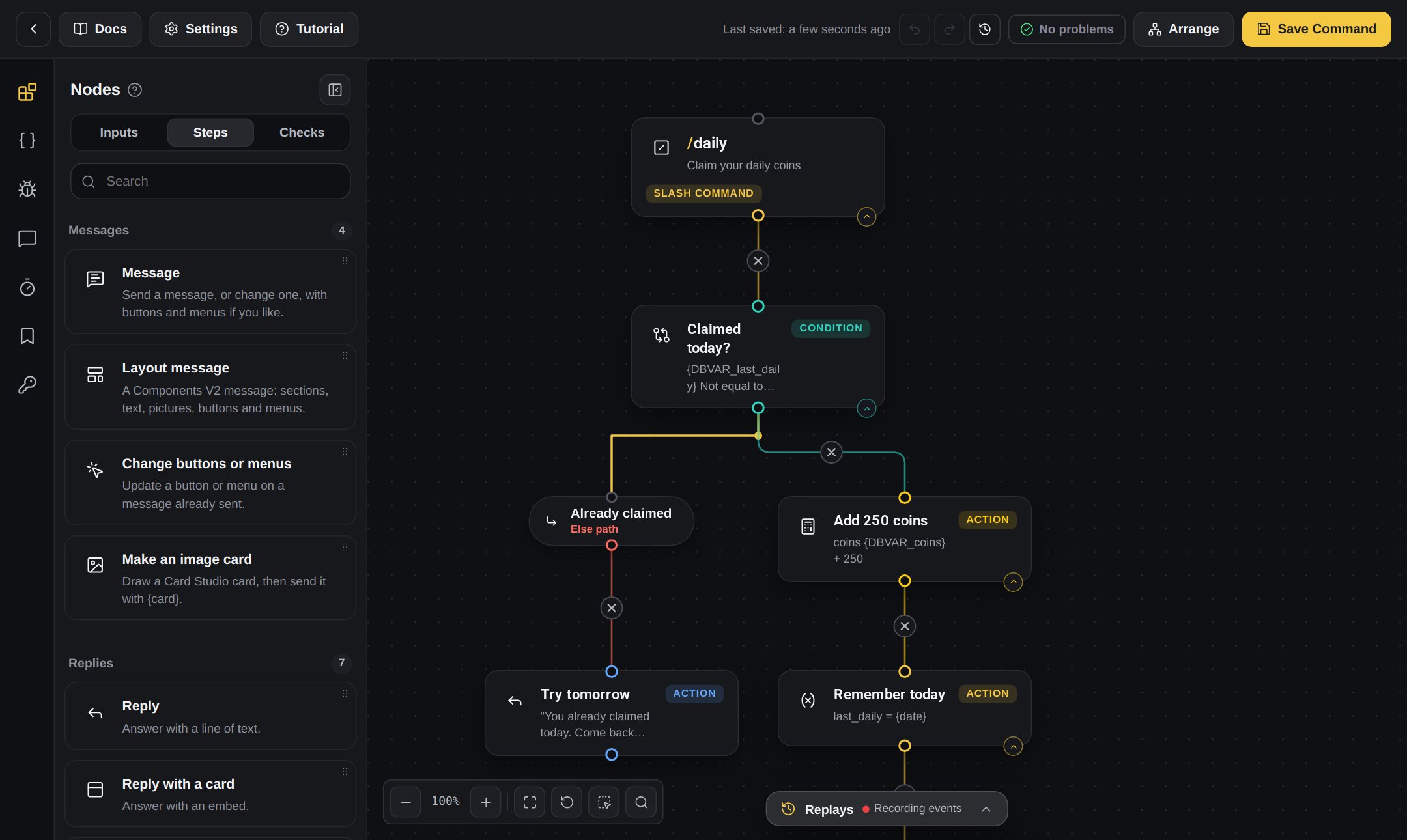
A command in the builder, with its blocks joined by lines
Make it smarter
Put the person’s name in the answer with a variable. Change the message to this and save again:You built a bot! Next, learn about commands and inputs.