Where to make your own variables, and what every choice means.
There are three places to make a variable. They all make the same thing, so use whichever is easiest.
Where
Best for
Database page, What do you want to make? tab
The quickest way. One click makes everything an idea needs.
Database page, Start from scratch tab
Making exactly what you want.
Inside the builder, the { } tab
Making one while you’re building a command.
Way 1: pick a ready idea
Way 2: start from scratch
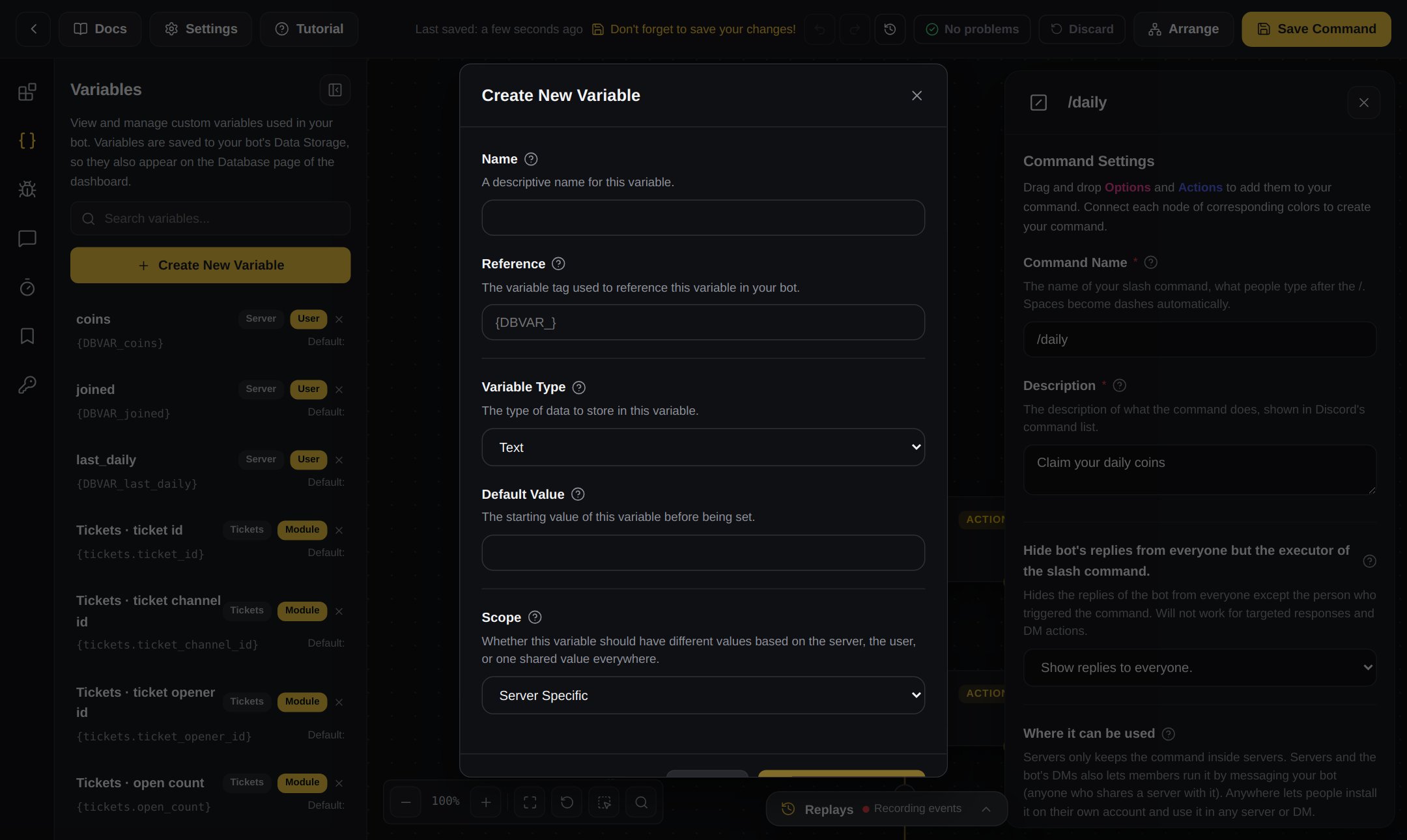
Way 3: in the builder
The easiest way.
1
Open the Database page
In the menu on the left, under Data and links, click Database.
2
Open What do you want to make?
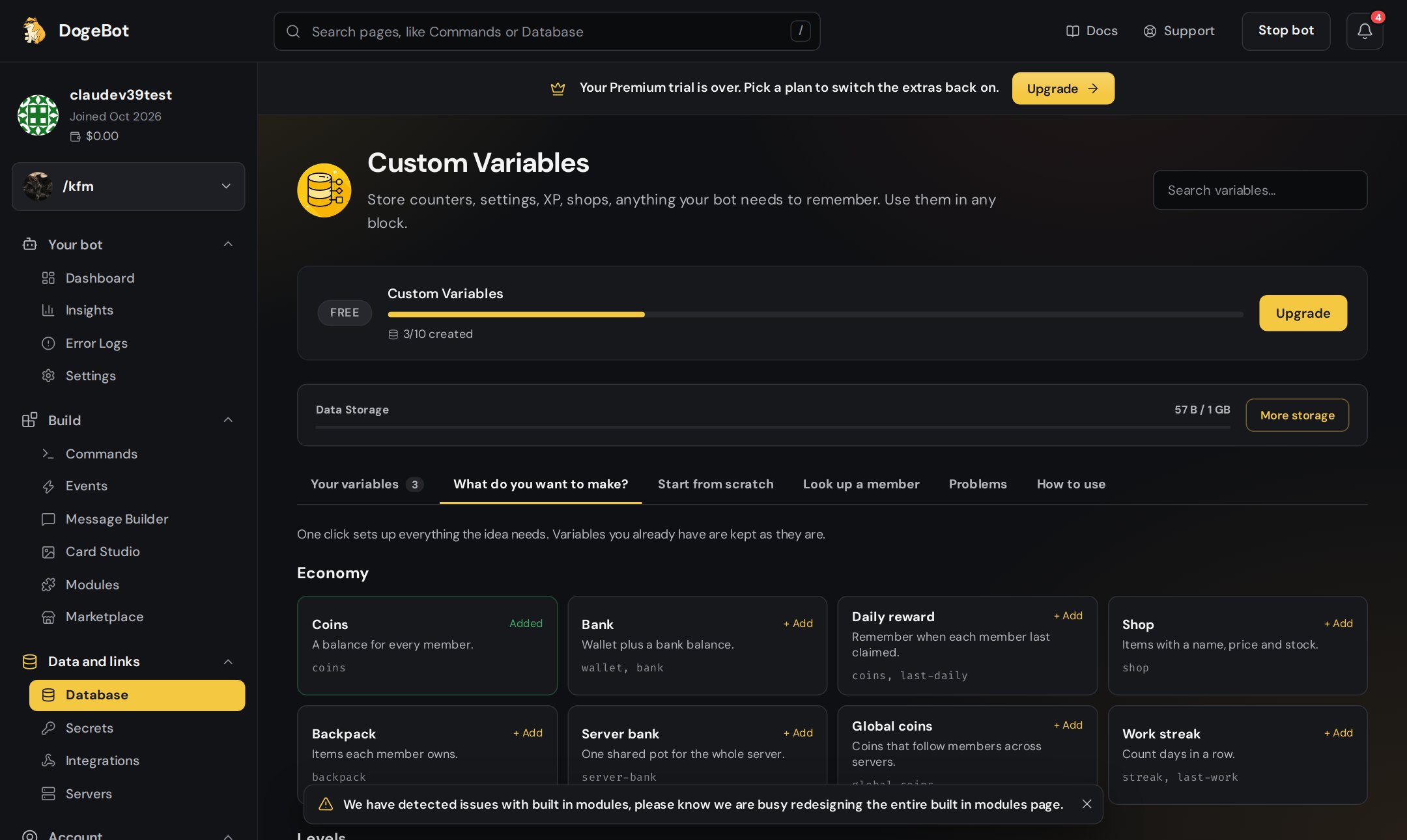
Click the What do you want to make? tab. You’ll see ideas grouped into Economy, Levels, Moderation, Tickets, Games and Server.
3
Press + Add
Find the idea you want, like Coins or Warnings, and press + Add. DogeBot makes the variables for you, already set up the right way. It says Added when it’s done.
Ready ideas on the Database page
If you already have a variable with the same name, DogeBot keeps yours and doesn’t change it.
Click the Start from scratch tab on the Database page. You answer four questions, then press Add Custom Variable.
Give it a short name that says what it holds, like coins or last-daily. Use small letters. Spaces turn into dashes by themselves.Under the name you’ll see the tag, like {DBVAR_coins}. That’s what you type in blocks to use it.
This is the type. It decides what you can do with the box. You can only do maths on a Number, for example.
Type
What goes in it
Example
Text
Words, or anything else
Hello!
Number
Counts, scores, money
250
True / False
On or off, like a light switch
true
User
A different value for every member
Each person’s coins, XP or warnings
Channel
A different value for every channel
Message count per channel
Collection
A list of things
A shop, a backpack, a list of bad words
Object
Named keys, like a settings card
prefix, color, log-channel
The most important one is User. If every member should have their own amount (coins, XP, warnings, levels), pick User. Then pick what each member stores: a number for coins, text for a birthday, and so on.
If you make a Number variable called coins, there is one box. If Sam gets 100 coins, then everyone has 100 coins, because they all share one box.If you make a User variable called coins, every member gets their own box. Sam’s box can have 250 and Alex’s box can have 90.
User variable that stores…
Good for
Number
Coins, XP, levels, warnings
Text
A bio, a birthday, a favourite colour
True / False
”Has verified”, “has claimed the starter pack”
Object
A full profile with coins, gems and level together. See Lists and objects.
What’s in the box before anything is saved. For coins, put 0. If you leave it empty, the box starts empty.For Object variables (and User variables that store an Object) you can add Starting properties: the named values every new entry begins with. See Lists and objects.Press Add Custom Variable and you’re done.
{"docsConfig":{"theme":"mint","$schema":"https://mintlify.com/docs.json","name":"DogeBot Docs","colors":{"primary":"#EAB308","light":"#FACC15","dark":"#CA8A04"},"logo":{"light":"https://mintcdn.com/doge-bot/7zABNdJHAtNhkZCI/images/doge-logo.png?fit=max\u0026auto=format\u0026n=7zABNdJHAtNhkZCI\u0026q=85\u0026s=c2eb1dd96517adc31165fe652c0d64d4","dark":"https://mintcdn.com/doge-bot/7zABNdJHAtNhkZCI/images/doge-logo.png?fit=max\u0026auto=format\u0026n=7zABNdJHAtNhkZCI\u0026q=85\u0026s=c2eb1dd96517adc31165fe652c0d64d4","href":"/"},"favicon":"https://mintcdn.com/doge-bot/7zABNdJHAtNhkZCI/images/doge-logo.png?fit=max\u0026auto=format\u0026n=7zABNdJHAtNhkZCI\u0026q=85\u0026s=c2eb1dd96517adc31165fe652c0d64d4","appearance":{"default":"dark"},"background":{"decoration":"gradient","color":{"dark":"#1A1A1A"}},"navbar":{"links":[{"href":"https://dogebot.net/dashboard","label":"Login"},{"href":"https://dogebot.net/dashboard/premium","label":"Premium"}],"primary":{"type":"button","label":"Dashboard","href":"https://dogebot.net/dashboard"}},"seo":{"metatags":{"canonical":"https://docs.dogebot.net"}},"fonts":{"family":"Poppins"},"icons":{"library":"lucide"},"contextual":{"options":["copy","view","chatgpt","claude","perplexity","mcp","cursor","vscode"],"display":"header"},"styling":{"latex":false},"navigation":{"pages":[]}},"deployment":{"deploymentMetadataValue":{"subdomain":"doge-bot","hasAudioNarration":false,"actualSubdomain":"doge-bot","customDomains":["docs.dogebot.net"],"gitSource":{"type":"github","owner":"mintlify-community","repo":"docs-doge-bot-b91ba433","deployBranch":"main","contentDirectory":"","isPrivate":true,"mountPath":"","label":""},"chroma":{"latestBuiltDeploymentHistoryId":"6ad47bf31fe2e6666c8faa4e","collectionId":"f5d88255-aa7b-446c-8f1c-66d1090ca70c","liveDeploymentHistoryId":"6ad47bf31fe2e6666c8faa4e","schemaVersion":"v3"},"entitlements":{"AI_CHAT":{"status":"ENABLED"},"WEB_MCP":{"status":"ENABLED"},"NARRATION":{"status":"ENABLED"}},"buildId":"6ad84e45858f4af642a3736a","clientVersion":"0.0.3908","searchFilterCounts":[{"language":"default","tag":"Building with blocks","count":15},{"language":"default","tag":"The builders","count":14},{"language":"default","tag":"OLD Variables","count":11},{"language":"default","tag":"Event triggers","count":10},{"language":"default","tag":"Build a system","count":9},{"language":"default","tag":"OLD Getting started","count":8},{"language":"default","tag":"Getting started","count":8},{"language":"default","tag":"Variables","count":8},{"language":"default","tag":"WhatsApp bots","count":8},{"language":"default","tag":"Dashboard pages","count":7}]},"assistantConfig":{"enableAskAiButton":false,"enableStarterQuestions":false,"enableContextualStarterQuestions":false,"enableAskAiSearchBar":true},"hasChatPermissions":true,"hasWebMcpPermissions":true,"toggles":[{"name":"kill-isr","enabled":true,"variant":{"name":"disabled","enabled":false,"feature_enabled":true},"impressionData":false},{"name":"agent-mintlify-slack","enabled":true,"variant":{"name":"disabled","enabled":false,"feature_enabled":true},"impressionData":false},{"name":"editor-v7-file-tree","enabled":true,"variant":{"name":"disabled","enabled":false,"feature_enabled":true},"impressionData":false},{"name":"agent-integrations-settings","enabled":true,"variant":{"name":"disabled","enabled":false,"feature_enabled":true},"impressionData":false},{"name":"automations-pr-grouping","enabled":true,"variant":{"name":"disabled","enabled":false,"feature_enabled":true},"impressionData":false},{"name":"custom-prefix","enabled":true,"variant":{"name":"disabled","enabled":false,"feature_enabled":true},"impressionData":false},{"name":"analytics-v7","enabled":true,"variant":{"name":"disabled","enabled":false,"feature_enabled":true},"impressionData":false},{"name":"user-flows-analytics","enabled":true,"variant":{"name":"disabled","enabled":false,"feature_enabled":true},"impressionData":false},{"name":"no-publish-flow","enabled":true,"variant":{"name":"disabled","enabled":false,"feature_enabled":true},"impressionData":false},{"name":"workos-onboarding","enabled":true,"variant":{"name":"disabled","enabled":false,"feature_enabled":true},"impressionData":false},{"name":"llms-txt-v2","enabled":true,"variant":{"name":"disabled","enabled":false,"feature_enabled":true},"impressionData":false},{"name":"pause-universal-search-reconcile","enabled":true,"variant":{"name":"disabled","enabled":false,"feature_enabled":true},"impressionData":false},{"name":"snapshot-serving-live","enabled":true,"variant":{"name":"disabled","enabled":false,"feature_enabled":true},"impressionData":false},{"name":"stripTemperatureMiddleware","enabled":true,"variant":{"name":"disabled","enabled":false,"feature_enabled":true},"impressionData":false},{"name":"per-site-search-delta","enabled":true,"variant":{"name":"disabled","enabled":false,"feature_enabled":true},"impressionData":false},{"name":"support-platform-pylon-zendesk","enabled":true,"variant":{"name":"disabled","enabled":false,"feature_enabled":true},"impressionData":false},{"name":"editor-branches-v2-autocommit","enabled":true,"variant":{"name":"disabled","enabled":false,"feature_enabled":true},"impressionData":false},{"name":"editor-branches-v2","enabled":true,"variant":{"name":"disabled","enabled":false,"feature_enabled":true},"impressionData":false},{"name":"snapshot-serving","enabled":true,"variant":{"name":"disabled","enabled":false,"feature_enabled":true},"impressionData":false},{"name":"instant-rollback","enabled":true,"variant":{"name":"disabled","enabled":false,"feature_enabled":true},"impressionData":false},{"name":"granular-notifications-server","enabled":true,"variant":{"name":"disabled","enabled":false,"feature_enabled":true},"impressionData":false},{"name":"granular-notifications","enabled":true,"variant":{"name":"disabled","enabled":false,"feature_enabled":true},"impressionData":false},{"name":"editor-private-page-search","enabled":true,"variant":{"name":"disabled","enabled":false,"feature_enabled":true},"impressionData":false},{"name":"automations-fable","enabled":true,"variant":{"name":"disabled","enabled":false,"feature_enabled":true},"impressionData":false},{"name":"fixed-ai-action-pricing","enabled":true,"variant":{"name":"disabled","enabled":false,"feature_enabled":true},"impressionData":false},{"name":"automation-resolve-merge-conflict","enabled":true,"variant":{"name":"disabled","enabled":false,"feature_enabled":true},"impressionData":false},{"name":"scoped-publishing","enabled":true,"variant":{"name":"disabled","enabled":false,"feature_enabled":true},"impressionData":false},{"name":"mintql","enabled":true,"variant":{"name":"disabled","enabled":false,"feature_enabled":true},"impressionData":false},{"name":"page-level-analytics","enabled":true,"variant":{"name":"disabled","enabled":false,"feature_enabled":true},"impressionData":false},{"name":"teamspace","enabled":true,"variant":{"name":"disabled","enabled":false,"feature_enabled":true},"impressionData":false},{"name":"editor-version-history-v2","enabled":true,"variant":{"name":"disabled","enabled":false,"feature_enabled":true},"impressionData":false},{"name":"vite-origin","enabled":true,"variant":{"name":"disabled","enabled":false,"feature_enabled":true},"impressionData":false},{"name":"editor-nav-generations","enabled":true,"variant":{"name":"disabled","enabled":false,"feature_enabled":true},"impressionData":false},{"name":"billing-page-v2","enabled":true,"variant":{"name":"disabled","enabled":false,"feature_enabled":true},"impressionData":false},{"name":"workspace-projects","enabled":true,"variant":{"name":"disabled","enabled":false,"feature_enabled":true},"impressionData":false},{"name":"assistant-v5","enabled":true,"variant":{"name":"disabled","enabled":false,"feature_enabled":true},"impressionData":false},{"name":"byok-sep-25","enabled":true,"variant":{"name":"disabled","enabled":false,"feature_enabled":true},"impressionData":false},{"name":"fork-pr-previews","enabled":true,"variant":{"name":"disabled","enabled":false,"feature_enabled":true},"impressionData":false},{"name":"revalidation-jwt","enabled":true,"variant":{"name":"disabled","enabled":false,"feature_enabled":true},"impressionData":false},{"name":"editor-agent-model-picker","enabled":true,"variant":{"name":"disabled","enabled":false,"feature_enabled":true},"impressionData":false},{"name":"client-snapshot-docs-config","enabled":true,"variant":{"name":"disabled","enabled":false,"feature_enabled":true},"impressionData":false},{"name":"hobby-abuse-scan","enabled":true,"variant":{"name":"disabled","enabled":false,"feature_enabled":true},"impressionData":false},{"name":"dashboard-inbox","enabled":true,"variant":{"name":"disabled","enabled":false,"feature_enabled":true},"impressionData":false}],"isAtlas":false,"googleFontsInlined":true},"customCss":[{"filePath":"style.css","content":"#navbar a:has(img.nav-logo){display:flex;align-items:center;gap:.625rem}#navbar a:has(img.nav-logo)::after{content:\"DogeBot Docs\";font-weight:700;font-size:1.5rem;line-height:1;white-space:nowrap;color:#111827}html.dark #navbar a:has(img.nav-logo)::after{color:#fff}"}],"page":{"pagePath":"variables/make-your-own-variables","slug":"/variables/make-your-own-variables","pageMetadata":{"title":"Make a variable","description":"Where to make your own variables, and what every choice means.","icon":"circle-plus","href":"/variables/make-your-own-variables"},"description":{"compiledSource":"\"use strict\";\nconst {jsx: _jsx} = arguments[0];\nconst {useMDXComponents: _provideComponents} = arguments[0];\nfunction _createMdxContent(props) {\n const _components = {\n p: \"p\",\n ..._provideComponents(),\n ...props.components\n };\n return _jsx(_components.p, {\n children: \"Where to make your own variables, and what every choice means.\"\n });\n}\nfunction MDXContent(props = {}) {\n const {wrapper: MDXLayout} = {\n ..._provideComponents(),\n ...props.components\n };\n return MDXLayout ? _jsx(MDXLayout, {\n ...props,\n children: _jsx(_createMdxContent, {\n ...props\n })\n }) : _createMdxContent(props);\n}\nreturn {\n default: MDXContent\n};\n","frontmatter":{},"scope":{}},"pageType":"default","mdx":{"mdxSource":{"compiledSource":"\"use strict\";const{Fragment:_Fragment,jsx:_jsx,jsxs:_jsxs}=arguments[0];const{useMDXComponents:_provideComponents}=arguments[0];function _createMdxContent(props){const _components={a:`a`,code:`code`,li:`li`,p:`p`,strong:`strong`,tbody:`tbody`,td:`td`,th:`th`,thead:`thead`,tr:`tr`,ul:`ul`,..._provideComponents(),...props.components},{Card,Check,Frame,Heading,Info,OptimizedImage,Step,Steps,Tab,Table,Tabs,Warning}=_components;if(!Card)_missingMdxReference(`Card`,true);if(!Check)_missingMdxReference(`Check`,true);if(!Frame)_missingMdxReference(`Frame`,true);if(!Heading)_missingMdxReference(`Heading`,true);if(!Info)_missingMdxReference(`Info`,true);if(!OptimizedImage)_missingMdxReference(`OptimizedImage`,true);if(!Step)_missingMdxReference(`Step`,true);if(!Steps)_missingMdxReference(`Steps`,true);if(!Tab)_missingMdxReference(`Tab`,true);if(!Table)_missingMdxReference(`Table`,true);if(!Tabs)_missingMdxReference(`Tabs`,true);if(!Warning)_missingMdxReference(`Warning`,true);return _jsxs(_Fragment,{children:[_jsxs(_components.p,{children:[`There are `,_jsx(_components.strong,{children:`three places`}),` to make a variable. They all make the same thing, so use whichever is easiest.`]}),`\n`,_jsxs(Table,{children:[_jsx(_components.thead,{children:_jsxs(_components.tr,{children:[_jsx(_components.th,{children:`Where`}),_jsx(_components.th,{children:`Best for`})]})}),_jsxs(_components.tbody,{children:[_jsxs(_components.tr,{children:[_jsxs(_components.td,{children:[_jsx(_components.strong,{children:`Database`}),` page, `,_jsx(_components.strong,{children:`What do you want to make?`}),` tab`]}),_jsx(_components.td,{children:`The quickest way. One click makes everything an idea needs.`})]}),_jsxs(_components.tr,{children:[_jsxs(_components.td,{children:[_jsx(_components.strong,{children:`Database`}),` page, `,_jsx(_components.strong,{children:`Start from scratch`}),` tab`]}),_jsx(_components.td,{children:`Making exactly what you want.`})]}),_jsxs(_components.tr,{children:[_jsxs(_components.td,{children:[`Inside the builder, the `,_jsx(_components.code,{children:`{ }`}),` tab`]}),_jsx(_components.td,{children:`Making one while you’re building a command.`})]})]})]}),`\n`,_jsxs(Tabs,{children:[_jsxs(Tab,{title:`Way 1: pick a ready idea`,id:`way-1%3A-pick-a-ready-idea`,children:[_jsx(_components.p,{children:`The easiest way.`}),_jsxs(Steps,{children:[_jsx(Step,{title:`Open the Database page`,children:_jsxs(_components.p,{children:[`In the menu on the left, under `,_jsx(_components.strong,{children:`Data and links`}),`, click `,_jsx(_components.strong,{children:`Database`}),`.`]})}),_jsx(Step,{title:`Open What do you want to make?`,children:_jsxs(_components.p,{children:[`Click the `,_jsx(_components.strong,{children:`What do you want to make?`}),` tab. You’ll see ideas grouped into `,_jsx(_components.strong,{children:`Economy`}),`, `,_jsx(_components.strong,{children:`Levels`}),`, `,_jsx(_components.strong,{children:`Moderation`}),`, `,_jsx(_components.strong,{children:`Tickets`}),`, `,_jsx(_components.strong,{children:`Games`}),` and `,_jsx(_components.strong,{children:`Server`}),`.`]})}),_jsx(Step,{title:`Press + Add`,children:_jsxs(_components.p,{children:[`Find the idea you want, like `,_jsx(_components.strong,{children:`Coins`}),` or `,_jsx(_components.strong,{children:`Warnings`}),`, and press `,_jsx(_components.strong,{children:`+ Add`}),`. DogeBot makes the variables for you, already set up the right way. It says `,_jsx(_components.strong,{children:`Added`}),` when it’s done.`]})})]}),_jsx(Frame,{caption:`Ready ideas on the Database page`,children:_jsx(OptimizedImage,{src:`https://mintcdn.com/doge-bot/0C6-zgXTpDx1QOCe/images/guide/ds-ideas.png?fit=max\u0026auto=format\u0026n=0C6-zgXTpDx1QOCe\u0026q=85\u0026s=fcf1a40a32721b559641fdeac7e6fae0`,alt:`The What do you want to make? tab with ready ideas`,\"data-og-width\":`2160`,width:`2160`,\"data-og-height\":`1290`,height:`1290`,\"data-path\":`images/guide/ds-ideas.png`,\"data-optimize\":`true`,\"data-opv\":`3`,srcset:`https://mintcdn.com/doge-bot/0C6-zgXTpDx1QOCe/images/guide/ds-ideas.png?w=280\u0026fit=max\u0026auto=format\u0026n=0C6-zgXTpDx1QOCe\u0026q=85\u0026s=dfb7cdbd63b0e89ffc052a1d5d5e7444 280w, https://mintcdn.com/doge-bot/0C6-zgXTpDx1QOCe/images/guide/ds-ideas.png?w=560\u0026fit=max\u0026auto=format\u0026n=0C6-zgXTpDx1QOCe\u0026q=85\u0026s=eda42f7a8aefa736ea7a3ffe2da0f659 560w, https://mintcdn.com/doge-bot/0C6-zgXTpDx1QOCe/images/guide/ds-ideas.png?w=840\u0026fit=max\u0026auto=format\u0026n=0C6-zgXTpDx1QOCe\u0026q=85\u0026s=845cf3b42e418a8db075413bbc800059 840w, https://mintcdn.com/doge-bot/0C6-zgXTpDx1QOCe/images/guide/ds-ideas.png?w=1100\u0026fit=max\u0026auto=format\u0026n=0C6-zgXTpDx1QOCe\u0026q=85\u0026s=6318cecab61f3e5ab6d7314084a0f43b 1100w, https://mintcdn.com/doge-bot/0C6-zgXTpDx1QOCe/images/guide/ds-ideas.png?w=1650\u0026fit=max\u0026auto=format\u0026n=0C6-zgXTpDx1QOCe\u0026q=85\u0026s=36fb875d680446333f4924330108bb46 1650w, https://mintcdn.com/doge-bot/0C6-zgXTpDx1QOCe/images/guide/ds-ideas.png?w=2500\u0026fit=max\u0026auto=format\u0026n=0C6-zgXTpDx1QOCe\u0026q=85\u0026s=68c67c32a295642a29638bc17c66167a 2500w`})}),_jsx(Info,{children:_jsx(_components.p,{children:`If you already have a variable with the same name, DogeBot keeps yours and doesn’t change it.`})})]}),_jsxs(Tab,{title:`Way 2: start from scratch`,id:`way-2%3A-start-from-scratch`,children:[_jsxs(_components.p,{children:[`Click the `,_jsx(_components.strong,{children:`Start from scratch`}),` tab on the Database page. You answer four questions, then press `,_jsx(_components.strong,{children:`Add Custom Variable`}),`.`]}),_jsx(Frame,{caption:`The Start from scratch tab`,children:_jsx(OptimizedImage,{src:`https://mintcdn.com/doge-bot/0C6-zgXTpDx1QOCe/images/guide/ds-start-from-scratch.png?fit=max\u0026auto=format\u0026n=0C6-zgXTpDx1QOCe\u0026q=85\u0026s=638510a1ec76645ba0cbcc8750456bdb`,alt:`The Start from scratch form on the Database page`,\"data-og-width\":`2160`,width:`2160`,\"data-og-height\":`1290`,height:`1290`,\"data-path\":`images/guide/ds-start-from-scratch.png`,\"data-optimize\":`true`,\"data-opv\":`3`,srcset:`https://mintcdn.com/doge-bot/0C6-zgXTpDx1QOCe/images/guide/ds-start-from-scratch.png?w=280\u0026fit=max\u0026auto=format\u0026n=0C6-zgXTpDx1QOCe\u0026q=85\u0026s=9827f8fcb0a98157e42099ade676fa44 280w, https://mintcdn.com/doge-bot/0C6-zgXTpDx1QOCe/images/guide/ds-start-from-scratch.png?w=560\u0026fit=max\u0026auto=format\u0026n=0C6-zgXTpDx1QOCe\u0026q=85\u0026s=e0099634065a4fa855ead097c1cfcf46 560w, https://mintcdn.com/doge-bot/0C6-zgXTpDx1QOCe/images/guide/ds-start-from-scratch.png?w=840\u0026fit=max\u0026auto=format\u0026n=0C6-zgXTpDx1QOCe\u0026q=85\u0026s=8c7fbf5dbcfd705b101443ff490a3dcd 840w, https://mintcdn.com/doge-bot/0C6-zgXTpDx1QOCe/images/guide/ds-start-from-scratch.png?w=1100\u0026fit=max\u0026auto=format\u0026n=0C6-zgXTpDx1QOCe\u0026q=85\u0026s=0c4c02f0e28af0c9cf25f0a9e776a233 1100w, https://mintcdn.com/doge-bot/0C6-zgXTpDx1QOCe/images/guide/ds-start-from-scratch.png?w=1650\u0026fit=max\u0026auto=format\u0026n=0C6-zgXTpDx1QOCe\u0026q=85\u0026s=fa918b9d9517ceee69676eb965025317 1650w, https://mintcdn.com/doge-bot/0C6-zgXTpDx1QOCe/images/guide/ds-start-from-scratch.png?w=2500\u0026fit=max\u0026auto=format\u0026n=0C6-zgXTpDx1QOCe\u0026q=85\u0026s=f4d53d7353a4a20288592c02814b9ed0 2500w`})}),_jsxs(_components.p,{children:[`See `,_jsx(_components.a,{href:`#the-four-questions`,children:`The four questions`}),` below for what each one means.`]})]}),_jsxs(Tab,{title:`Way 3: in the builder`,id:`way-3%3A-in-the-builder`,children:[_jsx(_components.p,{children:`Handy when you are in the middle of building a command and notice you need a new box.`}),_jsxs(Steps,{children:[_jsx(Step,{title:`Open the variables tab`,children:_jsxs(_components.p,{children:[`On the thin bar on the far left of the builder, click the `,_jsx(_components.code,{children:`{ }`}),` icon. You’ll see every variable your bot has.`]})}),_jsx(Step,{title:`Press Create New Variable`,children:_jsx(_components.p,{children:`The big gold button at the top.`})}),_jsxs(Step,{title:`Fill in the boxes`,children:[_jsxs(_components.ul,{children:[`\n`,_jsxs(_components.li,{children:[_jsx(_components.strong,{children:`Name`}),`: what it’s called, like `,_jsx(_components.code,{children:`coins`}),`.`]}),`\n`,_jsxs(_components.li,{children:[_jsx(_components.strong,{children:`Reference`}),`: the tag, filled in for you, like `,_jsx(_components.code,{children:`{DBVAR_coins}`}),`.`]}),`\n`,_jsxs(_components.li,{children:[_jsx(_components.strong,{children:`Variable Type`}),`: Text, Number, True/False, User, Channel, Collection or Object.`]}),`\n`,_jsxs(_components.li,{children:[_jsx(_components.strong,{children:`Default Value`}),`: the starting value.`]}),`\n`,_jsxs(_components.li,{children:[_jsx(_components.strong,{children:`Scope`}),`: Server Specific or Global.`]}),`\n`]}),_jsx(_components.p,{children:`Save it, and it’s ready to use in any block.`})]})]}),_jsx(Frame,{caption:`Create New Variable in the builder`,children:_jsx(OptimizedImage,{src:`https://mintcdn.com/doge-bot/0C6-zgXTpDx1QOCe/images/guide/create-variable.png?fit=max\u0026auto=format\u0026n=0C6-zgXTpDx1QOCe\u0026q=85\u0026s=0674c0f886977ef4f6a4a819de6ea1f5`,alt:`The Create New Variable window in the builder`,\"data-og-width\":`2160`,width:`2160`,\"data-og-height\":`1290`,height:`1290`,\"data-path\":`images/guide/create-variable.png`,\"data-optimize\":`true`,\"data-opv\":`3`,srcset:`https://mintcdn.com/doge-bot/0C6-zgXTpDx1QOCe/images/guide/create-variable.png?w=280\u0026fit=max\u0026auto=format\u0026n=0C6-zgXTpDx1QOCe\u0026q=85\u0026s=e726964fb4dc63ddcfcc703646ed0330 280w, https://mintcdn.com/doge-bot/0C6-zgXTpDx1QOCe/images/guide/create-variable.png?w=560\u0026fit=max\u0026auto=format\u0026n=0C6-zgXTpDx1QOCe\u0026q=85\u0026s=bcc674c2dfe79fc143fb2f14cabc0a0d 560w, https://mintcdn.com/doge-bot/0C6-zgXTpDx1QOCe/images/guide/create-variable.png?w=840\u0026fit=max\u0026auto=format\u0026n=0C6-zgXTpDx1QOCe\u0026q=85\u0026s=c127a3e2718087ec528f4c5696d383ce 840w, https://mintcdn.com/doge-bot/0C6-zgXTpDx1QOCe/images/guide/create-variable.png?w=1100\u0026fit=max\u0026auto=format\u0026n=0C6-zgXTpDx1QOCe\u0026q=85\u0026s=39083c527672ce244195271ec7274848 1100w, https://mintcdn.com/doge-bot/0C6-zgXTpDx1QOCe/images/guide/create-variable.png?w=1650\u0026fit=max\u0026auto=format\u0026n=0C6-zgXTpDx1QOCe\u0026q=85\u0026s=57c1bd68966b11bc926f2b1ddacb6afc 1650w, https://mintcdn.com/doge-bot/0C6-zgXTpDx1QOCe/images/guide/create-variable.png?w=2500\u0026fit=max\u0026auto=format\u0026n=0C6-zgXTpDx1QOCe\u0026q=85\u0026s=32f7c500cf1c2748e5f97c91be6cfa82 2500w`})}),_jsx(Check,{children:_jsx(_components.p,{children:`Variables made in the builder show up on the Database page too, and the other way round. It’s all one list.`})})]})]}),`\n`,_jsx(Heading,{level:`2`,id:`the-four-questions`,children:`The four questions`}),`\n`,_jsx(Heading,{level:`3`,id:`1-name`,children:`1. Name`}),`\n`,_jsxs(_components.p,{children:[`Give it a short name that says what it holds, like `,_jsx(_components.code,{children:`coins`}),` or `,_jsx(_components.code,{children:`last-daily`}),`. Use small letters. Spaces turn into dashes by themselves.`]}),`\n`,_jsxs(_components.p,{children:[`Under the name you’ll see the `,_jsx(_components.strong,{children:`tag`}),`, like `,_jsx(_components.code,{children:`{DBVAR_coins}`}),`. That’s what you type in blocks to use it.`]}),`\n`,_jsx(Heading,{level:`3`,id:`2-what-does-it-hold`,children:`2. What does it hold?`}),`\n`,_jsxs(_components.p,{children:[`This is the `,_jsx(_components.strong,{children:`type`}),`. It decides what you can do with the box. You can only do maths on a `,_jsx(_components.strong,{children:`Number`}),`, for example.`]}),`\n`,_jsxs(Table,{children:[_jsx(_components.thead,{children:_jsxs(_components.tr,{children:[_jsx(_components.th,{children:`Type`}),_jsx(_components.th,{children:`What goes in it`}),_jsx(_components.th,{children:`Example`})]})}),_jsxs(_components.tbody,{children:[_jsxs(_components.tr,{children:[_jsx(_components.td,{children:_jsx(_components.strong,{children:`Text`})}),_jsx(_components.td,{children:`Words, or anything else`}),_jsx(_components.td,{children:_jsx(_components.code,{children:`Hello!`})})]}),_jsxs(_components.tr,{children:[_jsx(_components.td,{children:_jsx(_components.strong,{children:`Number`})}),_jsx(_components.td,{children:`Counts, scores, money`}),_jsx(_components.td,{\"data-numeric\":`true`,children:_jsx(_components.code,{children:`250`})})]}),_jsxs(_components.tr,{children:[_jsx(_components.td,{children:_jsx(_components.strong,{children:`True / False`})}),_jsx(_components.td,{children:`On or off, like a light switch`}),_jsx(_components.td,{children:_jsx(_components.code,{children:`true`})})]}),_jsxs(_components.tr,{children:[_jsx(_components.td,{children:_jsx(_components.strong,{children:`User`})}),_jsxs(_components.td,{children:[`A `,_jsx(_components.strong,{children:`different value for every member`})]}),_jsx(_components.td,{children:`Each person’s coins, XP or warnings`})]}),_jsxs(_components.tr,{children:[_jsx(_components.td,{children:_jsx(_components.strong,{children:`Channel`})}),_jsx(_components.td,{children:`A different value for every channel`}),_jsx(_components.td,{children:`Message count per channel`})]}),_jsxs(_components.tr,{children:[_jsx(_components.td,{children:_jsx(_components.strong,{children:`Collection`})}),_jsx(_components.td,{children:`A list of things`}),_jsx(_components.td,{children:`A shop, a backpack, a list of bad words`})]}),_jsxs(_components.tr,{children:[_jsx(_components.td,{children:_jsx(_components.strong,{children:`Object`})}),_jsx(_components.td,{children:`Named keys, like a settings card`}),_jsxs(_components.td,{children:[_jsx(_components.code,{children:`prefix`}),`, `,_jsx(_components.code,{children:`color`}),`, `,_jsx(_components.code,{children:`log-channel`})]})]})]})]}),`\n`,_jsx(Check,{children:_jsxs(_components.p,{children:[_jsx(_components.strong,{children:`The most important one is User.`}),` If every member should have their own amount (coins, XP, warnings, levels), pick `,_jsx(_components.strong,{children:`User`}),`. Then pick what each member stores: a number for coins, text for a birthday, and so on.`]})}),`\n`,_jsx(Heading,{level:`4`,id:`why-user-matters`,children:`Why User matters`}),`\n`,_jsxs(_components.p,{children:[`If you make a `,_jsx(_components.strong,{children:`Number`}),` variable called `,_jsx(_components.code,{children:`coins`}),`, there is `,_jsx(_components.strong,{children:`one`}),` box. If Sam gets 100 coins, then `,_jsx(_components.strong,{children:`everyone`}),` has 100 coins, because they all share one box.`]}),`\n`,_jsxs(_components.p,{children:[`If you make a `,_jsx(_components.strong,{children:`User`}),` variable called `,_jsx(_components.code,{children:`coins`}),`, `,_jsx(_components.strong,{children:`every member gets their own box`}),`. Sam’s box can have 250 and Alex’s box can have 90.`]}),`\n`,_jsxs(Table,{children:[_jsx(_components.thead,{children:_jsxs(_components.tr,{children:[_jsx(_components.th,{children:`User variable that stores…`}),_jsx(_components.th,{children:`Good for`})]})}),_jsxs(_components.tbody,{children:[_jsxs(_components.tr,{children:[_jsx(_components.td,{children:_jsx(_components.strong,{children:`Number`})}),_jsx(_components.td,{children:`Coins, XP, levels, warnings`})]}),_jsxs(_components.tr,{children:[_jsx(_components.td,{children:_jsx(_components.strong,{children:`Text`})}),_jsx(_components.td,{children:`A bio, a birthday, a favourite colour`})]}),_jsxs(_components.tr,{children:[_jsx(_components.td,{children:_jsx(_components.strong,{children:`True / False`})}),_jsx(_components.td,{children:`”Has verified”, “has claimed the starter pack”`})]}),_jsxs(_components.tr,{children:[_jsx(_components.td,{children:_jsx(_components.strong,{children:`Object`})}),_jsxs(_components.td,{children:[`A full profile with coins, gems and level together. See `,_jsx(_components.a,{href:`/variables/lists-objects-and-members`,children:`Lists and objects`}),`.`]})]})]})]}),`\n`,_jsx(Heading,{level:`4`,id:`which-type-should-i-pick`,children:`Which type should I pick?`}),`\n`,_jsxs(Steps,{children:[_jsx(Step,{title:`Does every person need their own value?`,children:_jsxs(_components.p,{children:[`Pick `,_jsx(_components.strong,{children:`User`}),`, then pick what they store.`]})}),_jsx(Step,{title:`Will I do maths with it?`,children:_jsxs(_components.p,{children:[`Pick `,_jsx(_components.strong,{children:`Number`}),`.`]})}),_jsx(Step,{title:`Is it just on or off?`,children:_jsxs(_components.p,{children:[`Pick `,_jsx(_components.strong,{children:`True / False`}),`.`]})}),_jsx(Step,{title:`Is it a list of things?`,children:_jsxs(_components.p,{children:[`Pick `,_jsx(_components.strong,{children:`Collection`}),`.`]})}),_jsx(Step,{title:`Does it have many named parts?`,children:_jsxs(_components.p,{children:[`Pick `,_jsx(_components.strong,{children:`Object`}),`.`]})}),_jsx(Step,{title:`None of the above?`,children:_jsxs(_components.p,{children:[`Pick `,_jsx(_components.strong,{children:`Text`}),`.`]})})]}),`\n`,_jsx(Warning,{children:_jsxs(_components.p,{children:[`You cannot do maths on a Text variable, even if it has a number in it. If you want to add and take away, always use `,_jsx(_components.strong,{children:`Number`}),`.`]})}),`\n`,_jsx(Heading,{level:`3`,id:`3-where-is-it-kept`,children:`3. Where is it kept?`}),`\n`,_jsxs(Table,{children:[_jsx(_components.thead,{children:_jsxs(_components.tr,{children:[_jsx(_components.th,{children:`Choice`}),_jsx(_components.th,{children:`What it means`})]})}),_jsxs(_components.tbody,{children:[_jsxs(_components.tr,{children:[_jsx(_components.td,{children:_jsx(_components.strong,{children:`Server Specific`})}),_jsx(_components.td,{children:`Every Discord server gets its own copy. Your coins in Server A are different from your coins in Server B. This is what you want most of the time.`})]}),_jsxs(_components.tr,{children:[_jsx(_components.td,{children:_jsx(_components.strong,{children:`Global`})}),_jsx(_components.td,{children:`One value shared everywhere, in every server your bot is in. Good for things like global coins.`})]})]})]}),`\n`,_jsxs(_components.p,{children:[`Not sure? Pick `,_jsx(_components.strong,{children:`Server Specific`}),`. See `,_jsx(_components.a,{href:`/variables/server-specific-or-global`,children:`Server Specific or Global`}),`.`]}),`\n`,_jsx(Heading,{level:`3`,id:`4-starting-value`,children:`4. Starting value`}),`\n`,_jsxs(_components.p,{children:[`What’s in the box before anything is saved. For coins, put `,_jsx(_components.code,{children:`0`}),`. If you leave it empty, the box starts empty.`]}),`\n`,_jsxs(_components.p,{children:[`For `,_jsx(_components.strong,{children:`Object`}),` variables (and User variables that store an Object) you can add `,_jsx(_components.strong,{children:`Starting properties`}),`: the named values every new entry begins with. See `,_jsx(_components.a,{href:`/variables/lists-objects-and-members`,children:`Lists and objects`}),`.`]}),`\n`,_jsxs(_components.p,{children:[`Press `,_jsx(_components.strong,{children:`Add Custom Variable`}),` and you’re done.`]}),`\n`,_jsx(Heading,{level:`2`,id:`example-a-coins-variable`,children:`Example: a coins variable`}),`\n`,_jsxs(Card,{title:`Every member starts with 0 coins`,icon:`coins`,children:[_jsxs(_components.ul,{children:[`\n`,_jsxs(_components.li,{children:[_jsx(_components.strong,{children:`Name:`}),` `,_jsx(_components.code,{children:`coins`})]}),`\n`,_jsxs(_components.li,{children:[_jsx(_components.strong,{children:`Type:`}),` `,_jsx(_components.strong,{children:`User`}),`, and each member stores a `,_jsx(_components.strong,{children:`Number`})]}),`\n`,_jsxs(_components.li,{children:[_jsx(_components.strong,{children:`Scope:`}),` `,_jsx(_components.strong,{children:`Server Specific`})]}),`\n`,_jsxs(_components.li,{children:[_jsx(_components.strong,{children:`Starting value:`}),` `,_jsx(_components.code,{children:`0`})]}),`\n`]}),_jsxs(_components.p,{children:[`Now `,_jsx(_components.code,{children:`{DBVAR_coins}`}),` means “the coins of the person using the command”.`]})]}),`\n`,_jsx(Heading,{level:`2`,id:`how-many-can-i-make`,children:`How many can I make?`}),`\n`,_jsxs(_components.p,{children:[`Free bots can make `,_jsx(_components.strong,{children:`10`}),` custom variables. Premium raises this. You can see how many you have at the top of the Database page. See `,_jsx(_components.a,{href:`/premium-and-plans`,children:`Premium and plans`}),`.`]}),`\n`,_jsx(Heading,{level:`2`,id:`next`,children:`Next`}),`\n`,_jsxs(_components.p,{children:[`Now learn how to `,_jsx(_components.a,{href:`/variables/use-your-variables-in-blocks`,children:`use your variable in blocks`}),`.`]})]})}function MDXContent(props={}){const{wrapper:MDXLayout}={..._provideComponents(),...props.components};return MDXLayout?_jsx(MDXLayout,{...props,children:_jsx(_createMdxContent,{...props})}):_createMdxContent(props)}return{default:MDXContent};function _missingMdxReference(id,component){throw new Error(`Expected `+(component?`component`:`object`)+\" `\"+id+\"` to be defined: you likely forgot to import, pass, or provide it.\")}","frontmatter":{},"scope":{"config":{},"pageMetadata":{"title":"Make a variable","description":"Where to make your own variables, and what every choice means.","icon":"circle-plus","href":"/variables/make-your-own-variables"}}},"mdxSourceWithNoJs":null},"mdxExtracts":{"tableOfContents":[{"title":"The four questions","slug":"the-four-questions","depth":2,"children":[{"title":"1. Name","slug":"1-name","depth":3,"children":[]},{"title":"2. What does it hold?","slug":"2-what-does-it-hold","depth":3,"children":[]},{"title":"Why User matters","slug":"why-user-matters","depth":4,"children":[]},{"title":"Which type should I pick?","slug":"which-type-should-i-pick","depth":4,"children":[]},{"title":"3. Where is it kept?","slug":"3-where-is-it-kept","depth":3,"children":[]},{"title":"4. Starting value","slug":"4-starting-value","depth":3,"children":[]}]},{"title":"Example: a coins variable","slug":"example-a-coins-variable","depth":2,"children":[]},{"title":"How many can I make?","slug":"how-many-can-i-make","depth":2,"children":[]},{"title":"Next","slug":"next","depth":2,"children":[]}],"codeExamples":{}},"jsLinks":[],"subdomain":"doge-bot","siteName":"DogeBot Docs","title":"Make a variable - DogeBot Docs","navMaps":{"firstHrefInVersion":{},"firstHrefInLanguage":{}},"lastModified":"2026-10-21T05:31:56.916Z","originalFileLocation":"variables/make-your-own-variables.mdx"},"headHtml":"\u003cscript data-mint-head>(function(){var d=document.documentElement,p=null;if(!p){try{p=localStorage.getItem(\"isDarkMode\")}catch(e){}if(p==='true')p='dark';else if(p==='false')p='light';if(p!=='light'\u0026\u0026p!=='dark'\u0026\u0026p!=='system')p=\"dark\"}var r=p==='system'?(matchMedia(\"(prefers-color-scheme: dark)\").matches?'dark':'light'):p;d.classList.remove(r==='dark'?'light':'dark');d.classList.add(r);d.setAttribute(\"data-theme-preference\",p)})();\u003c/script>\u003cmeta data-mint-head name=\"description\" content=\"Where to make your own variables, and what every choice means.\">\u003cmeta data-mint-head name=\"application-name\" content=\"DogeBot Docs\">\u003cmeta data-mint-head name=\"generator\" content=\"Mintlify\">\u003clink data-mint-head rel=\"icon\" type=\"image/png\" sizes=\"192x192\" href=\"/mintlify-assets/_mintlify/favicons/doge-bot/G9Z_OhfkcW0ROwkd/_generated/favicon/android-chrome-192x192.png\" media=\"(prefers-color-scheme: light)\">\u003clink data-mint-head rel=\"apple-touch-icon\" type=\"image/png\" sizes=\"180x180\" href=\"/mintlify-assets/_mintlify/favicons/doge-bot/G9Z_OhfkcW0ROwkd/_generated/favicon/apple-touch-icon.png\">\u003clink data-mint-head rel=\"icon\" type=\"image/png\" sizes=\"16x16\" href=\"/mintlify-assets/_mintlify/favicons/doge-bot/G9Z_OhfkcW0ROwkd/_generated/favicon/favicon-16x16.png\" media=\"(prefers-color-scheme: light)\">\u003clink data-mint-head rel=\"icon\" type=\"image/png\" sizes=\"32x32\" href=\"/mintlify-assets/_mintlify/favicons/doge-bot/G9Z_OhfkcW0ROwkd/_generated/favicon/favicon-32x32.png\" media=\"(prefers-color-scheme: light)\">\u003clink data-mint-head rel=\"shortcut icon\" type=\"image/x-icon\" href=\"/mintlify-assets/_mintlify/favicons/doge-bot/G9Z_OhfkcW0ROwkd/_generated/favicon/favicon.ico\" media=\"(prefers-color-scheme: light)\">\u003clink data-mint-head rel=\"icon\" type=\"image/png\" sizes=\"192x192\" href=\"/mintlify-assets/_mintlify/favicons/doge-bot/G9Z_OhfkcW0ROwkd/_generated/favicon-dark/android-chrome-192x192.png\" media=\"(prefers-color-scheme: dark)\">\u003clink data-mint-head rel=\"icon\" type=\"image/png\" sizes=\"16x16\" href=\"/mintlify-assets/_mintlify/favicons/doge-bot/G9Z_OhfkcW0ROwkd/_generated/favicon-dark/favicon-16x16.png\" media=\"(prefers-color-scheme: dark)\">\u003clink data-mint-head rel=\"icon\" type=\"image/png\" sizes=\"32x32\" href=\"/mintlify-assets/_mintlify/favicons/doge-bot/G9Z_OhfkcW0ROwkd/_generated/favicon-dark/favicon-32x32.png\" media=\"(prefers-color-scheme: dark)\">\u003clink data-mint-head rel=\"shortcut icon\" type=\"image/x-icon\" href=\"/mintlify-assets/_mintlify/favicons/doge-bot/G9Z_OhfkcW0ROwkd/_generated/favicon-dark/favicon.ico\" media=\"(prefers-color-scheme: dark)\">\u003cmeta data-mint-head property=\"og:title\" content=\"Make a variable - DogeBot Docs\">\u003cmeta data-mint-head property=\"og:description\" content=\"Where to make your own variables, and what every choice means.\">\u003cmeta data-mint-head property=\"og:site_name\" content=\"DogeBot Docs\">\u003cmeta data-mint-head property=\"og:url\" content=\"https://docs.dogebot.net/variables/make-your-own-variables\">\u003cmeta data-mint-head property=\"og:type\" content=\"website\">\u003cmeta data-mint-head name=\"twitter:card\" content=\"summary_large_image\">\u003cmeta data-mint-head name=\"twitter:title\" content=\"Make a variable - DogeBot Docs\">\u003cmeta data-mint-head name=\"twitter:description\" content=\"Where to make your own variables, and what every choice means.\">\u003cmeta data-mint-head name=\"msapplication-config\" content=\"/mintlify-assets/_mintlify/favicons/doge-bot/G9Z_OhfkcW0ROwkd/_generated/favicon/browserconfig.xml\">\u003cmeta data-mint-head name=\"apple-mobile-web-app-title\" content=\"DogeBot Docs\">\u003cmeta data-mint-head name=\"msapplication-TileColor\" content=\"#EAB308\">\u003clink data-mint-head rel=\"canonical\" href=\"https://docs.dogebot.net/variables/make-your-own-variables\">\u003clink data-mint-head rel=\"alternate\" type=\"application/xml\" href=\"/sitemap.xml\">\u003clink data-mint-head rel=\"alternate\" type=\"text/markdown\" href=\"/variables/make-your-own-variables.md\">\u003cscript data-mint-head type=\"application/ld+json\">{\"@context\":\"https://schema.org\",\"@graph\":[{\"@type\":\"Organization\",\"@id\":\"https://docs.dogebot.net/#organization\",\"name\":\"DogeBot Docs\",\"url\":\"https://docs.dogebot.net\",\"logo\":{\"@type\":\"ImageObject\",\"url\":\"https://mintcdn.com/doge-bot/7zABNdJHAtNhkZCI/images/doge-logo.png?fit=max\u0026auto=format\u0026n=7zABNdJHAtNhkZCI\u0026q=85\u0026s=c2eb1dd96517adc31165fe652c0d64d4\"}},{\"@type\":\"WebSite\",\"@id\":\"https://docs.dogebot.net#website\",\"name\":\"DogeBot Docs\",\"url\":\"https://docs.dogebot.net\",\"publisher\":{\"@id\":\"https://docs.dogebot.net/#organization\"}},{\"@type\":\"WebPage\",\"@id\":\"https://docs.dogebot.net/variables/make-your-own-variables#webpage\",\"url\":\"https://docs.dogebot.net/variables/make-your-own-variables\",\"name\":\"Make a variable\",\"description\":\"Where to make your own variables, and what every choice means.\",\"dateModified\":\"2026-10-21T05:31:56.916Z\",\"isPartOf\":{\"@id\":\"https://docs.dogebot.net#website\"},\"breadcrumb\":{\"@id\":\"https://docs.dogebot.net/variables/make-your-own-variables#breadcrumb\"}},{\"@type\":\"BreadcrumbList\",\"@id\":\"https://docs.dogebot.net/variables/make-your-own-variables#breadcrumb\",\"itemListElement\":[{\"@type\":\"ListItem\",\"position\":1,\"name\":\"Variables\",\"item\":\"https://docs.dogebot.net/variables/what-variables-are\"},{\"@type\":\"ListItem\",\"position\":2,\"name\":\"Make a variable\",\"item\":\"https://docs.dogebot.net/variables/make-your-own-variables\"}]},{\"@type\":[\"Article\",\"TechArticle\"],\"@id\":\"https://docs.dogebot.net/variables/make-your-own-variables#article\",\"headline\":\"Make a variable\",\"name\":\"Make a variable\",\"description\":\"Where to make your own variables, and what every choice means.\",\"url\":\"https://docs.dogebot.net/variables/make-your-own-variables\",\"mainEntityOfPage\":{\"@id\":\"https://docs.dogebot.net/variables/make-your-own-variables#webpage\"},\"dateModified\":\"2026-10-21T05:31:56.916Z\",\"publisher\":{\"@id\":\"https://docs.dogebot.net/#organization\"},\"isPartOf\":{\"@id\":\"https://docs.dogebot.net#website\"}}]}\u003c/script>\u003cscript data-mint-head type=\"application/ld+json\">{\"@context\":\"https://schema.org\",\"@type\":\"WebSite\",\"name\":\"DogeBot Docs\",\"creator\":{\"@type\":\"Organization\",\"name\":\"Mintlify\",\"url\":\"https://mintlify.com\"}}\u003c/script>","siteName":"DogeBot Docs","nav":{"global":null,"groups":[{"group":"Getting started","pages":[{"title":"What is DogeBot?","icon":"circle-help","href":"/getting-started/what-is-dogebot"},{"title":"Words you'll see","icon":"book-open","href":"/getting-started/words-youll-see"},{"title":"Make your DogeBot account","icon":"user-plus","href":"/getting-started/make-your-dogebot-account"},{"title":"Make a Discord bot","icon":"bot","href":"/getting-started/make-a-discord-bot"},{"title":"Connect your bot to DogeBot","icon":"plug","href":"/getting-started/connect-your-bot-to-dogebot"},{"title":"Invite your bot to your server","icon":"user-round-plus","href":"/getting-started/invite-your-bot-to-your-server"},{"title":"Turn your bot on","icon":"power","href":"/getting-started/turn-your-bot-on"},{"title":"A tour of the dashboard","icon":"layout-dashboard","href":"/getting-started/a-tour-of-the-dashboard"}]},{"group":"Build real systems","pages":[{"title":"Build real systems","icon":"hammer","href":"/build-real-systems"},{"title":"Daily coins","icon":"coins","href":"/build-real-systems/daily-coins"}]},{"group":"Building with blocks","pages":[{"title":"Building with blocks","icon":"blocks","href":"/building-with-blocks"},{"title":"How blocks work","icon":"workflow","href":"/building-with-blocks/how-blocks-work"},{"title":"Your first command","icon":"terminal","href":"/building-with-blocks/your-first-command"},{"title":"Commands and inputs","icon":"square-slash","href":"/building-with-blocks/commands-and-inputs"},{"title":"Events","icon":"zap","href":"/building-with-blocks/events"},{"title":"Checks and paths","icon":"git-branch","href":"/building-with-blocks/checks-and-paths"},{"title":"Messages, buttons and menus","icon":"mouse-pointer-click","href":"/building-with-blocks/messages-buttons-and-menus"},{"title":"Pop-up forms","icon":"clipboard-list","href":"/building-with-blocks/pop-up-forms"},{"title":"Repeats and waiting","icon":"repeat","href":"/building-with-blocks/repeats-and-waiting"},{"title":"Web requests","icon":"globe","href":"/building-with-blocks/web-requests"},{"title":"Saving and fixing problems","icon":"wrench","href":"/building-with-blocks/saving-and-fixing-problems"},{"title":"Folders, history and sharing","icon":"folder","href":"/building-with-blocks/folders-history-and-sharing"},{"title":"Timed events","icon":"clock","href":"/building-with-blocks/timed-events"},{"title":"Tips and shortcuts","icon":"lightbulb","href":"/building-with-blocks/tips-and-shortcuts"},{"title":"Message Builder","icon":"message-square","href":"/message-builder"}]},{"group":"Block library","pages":[{"title":"Block library","icon":"blocks","href":"/block-library"},{"title":"Message blocks","icon":"message-square","href":"/block-library/message-blocks"},{"title":"Command input blocks","icon":"text-cursor-input","href":"/block-library/command-input-blocks"},{"title":"Repeat and wait blocks","icon":"repeat","href":"/block-library/repeat-and-wait-blocks"}]},{"group":"Event triggers","pages":[{"title":"Event triggers","icon":"zap","href":"/event-triggers"},{"title":"Message events","icon":"message-square","href":"/event-triggers/message-events"},{"title":"Member events","icon":"users","href":"/event-triggers/member-events"},{"title":"Reaction events","icon":"smile-plus","href":"/event-triggers/reaction-events"},{"title":"Voice events","icon":"mic","href":"/event-triggers/voice-events"},{"title":"Channel and thread events","icon":"hash","href":"/event-triggers/channel-and-thread-events"},{"title":"Role, boost and invite events","icon":"shield","href":"/event-triggers/role-boost-and-invite-events"},{"title":"Timed events list","icon":"clock","href":"/event-triggers/timed-events-list"},{"title":"Bot, alerts and other events","icon":"bot","href":"/event-triggers/bot-social-and-other-events"},{"title":"Server, scheduled, stage and sticker events","icon":"server","href":"/event-triggers/server-stage-sticker-and-poll-events"}]},{"group":"Variables","pages":[{"title":"What is a variable?","description":"A variable is a box with a name, where your bot keeps something to remember.","icon":"box","href":"/variables/what-variables-are"},{"title":"Make a variable","icon":"circle-plus","href":"/variables/make-your-own-variables"},{"title":"Use variables in blocks","description":"Show a variable, save something in it, add to it, check it and reset it.","icon":"calculator","href":"/variables/use-your-variables-in-blocks"},{"title":"Lists and objects","icon":"boxes","href":"/variables/lists-objects-and-members"},{"title":"The Database page","icon":"table","href":"/variables/variable-tools"},{"title":"Server Specific or Global","icon":"globe","href":"/variables/server-specific-or-global"},{"title":"Short-lived values","icon":"timer","href":"/variables/short-lived-values"},{"title":"Find and fix variable problems","icon":"search-check","href":"/variables/find-and-fix-variable-problems"}]},{"group":"Card Studio","pages":[{"title":"Make your first card","icon":"sparkles","href":"/card-studio/make-your-first-card"},{"title":"Layers","icon":"layers","href":"/card-studio/layers"},{"title":"Templates and your pictures","icon":"layout-template","href":"/card-studio/templates-and-your-pictures"},{"title":"Send cards from your bot","icon":"send","href":"/card-studio/send-cards-from-your-bot"}]},{"group":"WhatsApp bots","pages":[{"title":"WhatsApp bots","icon":"message-circle","href":"/whatsapp"},{"title":"Connect a WhatsApp number","icon":"smartphone","href":"/whatsapp/connect-a-whatsapp-number"},{"title":"Flows and triggers","icon":"git-branch","href":"/whatsapp/flows-and-triggers"},{"title":"WhatsApp blocks","icon":"blocks","href":"/whatsapp/whatsapp-blocks"},{"title":"The Inbox","icon":"inbox","href":"/whatsapp/the-inbox"},{"title":"Apps and services","icon":"plug-zap","href":"/whatsapp/apps-and-services"},{"title":"Ready-made flows","icon":"copy","href":"/whatsapp/ready-made-flows"},{"title":"WhatsApp variables","icon":"braces","href":"/whatsapp/whatsapp-variables"}]},{"group":"Connections","pages":[{"title":"Connections","icon":"plug","href":"/connections"},{"title":"Inbound webhooks","icon":"webhook","href":"/connections/inbound-webhooks"},{"title":"YouTube, Twitch and TikTok alerts","icon":"bell","href":"/connections/youtube-twitch-and-tiktok-alerts"},{"title":"Secrets","icon":"key-round","href":"/connections/secrets"}]},{"group":"Your bot","pages":[{"title":"Your bot","icon":"bot","href":"/your-bot"},{"title":"Bot settings","icon":"sliders-horizontal","href":"/your-bot/bot-settings"},{"title":"Servers","icon":"server","href":"/your-bot/servers"},{"title":"Insights","icon":"chart-line","href":"/your-bot/insights"},{"title":"Error Logs","icon":"bug","href":"/your-bot/error-logs"},{"title":"Collaborators","icon":"users","href":"/your-bot/collaborators"},{"title":"Marketplace","icon":"store","href":"/your-bot/marketplace"}]},{"group":"Account and plans","pages":[{"title":"Your account and security","icon":"shield-check","href":"/your-account-and-security"}]},{"group":"Help and fixes","pages":[]},{"group":"OLD Getting started","pages":[{"icon":"house","title":"Welcome to DogeBot","href":"/index"},{"icon":"rocket","title":"Getting started","href":"/getting-started"},{"title":"Make an account","icon":"user-plus","href":"/getting-started/make-an-account"},{"title":"Connect your Discord bot","icon":"plug","href":"/getting-started/connect-your-discord-bot"},{"title":"Connect a WhatsApp number","icon":"smartphone","href":"/getting-started/connect-a-whatsapp-number"},{"title":"Your dashboard","icon":"layout-dashboard","href":"/getting-started/your-dashboard"},{"title":"Your first command","icon":"terminal","href":"/getting-started/your-first-command"},{"title":"Words to know","icon":"book-open","href":"/words-to-know"}]},{"group":"The builders","pages":[{"title":"The builders","icon":"blocks","href":"/the-builders"},{"title":"How the builder works","icon":"workflow","href":"/the-builders/how-the-builder-works"},{"title":"Builder settings","icon":"settings","href":"/the-builders/builder-settings"},{"title":"Commands","icon":"square-slash","href":"/the-builders/commands"},{"title":"Inputs","icon":"text-cursor-input","href":"/the-builders/inputs"},{"title":"Events","icon":"zap","href":"/the-builders/events"},{"title":"Messages and the Message Builder","icon":"message-square","href":"/the-builders/messages-and-the-message-builder"},{"title":"Error Logs","icon":"bug","href":"/the-builders/error-logs"},{"title":"Replays","icon":"history","href":"/the-builders/replays"},{"title":"When something goes wrong","icon":"triangle-alert","href":"/the-builders/when-something-goes-wrong"},{"title":"Buttons and menus","icon":"mouse-pointer-click","href":"/the-builders/buttons-and-menus"},{"title":"Pop-up forms","icon":"clipboard-list","href":"/the-builders/pop-up-forms"},{"title":"Loops and waiting","icon":"repeat","href":"/the-builders/loops-and-waiting"},{"title":"Copy, share and history","icon":"copy","href":"/the-builders/copy-share-and-history"}]},{"group":"OLD Variables","pages":[{"title":"Variables","icon":"database","href":"/variables"},{"title":"The Database page","icon":"table","href":"/variables/the-database-page"},{"title":"Make your first variable","icon":"circle-plus","href":"/variables/make-your-first-variable"},{"title":"Types of variables","icon":"shapes","href":"/variables/types-of-variables"},{"title":"Server or Global","icon":"globe","href":"/variables/server-or-global"},{"title":"Show a variable in a message","icon":"braces","href":"/variables/show-a-variable-in-a-message"},{"title":"Change a variable with blocks","icon":"calculator","href":"/variables/change-a-variable-with-blocks"},{"title":"Objects and Collections","icon":"boxes","href":"/variables/objects-and-collections"},{"title":"Run-only values","icon":"timer","href":"/variables/run-only-values"},{"title":"Built-in variables","icon":"package","href":"/variables/built-in-variables"},{"title":"Check and fix your variables","icon":"search-check","href":"/variables/check-and-fix-your-variables"}]},{"group":"Build a system","pages":[{"title":"Build a system","icon":"hammer","href":"/build-a-system"},{"title":"Economy","icon":"coins","href":"/build-a-system/economy"},{"title":"Levels and XP","icon":"trending-up","href":"/build-a-system/levels-and-xp"},{"title":"Welcome and goodbye","icon":"hand","href":"/build-a-system/welcome-and-goodbye"},{"title":"Verification","icon":"shield-check","href":"/build-a-system/verification"},{"title":"Tickets","icon":"ticket","href":"/build-a-system/tickets"},{"title":"Button roles","icon":"toggle-right","href":"/build-a-system/button-roles"},{"title":"Warnings and moderation","icon":"gavel","href":"/build-a-system/warnings-and-moderation"},{"title":"Scheduled messages","icon":"calendar-clock","href":"/build-a-system/scheduled-messages"}]},{"group":"OLD Card Studio","pages":[{"icon":"image","title":"Card Studio","href":"/card-studio"},{"title":"The card editor","icon":"pen-tool","href":"/card-studio/the-card-editor"},{"title":"Looks","icon":"palette","href":"/card-studio/looks"},{"title":"Templates","icon":"layout-template","href":"/card-studio/templates"},{"icon":"type","title":"Fonts","href":"/card-studio/fonts"},{"title":"Send a card from your bot","icon":"send","href":"/card-studio/send-a-card-from-your-bot"}]},{"group":"Dashboard pages","pages":[{"title":"Dashboard pages","icon":"panels-top-left","href":"/dashboard-pages"},{"title":"Bot settings","icon":"sliders-horizontal","href":"/dashboard-pages/bot-settings"},{"title":"Secrets","icon":"key-round","href":"/dashboard-pages/secrets"},{"title":"Integrations and webhooks","icon":"webhook","href":"/dashboard-pages/integrations-and-webhooks"},{"title":"Servers","icon":"server","href":"/dashboard-pages/servers"},{"title":"Analytics","icon":"chart-line","href":"/dashboard-pages/analytics"},{"title":"Premium, codes and Link Discord","icon":"crown","href":"/dashboard-pages/premium-codes-and-link-discord"}]},{"group":"OLD WhatsApp bots","pages":[{"title":"WhatsApp bots","icon":"message-circle","href":"/whatsapp-bots"},{"title":"Your first flow","icon":"git-branch","href":"/whatsapp-bots/your-first-flow"},{"title":"The Inbox","icon":"inbox","href":"/whatsapp-bots/the-inbox"},{"title":"Apps and services","icon":"plug-zap","href":"/whatsapp-bots/apps-and-services"}]},{"group":"Modules and Marketplace","pages":[{"title":"Modules and Marketplace","icon":"puzzle","href":"/modules-and-marketplace"},{"title":"Using modules","icon":"toggle-left","href":"/modules-and-marketplace/using-modules"}]},{"group":"Your account","pages":[{"title":"Your account","icon":"circle-user","href":"/your-account"},{"title":"Collaborators","icon":"users","href":"/your-account/collaborators"},{"title":"Two-step sign-in","icon":"lock","href":"/your-account/two-step-sign-in"},{"title":"Password and sign-in","icon":"key","href":"/your-account/password-and-sign-in"},{"title":"Delete your account","icon":"trash-2","href":"/your-account/delete-your-account"}]},{"group":"Help","pages":[{"title":"Plans and limits","icon":"credit-card","href":"/plans-and-limits"},{"title":"Help and questions","icon":"circle-help","href":"/help-and-questions"},{"title":"What's new","icon":"sparkles","href":"/whats-new"}]}]},"title":"Make a variable - DogeBot Docs","buildId":"dpl_CUnGQP1HgFUzoxatVC37y4zP83Vx","deploymentId":"dpl_CUnGQP1HgFUzoxatVC37y4zP83Vx","dynamics":["07c022d89b","a74be98ba7"],"chunks":["Frame-BCFzRGe_.js","DynamicMarkdown-BUuAYxJE.js","zoom-image-lightbox-DQ5W4Q2v.js","PlusIcon-jZ8vgk6R.js","lightbox-handle-r17bVUz3.js"]}