
- The Make an image card block. It draws the card.
- The value
{card}in a message after that block. It attaches the picture.
1
Open a command or event
For example, an event that runs when a new member joins, for a welcome card. The block works in both the command builder and the event builder.
2
Add the Make an image card block
Find Make an image card in the block list and connect it. Press it and pick your card. You see a small preview of it.
3
Add a message after it
Add a message block after the Make an image card block. In the message, type
{card}. You can also put {card} in an embed or layout message picture box.4
Save and try it
Save. When the command or event runs, your bot draws the card for that person and sends it with the message.
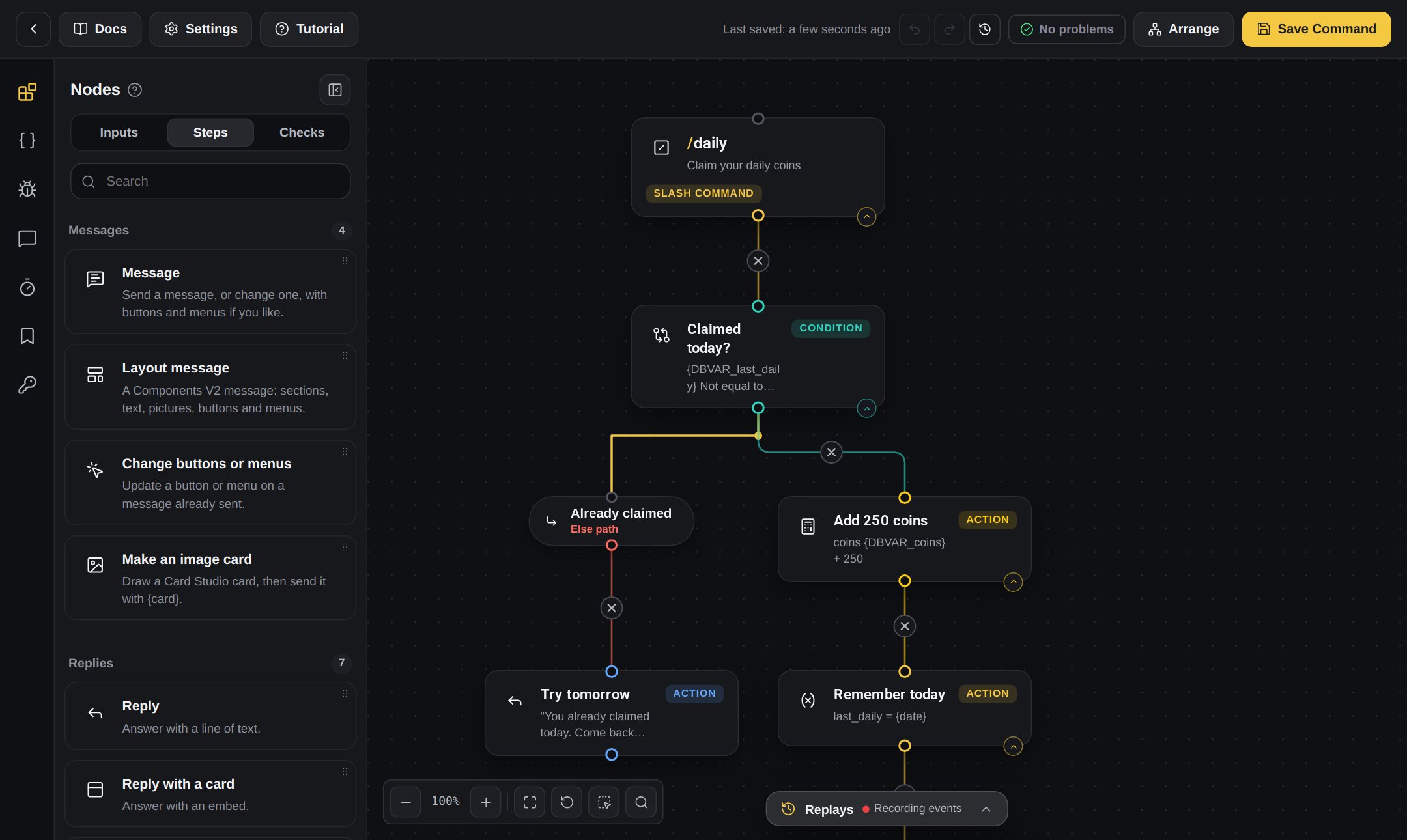
The builder. Add the Make an image card block, then a message block after it.
Example: a welcome card
Welcome card
Your card has a text layer that says When Sam joins, the bot posts “Everyone say hi!” with a card that says Welcome, Sam! and Member #120.
Welcome, {user_displayName}! and another that says Member #{server_members}.Your event has Make an image card (your welcome card), then a message that says:{DBVAR_...} values for levels or coins. See Welcome messages and cards.
Send me a test
In Card Studio, press Send me a test. Your bot sends you the real card in a private message, with your own Discord picture and name. It uses your linked Discord account, or asks for your Discord user ID.Free and Premium
Card Studio is for Discord bots only.