Add your bot to your Discord server with an invite link.
Your bot exists, and DogeBot knows about it. But it isn’t in your server yet. A bot can only work in servers it has joined. Let’s invite it.
Way 1: from DogeBot (easiest)
Way 2: from the Discord Developer Portal
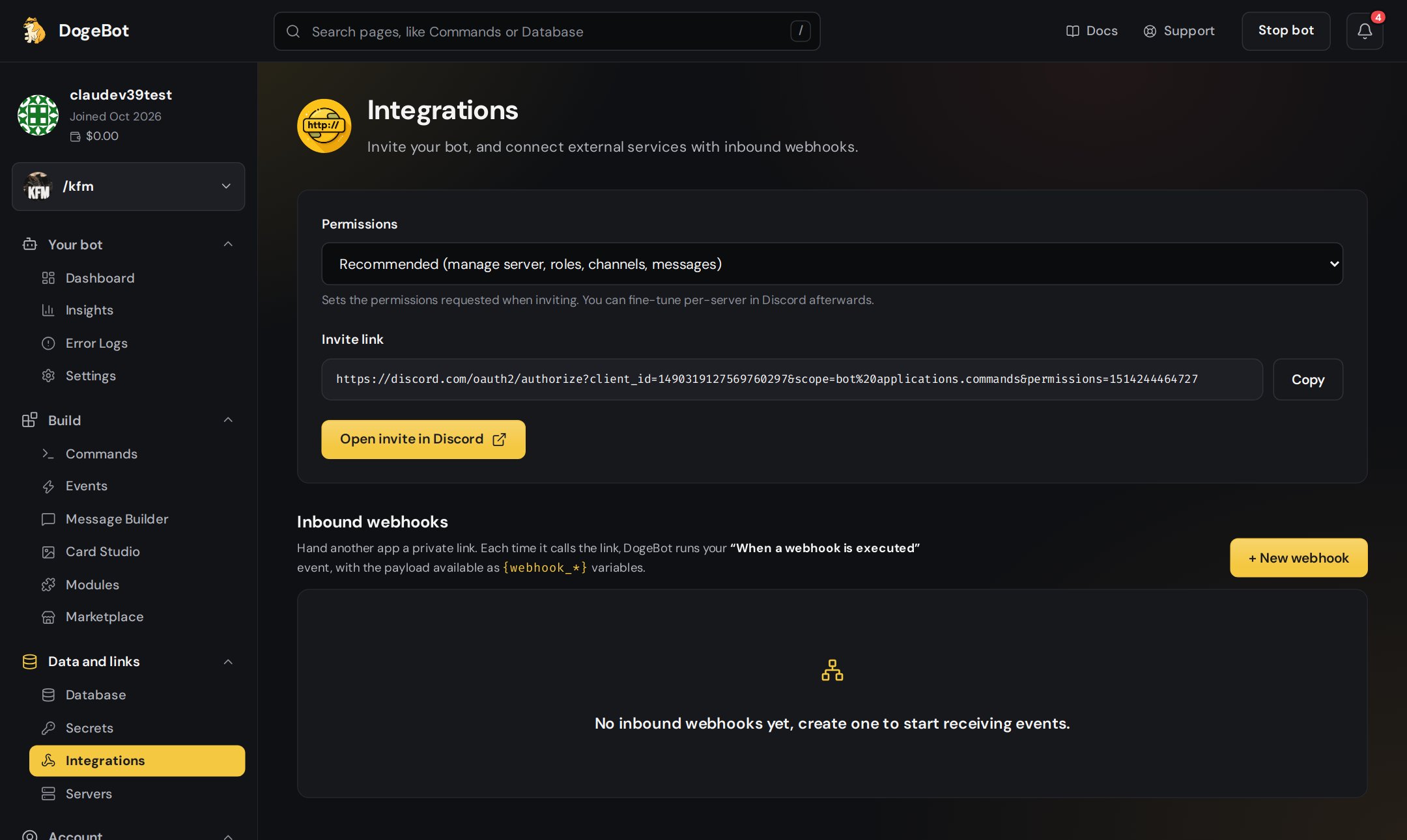
The invite link on the Integrations page
1
Open Integrations
In the menu on the left, under Data and links, click Integrations.
2
Pick the permissions
Permissions are what your bot is allowed to do. Pick one:
Choice
What the bot can do
Administrator (easiest)
Everything. Good for your own server.
Recommended
Manage the server, roles, channels and messages. Good for most bots.
Basic
Only read and send messages.
None
Nothing yet. You set it up yourself later.
Not sure? Pick Recommended.
3
Open the invite
Click Open invite in Discord. Discord asks which server to add the bot to. Pick your server and click Authorize.
1
Make an invite link
In the Discord Developer Portal, open your application and press OAuth2 on the left. Under OAuth2 URL Generator, tick bot and applications.commands.
2
Pick the permissions
A new box with permissions appears. The easiest choice is Administrator. If you want to be careful, only tick what your bot needs, like Send Messages, Manage Roles and Read Message History.
3
Use the link
Copy the link at the bottom, open it in your browser, pick your server and press Authorize.
You need the Manage Server permission in a server to add a bot to it. If you made the server, you have it.
Your bot now shows in your server’s member list. It’s grey (offline) for now. Next, we turn it on!
Want your bot to give roles? In Discord, go to Server Settings, then Roles, and drag the bot’s role above the roles it should give. A bot can never give a role that is higher than its own.
Free plan: a bot on the Free plan can be in up to 5 servers. Premium bots can be in as many as you like.
{"docsConfig":{"theme":"mint","$schema":"https://mintlify.com/docs.json","name":"DogeBot Docs","colors":{"primary":"#EAB308","light":"#FACC15","dark":"#CA8A04"},"logo":{"light":"https://mintcdn.com/doge-bot/7zABNdJHAtNhkZCI/images/doge-logo.png?fit=max\u0026auto=format\u0026n=7zABNdJHAtNhkZCI\u0026q=85\u0026s=c2eb1dd96517adc31165fe652c0d64d4","dark":"https://mintcdn.com/doge-bot/7zABNdJHAtNhkZCI/images/doge-logo.png?fit=max\u0026auto=format\u0026n=7zABNdJHAtNhkZCI\u0026q=85\u0026s=c2eb1dd96517adc31165fe652c0d64d4","href":"/"},"favicon":"https://mintcdn.com/doge-bot/7zABNdJHAtNhkZCI/images/doge-logo.png?fit=max\u0026auto=format\u0026n=7zABNdJHAtNhkZCI\u0026q=85\u0026s=c2eb1dd96517adc31165fe652c0d64d4","appearance":{"default":"dark"},"background":{"decoration":"gradient","color":{"dark":"#1A1A1A"}},"navbar":{"links":[{"href":"https://dogebot.net/dashboard","label":"Login"},{"href":"https://dogebot.net/dashboard/premium","label":"Premium"}],"primary":{"type":"button","label":"Dashboard","href":"https://dogebot.net/dashboard"}},"seo":{"metatags":{"canonical":"https://docs.dogebot.net"}},"fonts":{"family":"Poppins"},"icons":{"library":"lucide"},"contextual":{"options":["copy","view","chatgpt","claude","perplexity","mcp","cursor","vscode"],"display":"header"},"styling":{"latex":false},"navigation":{"pages":[]}},"deployment":{"deploymentMetadataValue":{"subdomain":"doge-bot","hasAudioNarration":false,"actualSubdomain":"doge-bot","customDomains":["docs.dogebot.net"],"gitSource":{"type":"github","owner":"mintlify-community","repo":"docs-doge-bot-b91ba433","deployBranch":"main","contentDirectory":"","isPrivate":true,"mountPath":"","label":""},"chroma":{"latestBuiltDeploymentHistoryId":"6ad47bf31fe2e6666c8faa4e","collectionId":"f5d88255-aa7b-446c-8f1c-66d1090ca70c","liveDeploymentHistoryId":"6ad47bf31fe2e6666c8faa4e","schemaVersion":"v3"},"entitlements":{"AI_CHAT":{"status":"ENABLED"},"WEB_MCP":{"status":"ENABLED"},"NARRATION":{"status":"ENABLED"}},"buildId":"6ad84e45858f4af642a3736a","clientVersion":"0.0.3908","searchFilterCounts":[{"language":"default","tag":"Building with blocks","count":15},{"language":"default","tag":"The builders","count":14},{"language":"default","tag":"OLD Variables","count":11},{"language":"default","tag":"Event triggers","count":10},{"language":"default","tag":"Build a system","count":9},{"language":"default","tag":"OLD Getting started","count":8},{"language":"default","tag":"Getting started","count":8},{"language":"default","tag":"Variables","count":8},{"language":"default","tag":"WhatsApp bots","count":8},{"language":"default","tag":"Dashboard pages","count":7}]},"assistantConfig":{"enableAskAiButton":false,"enableStarterQuestions":false,"enableContextualStarterQuestions":false,"enableAskAiSearchBar":true},"hasChatPermissions":true,"hasWebMcpPermissions":true,"toggles":[{"name":"kill-isr","enabled":true,"variant":{"name":"disabled","enabled":false,"feature_enabled":true},"impressionData":false},{"name":"agent-mintlify-slack","enabled":true,"variant":{"name":"disabled","enabled":false,"feature_enabled":true},"impressionData":false},{"name":"editor-v7-file-tree","enabled":true,"variant":{"name":"disabled","enabled":false,"feature_enabled":true},"impressionData":false},{"name":"agent-integrations-settings","enabled":true,"variant":{"name":"disabled","enabled":false,"feature_enabled":true},"impressionData":false},{"name":"automations-pr-grouping","enabled":true,"variant":{"name":"disabled","enabled":false,"feature_enabled":true},"impressionData":false},{"name":"custom-prefix","enabled":true,"variant":{"name":"disabled","enabled":false,"feature_enabled":true},"impressionData":false},{"name":"analytics-v7","enabled":true,"variant":{"name":"disabled","enabled":false,"feature_enabled":true},"impressionData":false},{"name":"user-flows-analytics","enabled":true,"variant":{"name":"disabled","enabled":false,"feature_enabled":true},"impressionData":false},{"name":"no-publish-flow","enabled":true,"variant":{"name":"disabled","enabled":false,"feature_enabled":true},"impressionData":false},{"name":"workos-onboarding","enabled":true,"variant":{"name":"disabled","enabled":false,"feature_enabled":true},"impressionData":false},{"name":"llms-txt-v2","enabled":true,"variant":{"name":"disabled","enabled":false,"feature_enabled":true},"impressionData":false},{"name":"pause-universal-search-reconcile","enabled":true,"variant":{"name":"disabled","enabled":false,"feature_enabled":true},"impressionData":false},{"name":"snapshot-serving-live","enabled":true,"variant":{"name":"disabled","enabled":false,"feature_enabled":true},"impressionData":false},{"name":"stripTemperatureMiddleware","enabled":true,"variant":{"name":"disabled","enabled":false,"feature_enabled":true},"impressionData":false},{"name":"per-site-search-delta","enabled":true,"variant":{"name":"disabled","enabled":false,"feature_enabled":true},"impressionData":false},{"name":"support-platform-pylon-zendesk","enabled":true,"variant":{"name":"disabled","enabled":false,"feature_enabled":true},"impressionData":false},{"name":"editor-branches-v2-autocommit","enabled":true,"variant":{"name":"disabled","enabled":false,"feature_enabled":true},"impressionData":false},{"name":"editor-branches-v2","enabled":true,"variant":{"name":"disabled","enabled":false,"feature_enabled":true},"impressionData":false},{"name":"snapshot-serving","enabled":true,"variant":{"name":"disabled","enabled":false,"feature_enabled":true},"impressionData":false},{"name":"instant-rollback","enabled":true,"variant":{"name":"disabled","enabled":false,"feature_enabled":true},"impressionData":false},{"name":"granular-notifications-server","enabled":true,"variant":{"name":"disabled","enabled":false,"feature_enabled":true},"impressionData":false},{"name":"granular-notifications","enabled":true,"variant":{"name":"disabled","enabled":false,"feature_enabled":true},"impressionData":false},{"name":"editor-private-page-search","enabled":true,"variant":{"name":"disabled","enabled":false,"feature_enabled":true},"impressionData":false},{"name":"automations-fable","enabled":true,"variant":{"name":"disabled","enabled":false,"feature_enabled":true},"impressionData":false},{"name":"fixed-ai-action-pricing","enabled":true,"variant":{"name":"disabled","enabled":false,"feature_enabled":true},"impressionData":false},{"name":"automation-resolve-merge-conflict","enabled":true,"variant":{"name":"disabled","enabled":false,"feature_enabled":true},"impressionData":false},{"name":"scoped-publishing","enabled":true,"variant":{"name":"disabled","enabled":false,"feature_enabled":true},"impressionData":false},{"name":"mintql","enabled":true,"variant":{"name":"disabled","enabled":false,"feature_enabled":true},"impressionData":false},{"name":"page-level-analytics","enabled":true,"variant":{"name":"disabled","enabled":false,"feature_enabled":true},"impressionData":false},{"name":"teamspace","enabled":true,"variant":{"name":"disabled","enabled":false,"feature_enabled":true},"impressionData":false},{"name":"editor-version-history-v2","enabled":true,"variant":{"name":"disabled","enabled":false,"feature_enabled":true},"impressionData":false},{"name":"vite-origin","enabled":true,"variant":{"name":"disabled","enabled":false,"feature_enabled":true},"impressionData":false},{"name":"editor-nav-generations","enabled":true,"variant":{"name":"disabled","enabled":false,"feature_enabled":true},"impressionData":false},{"name":"billing-page-v2","enabled":true,"variant":{"name":"disabled","enabled":false,"feature_enabled":true},"impressionData":false},{"name":"workspace-projects","enabled":true,"variant":{"name":"disabled","enabled":false,"feature_enabled":true},"impressionData":false},{"name":"assistant-v5","enabled":true,"variant":{"name":"disabled","enabled":false,"feature_enabled":true},"impressionData":false},{"name":"byok-sep-25","enabled":true,"variant":{"name":"disabled","enabled":false,"feature_enabled":true},"impressionData":false},{"name":"fork-pr-previews","enabled":true,"variant":{"name":"disabled","enabled":false,"feature_enabled":true},"impressionData":false},{"name":"revalidation-jwt","enabled":true,"variant":{"name":"disabled","enabled":false,"feature_enabled":true},"impressionData":false},{"name":"editor-agent-model-picker","enabled":true,"variant":{"name":"disabled","enabled":false,"feature_enabled":true},"impressionData":false},{"name":"client-snapshot-docs-config","enabled":true,"variant":{"name":"disabled","enabled":false,"feature_enabled":true},"impressionData":false},{"name":"hobby-abuse-scan","enabled":true,"variant":{"name":"disabled","enabled":false,"feature_enabled":true},"impressionData":false},{"name":"dashboard-inbox","enabled":true,"variant":{"name":"disabled","enabled":false,"feature_enabled":true},"impressionData":false}],"isAtlas":false,"googleFontsInlined":true},"customCss":[{"filePath":"style.css","content":"#navbar a:has(img.nav-logo){display:flex;align-items:center;gap:.625rem}#navbar a:has(img.nav-logo)::after{content:\"DogeBot Docs\";font-weight:700;font-size:1.5rem;line-height:1;white-space:nowrap;color:#111827}html.dark #navbar a:has(img.nav-logo)::after{color:#fff}"}],"page":{"pagePath":"getting-started/invite-your-bot-to-your-server","slug":"/getting-started/invite-your-bot-to-your-server","pageMetadata":{"title":"Invite your bot to your server","description":"Add your bot to your Discord server with an invite link.","icon":"user-round-plus","href":"/getting-started/invite-your-bot-to-your-server"},"description":{"compiledSource":"\"use strict\";\nconst {jsx: _jsx} = arguments[0];\nconst {useMDXComponents: _provideComponents} = arguments[0];\nfunction _createMdxContent(props) {\n const _components = {\n p: \"p\",\n ..._provideComponents(),\n ...props.components\n };\n return _jsx(_components.p, {\n children: \"Add your bot to your Discord server with an invite link.\"\n });\n}\nfunction MDXContent(props = {}) {\n const {wrapper: MDXLayout} = {\n ..._provideComponents(),\n ...props.components\n };\n return MDXLayout ? _jsx(MDXLayout, {\n ...props,\n children: _jsx(_createMdxContent, {\n ...props\n })\n }) : _createMdxContent(props);\n}\nreturn {\n default: MDXContent\n};\n","frontmatter":{},"scope":{}},"pageType":"default","mdx":{"mdxSource":{"compiledSource":"\"use strict\";const{Fragment:_Fragment,jsx:_jsx,jsxs:_jsxs}=arguments[0];const{useMDXComponents:_provideComponents}=arguments[0];function _createMdxContent(props){const _components={a:`a`,p:`p`,strong:`strong`,tbody:`tbody`,td:`td`,th:`th`,thead:`thead`,tr:`tr`,..._provideComponents(),...props.components},{Check,Frame,Heading,Info,OptimizedImage,Step,Steps,Tab,Table,Tabs,Tip,Warning}=_components;if(!Check)_missingMdxReference(`Check`,true);if(!Frame)_missingMdxReference(`Frame`,true);if(!Heading)_missingMdxReference(`Heading`,true);if(!Info)_missingMdxReference(`Info`,true);if(!OptimizedImage)_missingMdxReference(`OptimizedImage`,true);if(!Step)_missingMdxReference(`Step`,true);if(!Steps)_missingMdxReference(`Steps`,true);if(!Tab)_missingMdxReference(`Tab`,true);if(!Table)_missingMdxReference(`Table`,true);if(!Tabs)_missingMdxReference(`Tabs`,true);if(!Tip)_missingMdxReference(`Tip`,true);if(!Warning)_missingMdxReference(`Warning`,true);return _jsxs(_Fragment,{children:[_jsxs(_components.p,{children:[`Your bot exists, and DogeBot knows about it. But it isn’t `,_jsx(_components.strong,{children:`in`}),` your server yet. A bot can only work in servers it has joined. Let’s invite it.`]}),`\n`,_jsxs(Tabs,{children:[_jsxs(Tab,{title:`Way 1: from DogeBot (easiest)`,id:`way-1%3A-from-dogebot-easiest`,children:[_jsx(Frame,{caption:`The invite link on the Integrations page`,children:_jsx(OptimizedImage,{src:`https://mintcdn.com/doge-bot/0C6-zgXTpDx1QOCe/images/guide/integrations.png?fit=max\u0026auto=format\u0026n=0C6-zgXTpDx1QOCe\u0026q=85\u0026s=026c094121d3e7f591cbf1ec107a0954`,alt:`The Integrations page with the invite link`,\"data-og-width\":`2160`,width:`2160`,\"data-og-height\":`1290`,height:`1290`,\"data-path\":`images/guide/integrations.png`,\"data-optimize\":`true`,\"data-opv\":`3`,srcset:`https://mintcdn.com/doge-bot/0C6-zgXTpDx1QOCe/images/guide/integrations.png?w=280\u0026fit=max\u0026auto=format\u0026n=0C6-zgXTpDx1QOCe\u0026q=85\u0026s=ecfb6f7fc230b1918eada5ffd86a162c 280w, https://mintcdn.com/doge-bot/0C6-zgXTpDx1QOCe/images/guide/integrations.png?w=560\u0026fit=max\u0026auto=format\u0026n=0C6-zgXTpDx1QOCe\u0026q=85\u0026s=6d27d6424ed54156dad269b400f7cc72 560w, https://mintcdn.com/doge-bot/0C6-zgXTpDx1QOCe/images/guide/integrations.png?w=840\u0026fit=max\u0026auto=format\u0026n=0C6-zgXTpDx1QOCe\u0026q=85\u0026s=7cf51f5ae723c83154d0bf5d3840c1bd 840w, https://mintcdn.com/doge-bot/0C6-zgXTpDx1QOCe/images/guide/integrations.png?w=1100\u0026fit=max\u0026auto=format\u0026n=0C6-zgXTpDx1QOCe\u0026q=85\u0026s=fbaa511b6f1f3871f97ea5669b82b76b 1100w, https://mintcdn.com/doge-bot/0C6-zgXTpDx1QOCe/images/guide/integrations.png?w=1650\u0026fit=max\u0026auto=format\u0026n=0C6-zgXTpDx1QOCe\u0026q=85\u0026s=d93ad459b777a99f6ca842201164034d 1650w, https://mintcdn.com/doge-bot/0C6-zgXTpDx1QOCe/images/guide/integrations.png?w=2500\u0026fit=max\u0026auto=format\u0026n=0C6-zgXTpDx1QOCe\u0026q=85\u0026s=5de1f266627cfeb0c371e7cedbad6c6e 2500w`})}),_jsxs(Steps,{children:[_jsx(Step,{title:`Open Integrations`,children:_jsxs(_components.p,{children:[`In the menu on the left, under `,_jsx(_components.strong,{children:`Data and links`}),`, click `,_jsx(_components.strong,{children:`Integrations`}),`.`]})}),_jsxs(Step,{title:`Pick the permissions`,children:[_jsx(_components.p,{children:`Permissions are what your bot is allowed to do. Pick one:`}),_jsxs(Table,{children:[_jsx(_components.thead,{children:_jsxs(_components.tr,{children:[_jsx(_components.th,{children:`Choice`}),_jsx(_components.th,{children:`What the bot can do`})]})}),_jsxs(_components.tbody,{children:[_jsxs(_components.tr,{children:[_jsx(_components.td,{children:_jsx(_components.strong,{children:`Administrator (easiest)`})}),_jsx(_components.td,{children:`Everything. Good for your own server.`})]}),_jsxs(_components.tr,{children:[_jsx(_components.td,{children:_jsx(_components.strong,{children:`Recommended`})}),_jsx(_components.td,{children:`Manage the server, roles, channels and messages. Good for most bots.`})]}),_jsxs(_components.tr,{children:[_jsx(_components.td,{children:_jsx(_components.strong,{children:`Basic`})}),_jsx(_components.td,{children:`Only read and send messages.`})]}),_jsxs(_components.tr,{children:[_jsx(_components.td,{children:_jsx(_components.strong,{children:`None`})}),_jsx(_components.td,{children:`Nothing yet. You set it up yourself later.`})]})]})]}),_jsxs(_components.p,{children:[`Not sure? Pick `,_jsx(_components.strong,{children:`Recommended`}),`.`]})]}),_jsx(Step,{title:`Open the invite`,children:_jsxs(_components.p,{children:[`Click `,_jsx(_components.strong,{children:`Open invite in Discord`}),`. Discord asks which server to add the bot to. Pick your server and click `,_jsx(_components.strong,{children:`Authorize`}),`.`]})})]})]}),_jsx(Tab,{title:`Way 2: from the Discord Developer Portal`,id:`way-2%3A-from-the-discord-developer-portal`,children:_jsxs(Steps,{children:[_jsx(Step,{title:`Make an invite link`,children:_jsxs(_components.p,{children:[`In the `,_jsx(_components.a,{href:`https://discord.com/developers/applications`,children:`Discord Developer Portal`}),`, open your application and press `,_jsx(_components.strong,{children:`OAuth2`}),` on the left. Under `,_jsx(_components.strong,{children:`OAuth2 URL Generator`}),`, tick `,_jsx(_components.strong,{children:`bot`}),` and `,_jsx(_components.strong,{children:`applications.commands`}),`.`]})}),_jsx(Step,{title:`Pick the permissions`,children:_jsxs(_components.p,{children:[`A new box with permissions appears. The easiest choice is `,_jsx(_components.strong,{children:`Administrator`}),`. If you want to be careful, only tick what your bot needs, like `,_jsx(_components.strong,{children:`Send Messages`}),`, `,_jsx(_components.strong,{children:`Manage Roles`}),` and `,_jsx(_components.strong,{children:`Read Message History`}),`.`]})}),_jsx(Step,{title:`Use the link`,children:_jsxs(_components.p,{children:[`Copy the link at the bottom, open it in your browser, pick your server and press `,_jsx(_components.strong,{children:`Authorize`}),`.`]})})]})})]}),`\n`,_jsx(Info,{children:_jsxs(_components.p,{children:[`You need the `,_jsx(_components.strong,{children:`Manage Server`}),` permission in a server to add a bot to it. If you made the server, you have it.`]})}),`\n`,_jsx(Heading,{level:`2`,id:`check-discord`,children:`Check Discord`}),`\n`,_jsx(_components.p,{children:`Your bot now shows in your server’s member list. It’s grey (offline) for now. Next, we turn it on!`}),`\n`,_jsx(Tip,{children:_jsxs(_components.p,{children:[`Want your bot to give roles? In Discord, go to `,_jsx(_components.strong,{children:`Server Settings`}),`, then `,_jsx(_components.strong,{children:`Roles`}),`, and drag the bot’s role `,_jsx(_components.strong,{children:`above`}),` the roles it should give. A bot can never give a role that is higher than its own.`]})}),`\n`,_jsx(Warning,{children:_jsxs(_components.p,{children:[_jsx(_components.strong,{children:`Free plan:`}),` a bot on the Free plan can be in up to `,_jsx(_components.strong,{children:`5 servers`}),`. Premium bots can be in as many as you like.`]})}),`\n`,_jsx(Check,{children:_jsxs(_components.p,{children:[`Next: `,_jsx(_components.a,{href:`/getting-started/turn-your-bot-on`,children:`turn your bot on`}),`.`]})})]})}function MDXContent(props={}){const{wrapper:MDXLayout}={..._provideComponents(),...props.components};return MDXLayout?_jsx(MDXLayout,{...props,children:_jsx(_createMdxContent,{...props})}):_createMdxContent(props)}return{default:MDXContent};function _missingMdxReference(id,component){throw new Error(`Expected `+(component?`component`:`object`)+\" `\"+id+\"` to be defined: you likely forgot to import, pass, or provide it.\")}","frontmatter":{},"scope":{"config":{},"pageMetadata":{"title":"Invite your bot to your server","description":"Add your bot to your Discord server with an invite link.","icon":"user-round-plus","href":"/getting-started/invite-your-bot-to-your-server"}}},"mdxSourceWithNoJs":null},"mdxExtracts":{"tableOfContents":[{"title":"Check Discord","slug":"check-discord","depth":2,"children":[]}],"codeExamples":{}},"jsLinks":[],"subdomain":"doge-bot","siteName":"DogeBot Docs","title":"Invite your bot to your server - DogeBot Docs","navMaps":{"firstHrefInVersion":{},"firstHrefInLanguage":{}},"lastModified":"2026-10-21T05:31:57.917Z","originalFileLocation":"getting-started/invite-your-bot-to-your-server.mdx"},"headHtml":"\u003cscript data-mint-head>(function(){var d=document.documentElement,p=null;if(!p){try{p=localStorage.getItem(\"isDarkMode\")}catch(e){}if(p==='true')p='dark';else if(p==='false')p='light';if(p!=='light'\u0026\u0026p!=='dark'\u0026\u0026p!=='system')p=\"dark\"}var r=p==='system'?(matchMedia(\"(prefers-color-scheme: dark)\").matches?'dark':'light'):p;d.classList.remove(r==='dark'?'light':'dark');d.classList.add(r);d.setAttribute(\"data-theme-preference\",p)})();\u003c/script>\u003cmeta data-mint-head name=\"description\" content=\"Add your bot to your Discord server with an invite link.\">\u003cmeta data-mint-head name=\"application-name\" content=\"DogeBot Docs\">\u003cmeta data-mint-head name=\"generator\" content=\"Mintlify\">\u003clink data-mint-head rel=\"icon\" type=\"image/png\" sizes=\"192x192\" href=\"/mintlify-assets/_mintlify/favicons/doge-bot/G9Z_OhfkcW0ROwkd/_generated/favicon/android-chrome-192x192.png\" media=\"(prefers-color-scheme: light)\">\u003clink data-mint-head rel=\"apple-touch-icon\" type=\"image/png\" sizes=\"180x180\" href=\"/mintlify-assets/_mintlify/favicons/doge-bot/G9Z_OhfkcW0ROwkd/_generated/favicon/apple-touch-icon.png\">\u003clink data-mint-head rel=\"icon\" type=\"image/png\" sizes=\"16x16\" href=\"/mintlify-assets/_mintlify/favicons/doge-bot/G9Z_OhfkcW0ROwkd/_generated/favicon/favicon-16x16.png\" media=\"(prefers-color-scheme: light)\">\u003clink data-mint-head rel=\"icon\" type=\"image/png\" sizes=\"32x32\" href=\"/mintlify-assets/_mintlify/favicons/doge-bot/G9Z_OhfkcW0ROwkd/_generated/favicon/favicon-32x32.png\" media=\"(prefers-color-scheme: light)\">\u003clink data-mint-head rel=\"shortcut icon\" type=\"image/x-icon\" href=\"/mintlify-assets/_mintlify/favicons/doge-bot/G9Z_OhfkcW0ROwkd/_generated/favicon/favicon.ico\" media=\"(prefers-color-scheme: light)\">\u003clink data-mint-head rel=\"icon\" type=\"image/png\" sizes=\"192x192\" href=\"/mintlify-assets/_mintlify/favicons/doge-bot/G9Z_OhfkcW0ROwkd/_generated/favicon-dark/android-chrome-192x192.png\" media=\"(prefers-color-scheme: dark)\">\u003clink data-mint-head rel=\"icon\" type=\"image/png\" sizes=\"16x16\" href=\"/mintlify-assets/_mintlify/favicons/doge-bot/G9Z_OhfkcW0ROwkd/_generated/favicon-dark/favicon-16x16.png\" media=\"(prefers-color-scheme: dark)\">\u003clink data-mint-head rel=\"icon\" type=\"image/png\" sizes=\"32x32\" href=\"/mintlify-assets/_mintlify/favicons/doge-bot/G9Z_OhfkcW0ROwkd/_generated/favicon-dark/favicon-32x32.png\" media=\"(prefers-color-scheme: dark)\">\u003clink data-mint-head rel=\"shortcut icon\" type=\"image/x-icon\" href=\"/mintlify-assets/_mintlify/favicons/doge-bot/G9Z_OhfkcW0ROwkd/_generated/favicon-dark/favicon.ico\" media=\"(prefers-color-scheme: dark)\">\u003cmeta data-mint-head property=\"og:title\" content=\"Invite your bot to your server - DogeBot Docs\">\u003cmeta data-mint-head property=\"og:description\" content=\"Add your bot to your Discord server with an invite link.\">\u003cmeta data-mint-head property=\"og:site_name\" content=\"DogeBot Docs\">\u003cmeta data-mint-head property=\"og:url\" content=\"https://docs.dogebot.net/getting-started/invite-your-bot-to-your-server\">\u003cmeta data-mint-head property=\"og:type\" content=\"website\">\u003cmeta data-mint-head name=\"twitter:card\" content=\"summary_large_image\">\u003cmeta data-mint-head name=\"twitter:title\" content=\"Invite your bot to your server - DogeBot Docs\">\u003cmeta data-mint-head name=\"twitter:description\" content=\"Add your bot to your Discord server with an invite link.\">\u003cmeta data-mint-head name=\"msapplication-config\" content=\"/mintlify-assets/_mintlify/favicons/doge-bot/G9Z_OhfkcW0ROwkd/_generated/favicon/browserconfig.xml\">\u003cmeta data-mint-head name=\"apple-mobile-web-app-title\" content=\"DogeBot Docs\">\u003cmeta data-mint-head name=\"msapplication-TileColor\" content=\"#EAB308\">\u003clink data-mint-head rel=\"canonical\" href=\"https://docs.dogebot.net/getting-started/invite-your-bot-to-your-server\">\u003clink data-mint-head rel=\"alternate\" type=\"application/xml\" href=\"/sitemap.xml\">\u003clink data-mint-head rel=\"alternate\" type=\"text/markdown\" href=\"/getting-started/invite-your-bot-to-your-server.md\">\u003cscript data-mint-head type=\"application/ld+json\">{\"@context\":\"https://schema.org\",\"@graph\":[{\"@type\":\"Organization\",\"@id\":\"https://docs.dogebot.net/#organization\",\"name\":\"DogeBot Docs\",\"url\":\"https://docs.dogebot.net\",\"logo\":{\"@type\":\"ImageObject\",\"url\":\"https://mintcdn.com/doge-bot/7zABNdJHAtNhkZCI/images/doge-logo.png?fit=max\u0026auto=format\u0026n=7zABNdJHAtNhkZCI\u0026q=85\u0026s=c2eb1dd96517adc31165fe652c0d64d4\"}},{\"@type\":\"WebSite\",\"@id\":\"https://docs.dogebot.net#website\",\"name\":\"DogeBot Docs\",\"url\":\"https://docs.dogebot.net\",\"publisher\":{\"@id\":\"https://docs.dogebot.net/#organization\"}},{\"@type\":\"WebPage\",\"@id\":\"https://docs.dogebot.net/getting-started/invite-your-bot-to-your-server#webpage\",\"url\":\"https://docs.dogebot.net/getting-started/invite-your-bot-to-your-server\",\"name\":\"Invite your bot to your server\",\"description\":\"Add your bot to your Discord server with an invite link.\",\"dateModified\":\"2026-10-21T05:31:57.917Z\",\"isPartOf\":{\"@id\":\"https://docs.dogebot.net#website\"},\"breadcrumb\":{\"@id\":\"https://docs.dogebot.net/getting-started/invite-your-bot-to-your-server#breadcrumb\"}},{\"@type\":\"BreadcrumbList\",\"@id\":\"https://docs.dogebot.net/getting-started/invite-your-bot-to-your-server#breadcrumb\",\"itemListElement\":[{\"@type\":\"ListItem\",\"position\":1,\"name\":\"Getting started\",\"item\":\"https://docs.dogebot.net/getting-started/what-is-dogebot\"},{\"@type\":\"ListItem\",\"position\":2,\"name\":\"Invite your bot to your server\",\"item\":\"https://docs.dogebot.net/getting-started/invite-your-bot-to-your-server\"}]},{\"@type\":[\"Article\",\"TechArticle\"],\"@id\":\"https://docs.dogebot.net/getting-started/invite-your-bot-to-your-server#article\",\"headline\":\"Invite your bot to your server\",\"name\":\"Invite your bot to your server\",\"description\":\"Add your bot to your Discord server with an invite link.\",\"url\":\"https://docs.dogebot.net/getting-started/invite-your-bot-to-your-server\",\"mainEntityOfPage\":{\"@id\":\"https://docs.dogebot.net/getting-started/invite-your-bot-to-your-server#webpage\"},\"dateModified\":\"2026-10-21T05:31:57.917Z\",\"publisher\":{\"@id\":\"https://docs.dogebot.net/#organization\"},\"isPartOf\":{\"@id\":\"https://docs.dogebot.net#website\"}}]}\u003c/script>\u003cscript data-mint-head type=\"application/ld+json\">{\"@context\":\"https://schema.org\",\"@type\":\"WebSite\",\"name\":\"DogeBot Docs\",\"creator\":{\"@type\":\"Organization\",\"name\":\"Mintlify\",\"url\":\"https://mintlify.com\"}}\u003c/script>","siteName":"DogeBot Docs","nav":{"global":null,"groups":[{"group":"Getting started","pages":[{"title":"What is DogeBot?","icon":"circle-help","href":"/getting-started/what-is-dogebot"},{"title":"Words you'll see","icon":"book-open","href":"/getting-started/words-youll-see"},{"title":"Make your DogeBot account","icon":"user-plus","href":"/getting-started/make-your-dogebot-account"},{"title":"Make a Discord bot","icon":"bot","href":"/getting-started/make-a-discord-bot"},{"title":"Connect your bot to DogeBot","description":"Paste your token so DogeBot can run your bot.","icon":"plug","href":"/getting-started/connect-your-bot-to-dogebot"},{"title":"Invite your bot to your server","icon":"user-round-plus","href":"/getting-started/invite-your-bot-to-your-server"},{"title":"Turn your bot on","description":"Start your bot so it comes online.","icon":"power","href":"/getting-started/turn-your-bot-on"},{"title":"A tour of the dashboard","icon":"layout-dashboard","href":"/getting-started/a-tour-of-the-dashboard"}]},{"group":"Build real systems","pages":[{"title":"Build real systems","icon":"hammer","href":"/build-real-systems"},{"title":"Daily coins","icon":"coins","href":"/build-real-systems/daily-coins"}]},{"group":"Building with blocks","pages":[{"title":"Building with blocks","icon":"blocks","href":"/building-with-blocks"},{"title":"How blocks work","icon":"workflow","href":"/building-with-blocks/how-blocks-work"},{"title":"Your first command","icon":"terminal","href":"/building-with-blocks/your-first-command"},{"title":"Commands and inputs","icon":"square-slash","href":"/building-with-blocks/commands-and-inputs"},{"title":"Events","icon":"zap","href":"/building-with-blocks/events"},{"title":"Checks and paths","icon":"git-branch","href":"/building-with-blocks/checks-and-paths"},{"title":"Messages, buttons and menus","icon":"mouse-pointer-click","href":"/building-with-blocks/messages-buttons-and-menus"},{"title":"Pop-up forms","icon":"clipboard-list","href":"/building-with-blocks/pop-up-forms"},{"title":"Repeats and waiting","icon":"repeat","href":"/building-with-blocks/repeats-and-waiting"},{"title":"Web requests","icon":"globe","href":"/building-with-blocks/web-requests"},{"title":"Saving and fixing problems","icon":"wrench","href":"/building-with-blocks/saving-and-fixing-problems"},{"title":"Folders, history and sharing","icon":"folder","href":"/building-with-blocks/folders-history-and-sharing"},{"title":"Timed events","icon":"clock","href":"/building-with-blocks/timed-events"},{"title":"Tips and shortcuts","icon":"lightbulb","href":"/building-with-blocks/tips-and-shortcuts"},{"title":"Message Builder","icon":"message-square","href":"/message-builder"}]},{"group":"Block library","pages":[{"title":"Block library","icon":"blocks","href":"/block-library"},{"title":"Message blocks","icon":"message-square","href":"/block-library/message-blocks"},{"title":"Command input blocks","icon":"text-cursor-input","href":"/block-library/command-input-blocks"},{"title":"Repeat and wait blocks","icon":"repeat","href":"/block-library/repeat-and-wait-blocks"}]},{"group":"Event triggers","pages":[{"title":"Event triggers","icon":"zap","href":"/event-triggers"},{"title":"Message events","icon":"message-square","href":"/event-triggers/message-events"},{"title":"Member events","icon":"users","href":"/event-triggers/member-events"},{"title":"Reaction events","icon":"smile-plus","href":"/event-triggers/reaction-events"},{"title":"Voice events","icon":"mic","href":"/event-triggers/voice-events"},{"title":"Channel and thread events","icon":"hash","href":"/event-triggers/channel-and-thread-events"},{"title":"Role, boost and invite events","icon":"shield","href":"/event-triggers/role-boost-and-invite-events"},{"title":"Timed events list","icon":"clock","href":"/event-triggers/timed-events-list"},{"title":"Bot, alerts and other events","icon":"bot","href":"/event-triggers/bot-social-and-other-events"},{"title":"Server, scheduled, stage and sticker events","icon":"server","href":"/event-triggers/server-stage-sticker-and-poll-events"}]},{"group":"Variables","pages":[{"title":"What is a variable?","icon":"box","href":"/variables/what-variables-are"},{"title":"Make a variable","icon":"circle-plus","href":"/variables/make-your-own-variables"},{"title":"Use variables in blocks","icon":"calculator","href":"/variables/use-your-variables-in-blocks"},{"title":"Lists and objects","icon":"boxes","href":"/variables/lists-objects-and-members"},{"title":"The Database page","icon":"table","href":"/variables/variable-tools"},{"title":"Server Specific or Global","icon":"globe","href":"/variables/server-specific-or-global"},{"title":"Short-lived values","icon":"timer","href":"/variables/short-lived-values"},{"title":"Find and fix variable problems","icon":"search-check","href":"/variables/find-and-fix-variable-problems"}]},{"group":"Card Studio","pages":[{"title":"Make your first card","icon":"sparkles","href":"/card-studio/make-your-first-card"},{"title":"Layers","icon":"layers","href":"/card-studio/layers"},{"title":"Templates and your pictures","icon":"layout-template","href":"/card-studio/templates-and-your-pictures"},{"title":"Send cards from your bot","icon":"send","href":"/card-studio/send-cards-from-your-bot"}]},{"group":"WhatsApp bots","pages":[{"title":"WhatsApp bots","icon":"message-circle","href":"/whatsapp"},{"title":"Connect a WhatsApp number","icon":"smartphone","href":"/whatsapp/connect-a-whatsapp-number"},{"title":"Flows and triggers","icon":"git-branch","href":"/whatsapp/flows-and-triggers"},{"title":"WhatsApp blocks","icon":"blocks","href":"/whatsapp/whatsapp-blocks"},{"title":"The Inbox","icon":"inbox","href":"/whatsapp/the-inbox"},{"title":"Apps and services","icon":"plug-zap","href":"/whatsapp/apps-and-services"},{"title":"Ready-made flows","icon":"copy","href":"/whatsapp/ready-made-flows"},{"title":"WhatsApp variables","icon":"braces","href":"/whatsapp/whatsapp-variables"}]},{"group":"Connections","pages":[{"title":"Connections","icon":"plug","href":"/connections"},{"title":"Inbound webhooks","icon":"webhook","href":"/connections/inbound-webhooks"},{"title":"YouTube, Twitch and TikTok alerts","icon":"bell","href":"/connections/youtube-twitch-and-tiktok-alerts"},{"title":"Secrets","icon":"key-round","href":"/connections/secrets"}]},{"group":"Your bot","pages":[{"title":"Your bot","icon":"bot","href":"/your-bot"},{"title":"Bot settings","icon":"sliders-horizontal","href":"/your-bot/bot-settings"},{"title":"Servers","icon":"server","href":"/your-bot/servers"},{"title":"Insights","icon":"chart-line","href":"/your-bot/insights"},{"title":"Error Logs","icon":"bug","href":"/your-bot/error-logs"},{"title":"Collaborators","icon":"users","href":"/your-bot/collaborators"},{"title":"Marketplace","icon":"store","href":"/your-bot/marketplace"}]},{"group":"Account and plans","pages":[{"title":"Your account and security","icon":"shield-check","href":"/your-account-and-security"}]},{"group":"Help and fixes","pages":[]},{"group":"OLD Getting started","pages":[{"icon":"house","title":"Welcome to DogeBot","href":"/index"},{"icon":"rocket","title":"Getting started","href":"/getting-started"},{"title":"Make an account","icon":"user-plus","href":"/getting-started/make-an-account"},{"title":"Connect your Discord bot","icon":"plug","href":"/getting-started/connect-your-discord-bot"},{"title":"Connect a WhatsApp number","icon":"smartphone","href":"/getting-started/connect-a-whatsapp-number"},{"title":"Your dashboard","icon":"layout-dashboard","href":"/getting-started/your-dashboard"},{"title":"Your first command","icon":"terminal","href":"/getting-started/your-first-command"},{"title":"Words to know","icon":"book-open","href":"/words-to-know"}]},{"group":"The builders","pages":[{"title":"The builders","icon":"blocks","href":"/the-builders"},{"title":"How the builder works","icon":"workflow","href":"/the-builders/how-the-builder-works"},{"title":"Builder settings","icon":"settings","href":"/the-builders/builder-settings"},{"title":"Commands","icon":"square-slash","href":"/the-builders/commands"},{"title":"Inputs","icon":"text-cursor-input","href":"/the-builders/inputs"},{"title":"Events","icon":"zap","href":"/the-builders/events"},{"title":"Messages and the Message Builder","icon":"message-square","href":"/the-builders/messages-and-the-message-builder"},{"title":"Error Logs","icon":"bug","href":"/the-builders/error-logs"},{"title":"Replays","icon":"history","href":"/the-builders/replays"},{"title":"When something goes wrong","icon":"triangle-alert","href":"/the-builders/when-something-goes-wrong"},{"title":"Buttons and menus","icon":"mouse-pointer-click","href":"/the-builders/buttons-and-menus"},{"title":"Pop-up forms","icon":"clipboard-list","href":"/the-builders/pop-up-forms"},{"title":"Loops and waiting","icon":"repeat","href":"/the-builders/loops-and-waiting"},{"title":"Copy, share and history","icon":"copy","href":"/the-builders/copy-share-and-history"}]},{"group":"OLD Variables","pages":[{"title":"Variables","icon":"database","href":"/variables"},{"title":"The Database page","icon":"table","href":"/variables/the-database-page"},{"title":"Make your first variable","icon":"circle-plus","href":"/variables/make-your-first-variable"},{"title":"Types of variables","icon":"shapes","href":"/variables/types-of-variables"},{"title":"Server or Global","icon":"globe","href":"/variables/server-or-global"},{"title":"Show a variable in a message","icon":"braces","href":"/variables/show-a-variable-in-a-message"},{"title":"Change a variable with blocks","icon":"calculator","href":"/variables/change-a-variable-with-blocks"},{"title":"Objects and Collections","icon":"boxes","href":"/variables/objects-and-collections"},{"title":"Run-only values","icon":"timer","href":"/variables/run-only-values"},{"title":"Built-in variables","icon":"package","href":"/variables/built-in-variables"},{"title":"Check and fix your variables","icon":"search-check","href":"/variables/check-and-fix-your-variables"}]},{"group":"Build a system","pages":[{"title":"Build a system","icon":"hammer","href":"/build-a-system"},{"title":"Economy","icon":"coins","href":"/build-a-system/economy"},{"title":"Levels and XP","icon":"trending-up","href":"/build-a-system/levels-and-xp"},{"title":"Welcome and goodbye","icon":"hand","href":"/build-a-system/welcome-and-goodbye"},{"title":"Verification","icon":"shield-check","href":"/build-a-system/verification"},{"title":"Tickets","icon":"ticket","href":"/build-a-system/tickets"},{"title":"Button roles","icon":"toggle-right","href":"/build-a-system/button-roles"},{"title":"Warnings and moderation","icon":"gavel","href":"/build-a-system/warnings-and-moderation"},{"title":"Scheduled messages","icon":"calendar-clock","href":"/build-a-system/scheduled-messages"}]},{"group":"OLD Card Studio","pages":[{"icon":"image","title":"Card Studio","href":"/card-studio"},{"title":"The card editor","icon":"pen-tool","href":"/card-studio/the-card-editor"},{"title":"Looks","icon":"palette","href":"/card-studio/looks"},{"title":"Templates","icon":"layout-template","href":"/card-studio/templates"},{"icon":"type","title":"Fonts","href":"/card-studio/fonts"},{"title":"Send a card from your bot","icon":"send","href":"/card-studio/send-a-card-from-your-bot"}]},{"group":"Dashboard pages","pages":[{"title":"Dashboard pages","icon":"panels-top-left","href":"/dashboard-pages"},{"title":"Bot settings","icon":"sliders-horizontal","href":"/dashboard-pages/bot-settings"},{"title":"Secrets","icon":"key-round","href":"/dashboard-pages/secrets"},{"title":"Integrations and webhooks","icon":"webhook","href":"/dashboard-pages/integrations-and-webhooks"},{"title":"Servers","icon":"server","href":"/dashboard-pages/servers"},{"title":"Analytics","icon":"chart-line","href":"/dashboard-pages/analytics"},{"title":"Premium, codes and Link Discord","icon":"crown","href":"/dashboard-pages/premium-codes-and-link-discord"}]},{"group":"OLD WhatsApp bots","pages":[{"title":"WhatsApp bots","icon":"message-circle","href":"/whatsapp-bots"},{"title":"Your first flow","icon":"git-branch","href":"/whatsapp-bots/your-first-flow"},{"title":"The Inbox","icon":"inbox","href":"/whatsapp-bots/the-inbox"},{"title":"Apps and services","icon":"plug-zap","href":"/whatsapp-bots/apps-and-services"}]},{"group":"Modules and Marketplace","pages":[{"title":"Modules and Marketplace","icon":"puzzle","href":"/modules-and-marketplace"},{"title":"Using modules","icon":"toggle-left","href":"/modules-and-marketplace/using-modules"}]},{"group":"Your account","pages":[{"title":"Your account","icon":"circle-user","href":"/your-account"},{"title":"Collaborators","icon":"users","href":"/your-account/collaborators"},{"title":"Two-step sign-in","icon":"lock","href":"/your-account/two-step-sign-in"},{"title":"Password and sign-in","icon":"key","href":"/your-account/password-and-sign-in"},{"title":"Delete your account","icon":"trash-2","href":"/your-account/delete-your-account"}]},{"group":"Help","pages":[{"title":"Plans and limits","icon":"credit-card","href":"/plans-and-limits"},{"title":"Help and questions","icon":"circle-help","href":"/help-and-questions"},{"title":"What's new","icon":"sparkles","href":"/whats-new"}]}]},"title":"Invite your bot to your server - DogeBot Docs","buildId":"dpl_CUnGQP1HgFUzoxatVC37y4zP83Vx","deploymentId":"dpl_CUnGQP1HgFUzoxatVC37y4zP83Vx","dynamics":["07c022d89b","a74be98ba7"],"chunks":["Frame-BCFzRGe_.js","DynamicMarkdown-BUuAYxJE.js","zoom-image-lightbox-DQ5W4Q2v.js","PlusIcon-jZ8vgk6R.js","lightbox-handle-r17bVUz3.js"]}