
Example
Set your bot’s status every time it starts, or post when your favourite YouTuber uploads.
Bot events
When the bot starts or is restarted
When the bot starts or is restarted
When it runs: every time your bot turns on.Variables: none.Build idea: a great place for a Bot status block, so your bot always shows the right status.
When the bot joins a server
When the bot joins a server
When it runs: your bot is added to a server.
When the bot leaves a server
When the bot leaves a server
When it runs: your bot leaves or is removed from a server.Variables:
{event_guild_id} and {event_guild_name}.When a custom variable's value changes
When a custom variable's value changes
When it runs: one of your own variables changes.
Build idea: when someone reaches 1000 coins, give them a role.
When the bot is updated through the dashboard
When the bot is updated through the dashboard
When it runs: you save changes on the dashboard.Variables:
{event_update_type}, which says what changed.Social alerts
First choose who to watch in Integrations. See YouTube, Twitch and TikTok alerts for every variable these give you.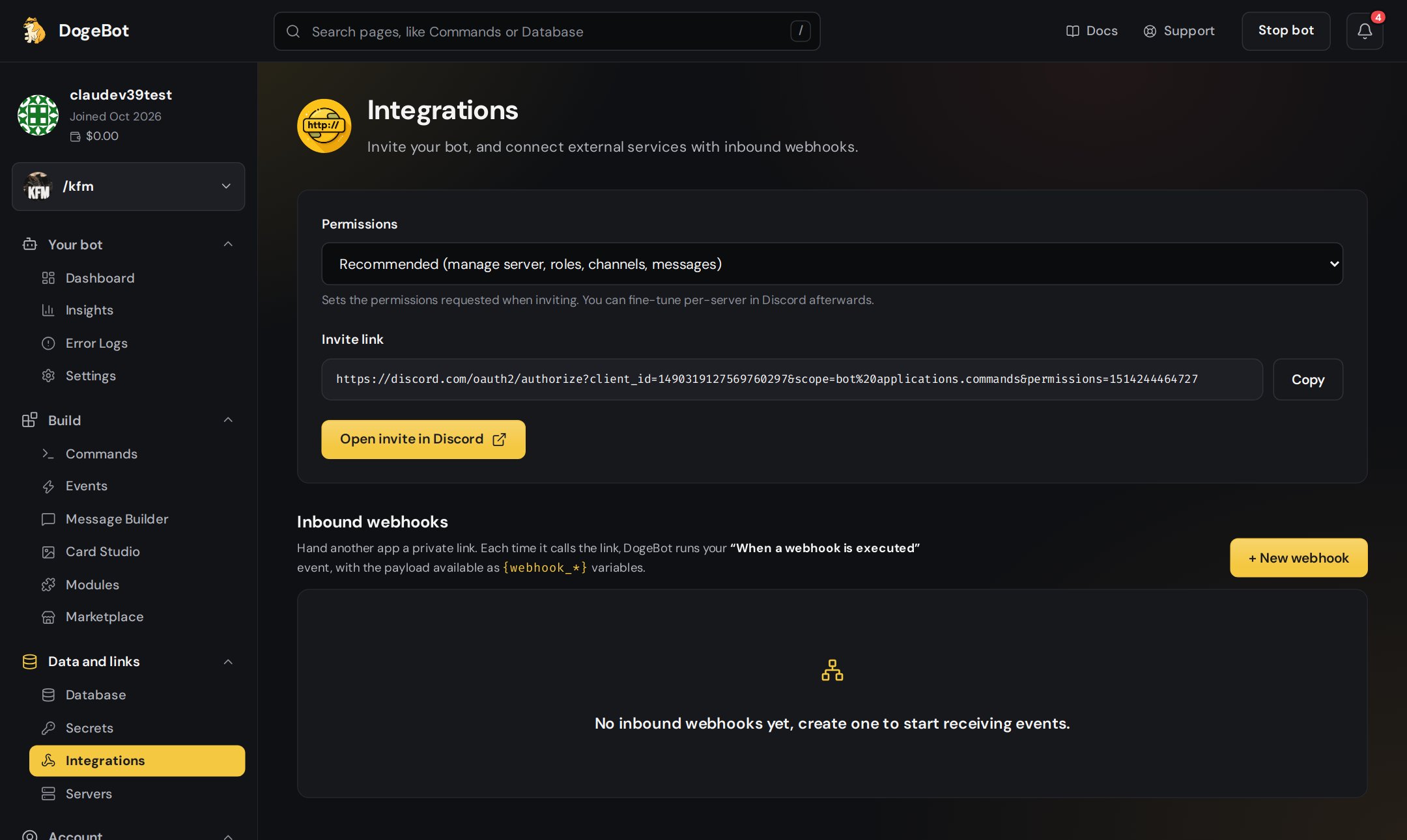
The Integrations page, where you pick who to watch.
When a YouTube channel uploads a video
When a YouTube channel uploads a video
When it runs: a new video or live stream appears.Build idea: post the new video in your announcements channel.
When a Twitch channel goes live
When a Twitch channel goes live
When it runs: the streamer starts streaming.Build idea: ping your stream fans role.
When a TikTok account posts
When a TikTok account posts
When it runs: a new TikTok is posted.
Webhooks
When a webhook is executed
When a webhook is executed
When it runs: another website sends data to your bot’s webhook link.Variables: everything it sends arrives as
{webhook_...} variables. See Inbound webhooks.Build idea: post a message in Discord when someone buys from your online shop.Discord AutoMod
These work with Discord’s own AutoMod (Server Settings, then AutoMod).Auto Moderation Action Executed
Auto Moderation Action Executed
When it runs: AutoMod blocks a message or acts on someone.
Build idea: post what was blocked in your staff log channel.
Auto Moderation Rule Created, Updated or Deleted
Auto Moderation Rule Created, Updated or Deleted
When it runs: an AutoMod rule is made, changed or removed.
Audit log
Audit Log Entry Created
Audit Log Entry Created
When it runs: anything is written to the server’s audit log (bans, role changes, channel changes and more).
Build idea: one log channel that shows everything your staff do.
Application events
Application Command Permissions Updated
Application Command Permissions Updated
When it runs: someone changes who can use your bot’s commands in Server Settings.Variables:
{event_application_id}, {event_command_id} and the server variables.Example
Under When a custom variable’s value changes, a message block in your log channel says:{event_variable_name} Equal to coins.