
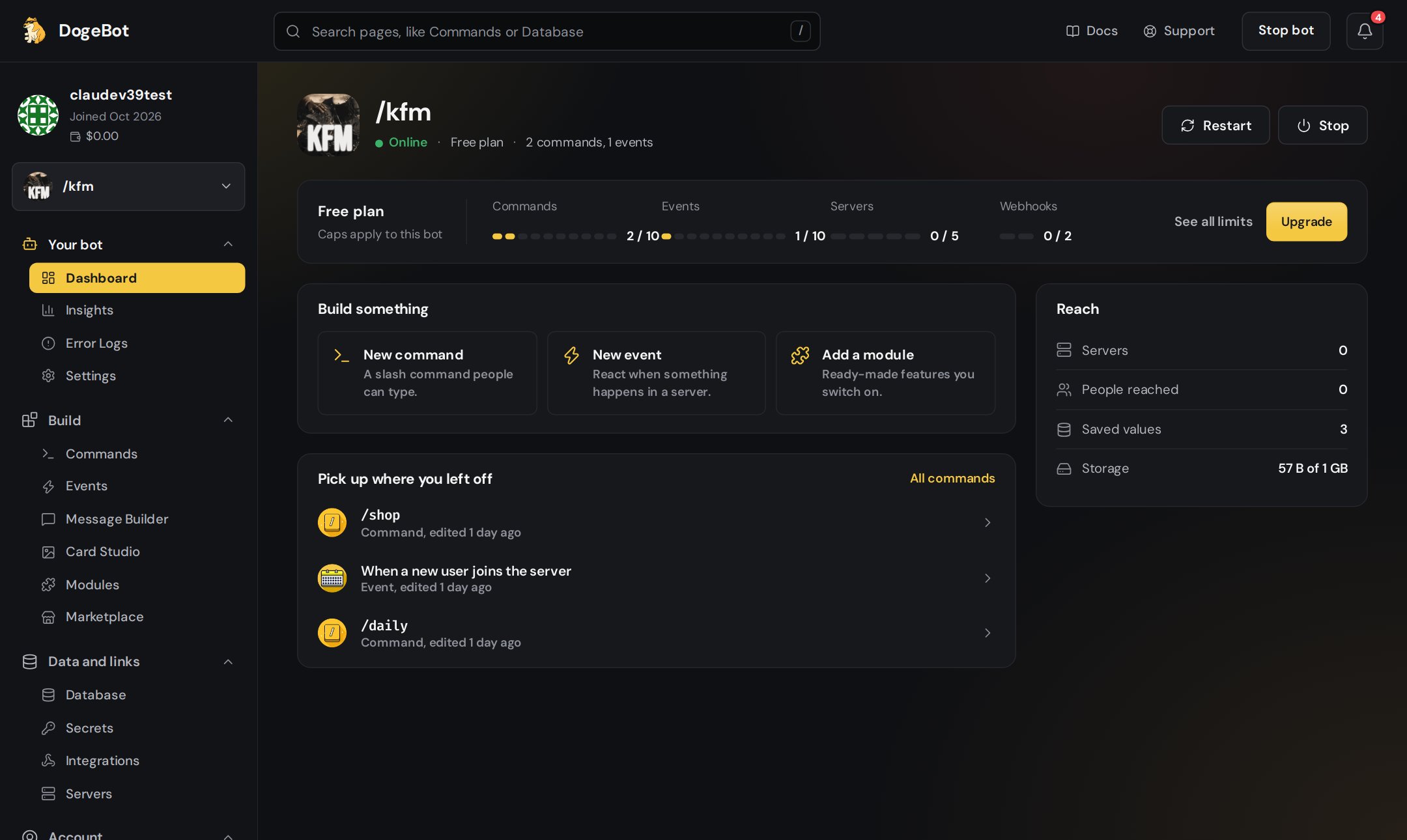
The DogeBot dashboard
The top bar
The sidebar
Your profile
At the very top you see your profile: your picture, your name, when you joined and your wallet.The bot picker
Under your profile is the bot picker. Everything on the dashboard is about the bot or number picked here.- Click it to switch between your Discord bots and WhatsApp numbers.
- + Discord bot adds a new Discord bot.
- + WhatsApp number adds a new WhatsApp number.
- Bots your friends share with you are under Shared with you, with your role next to them.
The page folders
Under the bot picker, the pages sit in folders. Click a folder name to fold it open or closed. The page you are on is filled in gold.- Your bot
- Build
- Data and links
- Account
When a WhatsApp number is picked, the sidebar changes. Discord-only pages are hidden, Events becomes Flows, and you get the Inbox and Apps and services. See WhatsApp bots.
The Dashboard page
The first page you see is all about your bot:- Your bot: its picture, name, whether it is online, and the power buttons to start and stop it.
- The plan strip under its name: on Free it shows how many commands, events, servers and webhooks you use out of your limit. Press See all limits for the full list, or Upgrade for Premium. On Premium it shows a gold Unlimited pill.
- Build something: shortcuts to make a new command or event.
- Recent work: the things you edited last. Click one to open it.
Light or dark
Pick Light, Dark or System (follows your device) in your settings. Everyone starts on Dark. The builders always stay dark, so your blocks are easy to see.On a phone, the most used pages sit in a bar at the bottom of the screen. Tap More to see the rest.
You know your way around! Next, build your first command.