
You find the blocks in the builder’s blocks tab, under Steps, in the Saved values group. Compare is in the Checks tab. You can also type a block’s name into the block search.
1. Show what’s inside
Type the tag anywhere you can type: a reply, an embed, a layout message, a button label, an image card, a channel name, and most block settings.The easy way: don’t type it, insert it
Typing brackets by hand can go wrong. One missing letter and it does not work. So use the buttons instead:- Next to text boxes in the builder there is a
{ }Variables button. Press it, find your variable and press it. It is put into the box for you. - In a Layout message, the Insert a variable button puts the variable exactly where your cursor is.
- In Card Studio, use the insert a value button next to each text.
- On the Database page, press the gold
{DBVAR_...}chip to copy it, then paste it.
Backup values
Sometimes a box is empty. Then your message could look broken, likeHi !. Give the variable a backup: write a straight line | after the name, then the backup text.
Backups work in Discord commands, Discord events and WhatsApp flows, and the chat preview in the builder shows them too.
How to target someone else
By default a User variable shows the person who used the command. To show someone else’s value, add the person in square brackets right after the name. With a member input calleduser:
Someone's coins
/balance @Alex{user_name[option_user]} has {DBVAR_coins[option_user]} coins.Bot: Alex has 90 coins.Someone's place
{DBVAR_coins.rank[option_user]}Bot: 4 (Alex is 4th).{user_icon[{option_user}]} or {user_name[123456789012345678]}. See How to target someone else.
2. Put something in it: Save a value
Use it when you want to put something new in the box. Whatever was inside is replaced.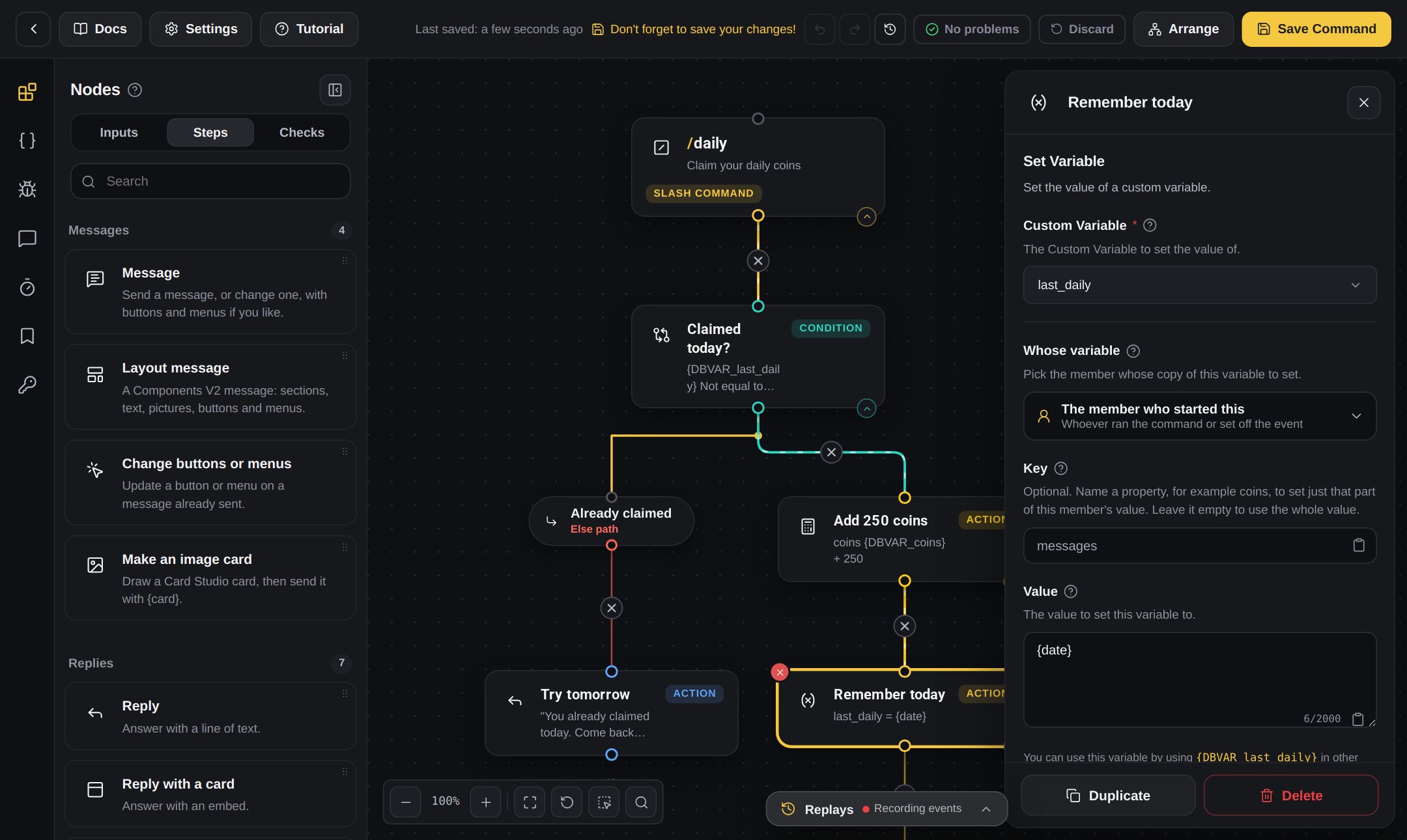
The Save a value block
1
Add the block
Drag Save a value onto the canvas and join it with a line to the block above.
2
Pick the variable
Click the block. In Custom Variable, pick the variable to change.
3
Whose variable? (User variables only)
Pick The member who started this (the person who used the command), a member input, or a user ID. So
/give @Alex can change Alex’s box.4
Type the value
In Value, type what to save. You can use other variables, like
{option_birthday} or {time_now_unix}.3. Add or take away: Do the maths
Use it for numbers: coins, XP, levels, counters.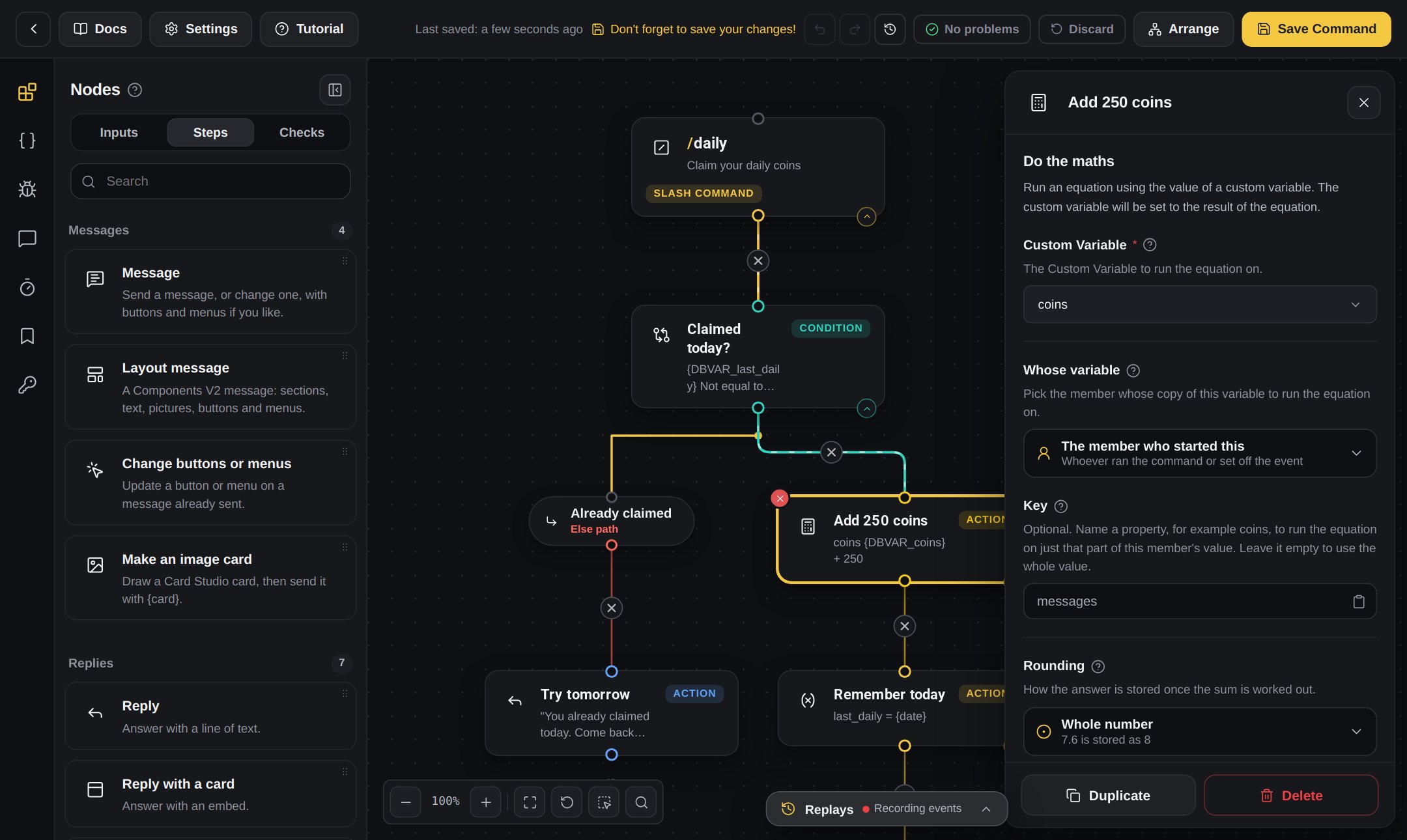
The Do the maths block
var means what’s in the box right now.
Rounding decides how the answer is kept: a Whole number (7.6 becomes 8), Keep some decimals, or the Exact answer. Use Whole number so coins stay whole.
If the box is empty, Do the maths treats it as 0. So
var + 50 on a new member gives them 50.The Key box (for Objects)
Save a value and Do the maths both have an optional Key box. It shows for Object variables and for every User variable.- Key empty: the block changes the whole value.
- Key filled, like
coins: the block only changes that one part, likeprofile.coins.
4. Check what’s inside: Compare
The Compare check (in the Checks tab) asks a question about two things.- Base Value:
{DBVAR_coins} - Comparison Type:
Less Than - Comparison Value:
100
5. Empty it: Clear a value
The Clear a value block empties a variable so it goes back to its starting value. For User variables, you can clear one person or All Users (to reset everyone, like a new season). The variable itself stays on the Database page.A value you change in a block is saved at once. Any block after it already sees the new value.
Readable endings
Put a dot and a word after the name to show the value in a nicer way:
The leaderboard endings only work on User variables.
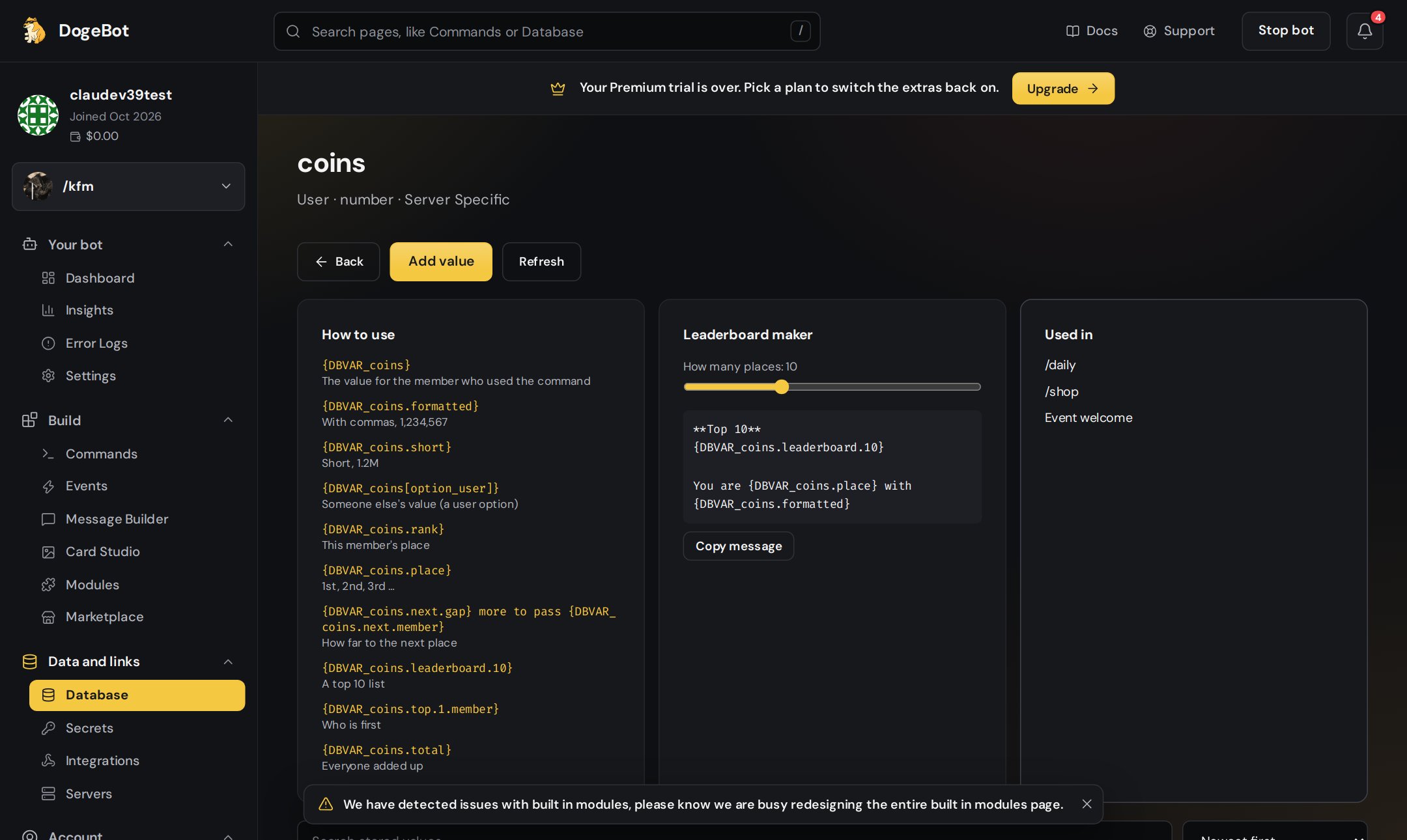
Stored values shows every readable ending
Full examples
- /balance
- /coin-flip
A Reply block that shows your coins and your place:
Common mistakes
For a full system you can copy, see Daily coins and A leaderboard.