
The Account page
Open Account in the sidebar. Here you find:- your password
- your invoices (billing)
- What you build: switch between Discord, WhatsApp or Both at any time
- your theme: Light, Dark or System
- Security: two-step sign-in
- Delete account
Ways to sign in
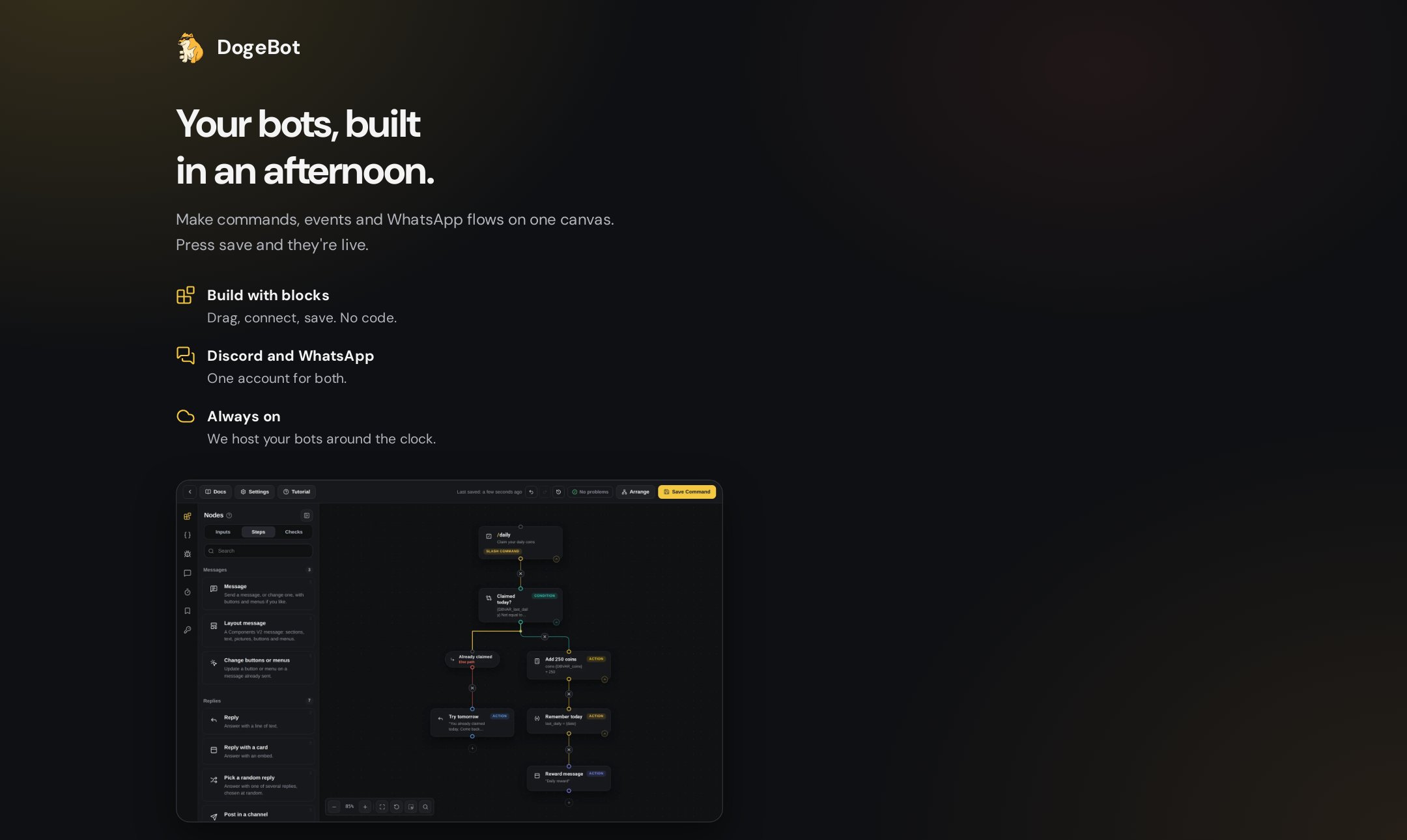
Signing up for DogeBot
- your email and password
- Continue with Discord
Forgot your password
1
Press Forgot password?
On the log in page, press Forgot password?.
2
Type your email
Type the email you signed up with.
3
Open the email
Open the email from DogeBot and press the link. The link works once, for 30 minutes.
4
Pick a new password
Type your new password and save it.
Too many wrong tries
To stop people from guessing passwords, sign-in pauses for 15 minutes after 10 wrong tries from one address or on one account. Wait 15 minutes and try again, or reset your password.Two-step sign-in
Two-step sign-in (also called 2FA) makes your account much safer. After you sign in, DogeBot asks for a 6-digit code from an app on your phone. Even if someone steals your password, they cannot get in without your phone. It works with any authenticator app, like Microsoft Authenticator, Google Authenticator or Authy.Turn it on
1
Get an authenticator app
Download one of the apps above on your phone.
2
Open Account, then Security
In DogeBot, open Account and go to Security. Start setting up two-step sign-in.
3
Scan the QR code
Open your authenticator app and scan the QR code. Can’t scan? Type the key shown instead.
4
Type the code
Your app now shows a 6-digit code. Type it into DogeBot to confirm.
5
Save your backup codes
DogeBot gives you 10 backup codes. Each one works once. Write them down or save them somewhere safe. If you lose your phone, a backup code lets you in.
When does it ask for a code?
After every sign-in: with a password, an email link, Google or Discord. When you type your code, you can tick Trust this device for 30 days. Then this computer or phone won’t ask for a code for 30 days.Turn it off
To turn two-step sign-in off, you need your password or a code.Wrong codes are limited to 6 tries every 15 minutes. After that, wait and try again.
Delete your account
1
Open Account
Open Account in the sidebar.
2
Find Delete account
Scroll to Delete account.
3
Type your username
Type your username to show you are sure.
4
Delete
Press the delete button.
Collaborators
Let friends help build your bot.
Premium and plans
What Free gets and what Premium gets.