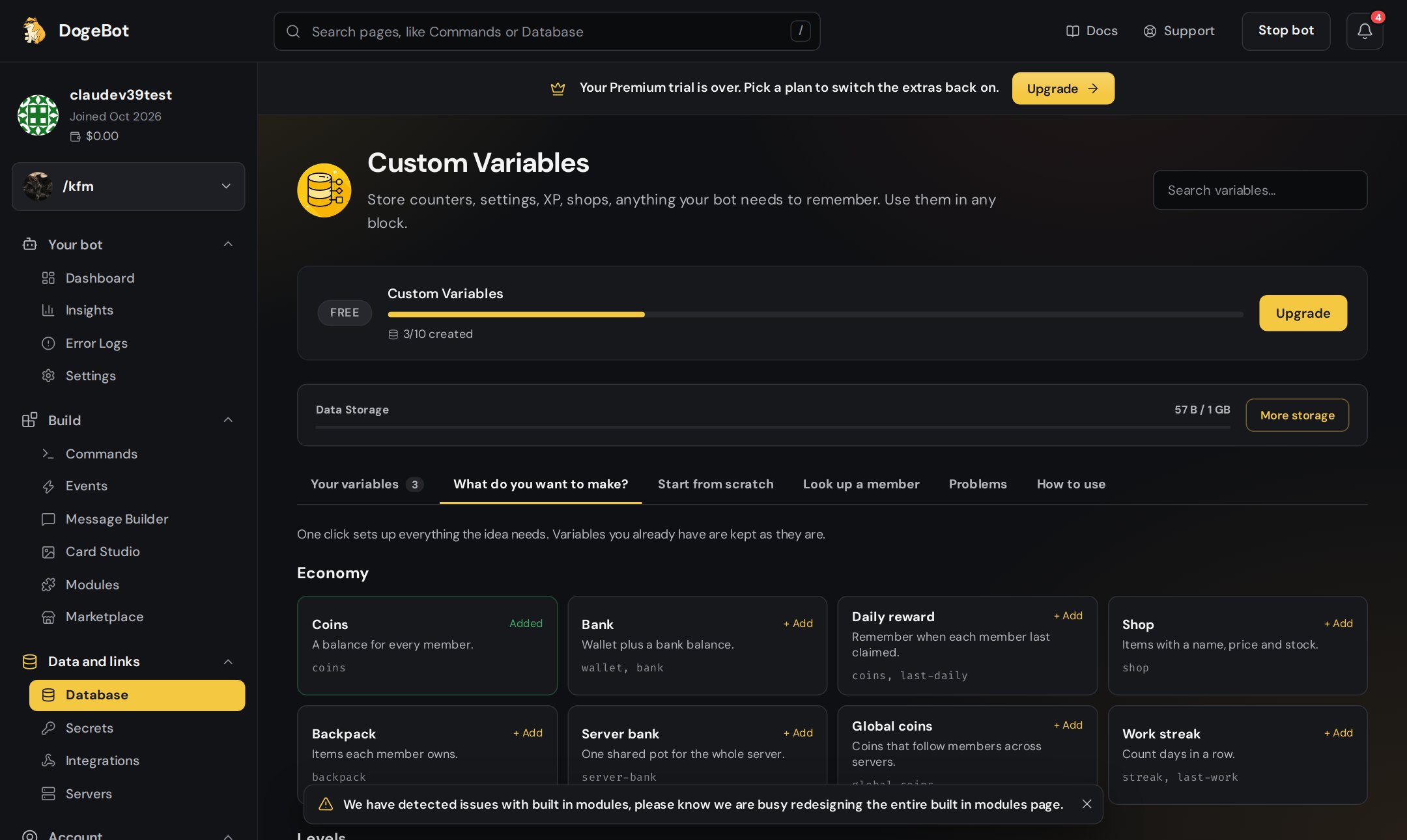
Everything on the Database page, where all your bot’s saved values live.
The Database page is where you see and manage everything your bot remembers. Think of it as a big cupboard: every custom variable you make is a box on a shelf.
its tag, like {DBVAR_coins}, which you type in blocks. Press the gold chip to copy it, then paste it into any message.
its type, like User · number,
where it’s kept, Server Specific or Global,
where it’s used, like “Used in 3 commands and events”, or Not used yet,
what it starts as, like “starts as 0”.
Use the Search variables box to find one fast when you have lots. Press Stored values to look inside, or Delete to remove it.
What do you want to make?
Ready ideas you add with one click, like Coins, XP, Warnings, Ticket counter or Birthdays. See Make a variable.
Ready ideas
Start from scratch
Make any variable yourself in four steps: name, type, where it’s kept and starting value.
Start from scratch
Look up a member
Type a member’s user ID and press Look up to see every value your bot saved for them. Handy for checking someone’s coins or warnings.
Problems
DogeBot checks your commands and events for variables that are spelled wrong or were deleted. The number turns red when there is something to fix. Press Check again after fixing them. “No problems found” means everything is fine.
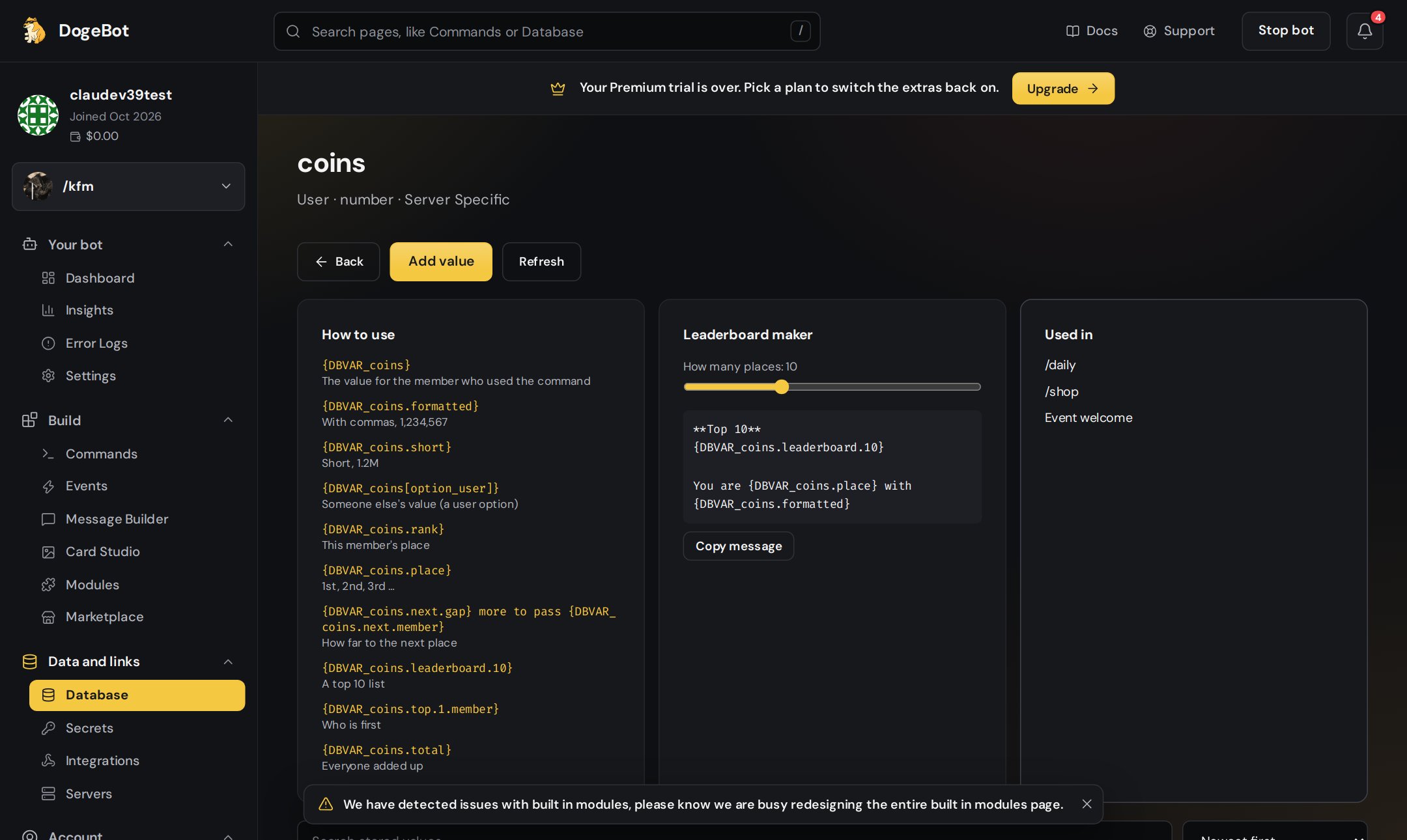
How to use
A short reminder of how variables work, with the most useful readable endings.
Deleting a variable throws the box away and everything inside it, for every member. You cannot undo this, so DogeBot checks with you first.
If nothing uses it, DogeBot asks “Delete it? Nothing uses it right now.”
If something still uses it, you see Variable still in use. It lists every command and event that uses it, because those blocks will stop working. To be sure, you must type the variable’s name to delete it. If the name does not match, nothing is deleted.
Deleting a variable also deletes everything saved in it, for every member. This can’t be undone. Before you delete it, open the commands and events in the list and change them first.
In the builder, the { } tab on the left shows the same list. Your own variables come first. Below them you’ll see variables from built-in modules, like {leveling.user_level}, which you can also use in your blocks.
When a WhatsApp number is picked in the bot picker, the Database page shows WhatsApp ideas (like customer name, orders, cart and loyalty points) and Look up a contact instead of Look up a member. See WhatsApp bots.
With Custom roles you can hide stored data completely.
{"docsConfig":{"theme":"mint","$schema":"https://mintlify.com/docs.json","name":"DogeBot Docs","colors":{"primary":"#EAB308","light":"#FACC15","dark":"#CA8A04"},"logo":{"light":"https://mintcdn.com/doge-bot/7zABNdJHAtNhkZCI/images/doge-logo.png?fit=max\u0026auto=format\u0026n=7zABNdJHAtNhkZCI\u0026q=85\u0026s=c2eb1dd96517adc31165fe652c0d64d4","dark":"https://mintcdn.com/doge-bot/7zABNdJHAtNhkZCI/images/doge-logo.png?fit=max\u0026auto=format\u0026n=7zABNdJHAtNhkZCI\u0026q=85\u0026s=c2eb1dd96517adc31165fe652c0d64d4","href":"/"},"favicon":"https://mintcdn.com/doge-bot/7zABNdJHAtNhkZCI/images/doge-logo.png?fit=max\u0026auto=format\u0026n=7zABNdJHAtNhkZCI\u0026q=85\u0026s=c2eb1dd96517adc31165fe652c0d64d4","appearance":{"default":"dark"},"background":{"decoration":"gradient","color":{"dark":"#1A1A1A"}},"navbar":{"links":[{"href":"https://dogebot.net/dashboard","label":"Login"},{"href":"https://dogebot.net/dashboard/premium","label":"Premium"}],"primary":{"type":"button","label":"Dashboard","href":"https://dogebot.net/dashboard"}},"seo":{"metatags":{"canonical":"https://docs.dogebot.net"}},"fonts":{"family":"Poppins"},"icons":{"library":"lucide"},"contextual":{"options":["copy","view","chatgpt","claude","perplexity","mcp","cursor","vscode"],"display":"header"},"styling":{"latex":false},"navigation":{"pages":[]}},"deployment":{"deploymentMetadataValue":{"subdomain":"doge-bot","hasAudioNarration":false,"actualSubdomain":"doge-bot","customDomains":["docs.dogebot.net"],"gitSource":{"type":"github","owner":"mintlify-community","repo":"docs-doge-bot-b91ba433","deployBranch":"main","contentDirectory":"","isPrivate":true,"mountPath":"","label":""},"chroma":{"latestBuiltDeploymentHistoryId":"6ad47bf31fe2e6666c8faa4e","collectionId":"f5d88255-aa7b-446c-8f1c-66d1090ca70c","liveDeploymentHistoryId":"6ad47bf31fe2e6666c8faa4e","schemaVersion":"v3"},"entitlements":{"AI_CHAT":{"status":"ENABLED"},"WEB_MCP":{"status":"ENABLED"},"NARRATION":{"status":"ENABLED"}},"buildId":"6ad84e45858f4af642a3736a","clientVersion":"0.0.3908","searchFilterCounts":[{"language":"default","tag":"Building with blocks","count":15},{"language":"default","tag":"The builders","count":14},{"language":"default","tag":"OLD Variables","count":11},{"language":"default","tag":"Event triggers","count":10},{"language":"default","tag":"Build a system","count":9},{"language":"default","tag":"OLD Getting started","count":8},{"language":"default","tag":"Getting started","count":8},{"language":"default","tag":"Variables","count":8},{"language":"default","tag":"WhatsApp bots","count":8},{"language":"default","tag":"Dashboard pages","count":7}]},"assistantConfig":{"enableAskAiButton":false,"enableStarterQuestions":false,"enableContextualStarterQuestions":false,"enableAskAiSearchBar":true},"hasChatPermissions":true,"hasWebMcpPermissions":true,"toggles":[{"name":"kill-isr","enabled":true,"variant":{"name":"disabled","enabled":false,"feature_enabled":true},"impressionData":false},{"name":"agent-mintlify-slack","enabled":true,"variant":{"name":"disabled","enabled":false,"feature_enabled":true},"impressionData":false},{"name":"editor-v7-file-tree","enabled":true,"variant":{"name":"disabled","enabled":false,"feature_enabled":true},"impressionData":false},{"name":"agent-integrations-settings","enabled":true,"variant":{"name":"disabled","enabled":false,"feature_enabled":true},"impressionData":false},{"name":"automations-pr-grouping","enabled":true,"variant":{"name":"disabled","enabled":false,"feature_enabled":true},"impressionData":false},{"name":"custom-prefix","enabled":true,"variant":{"name":"disabled","enabled":false,"feature_enabled":true},"impressionData":false},{"name":"analytics-v7","enabled":true,"variant":{"name":"disabled","enabled":false,"feature_enabled":true},"impressionData":false},{"name":"user-flows-analytics","enabled":true,"variant":{"name":"disabled","enabled":false,"feature_enabled":true},"impressionData":false},{"name":"no-publish-flow","enabled":true,"variant":{"name":"disabled","enabled":false,"feature_enabled":true},"impressionData":false},{"name":"workos-onboarding","enabled":true,"variant":{"name":"disabled","enabled":false,"feature_enabled":true},"impressionData":false},{"name":"llms-txt-v2","enabled":true,"variant":{"name":"disabled","enabled":false,"feature_enabled":true},"impressionData":false},{"name":"pause-universal-search-reconcile","enabled":true,"variant":{"name":"disabled","enabled":false,"feature_enabled":true},"impressionData":false},{"name":"snapshot-serving-live","enabled":true,"variant":{"name":"disabled","enabled":false,"feature_enabled":true},"impressionData":false},{"name":"stripTemperatureMiddleware","enabled":true,"variant":{"name":"disabled","enabled":false,"feature_enabled":true},"impressionData":false},{"name":"per-site-search-delta","enabled":true,"variant":{"name":"disabled","enabled":false,"feature_enabled":true},"impressionData":false},{"name":"support-platform-pylon-zendesk","enabled":true,"variant":{"name":"disabled","enabled":false,"feature_enabled":true},"impressionData":false},{"name":"editor-branches-v2-autocommit","enabled":true,"variant":{"name":"disabled","enabled":false,"feature_enabled":true},"impressionData":false},{"name":"editor-branches-v2","enabled":true,"variant":{"name":"disabled","enabled":false,"feature_enabled":true},"impressionData":false},{"name":"snapshot-serving","enabled":true,"variant":{"name":"disabled","enabled":false,"feature_enabled":true},"impressionData":false},{"name":"instant-rollback","enabled":true,"variant":{"name":"disabled","enabled":false,"feature_enabled":true},"impressionData":false},{"name":"granular-notifications-server","enabled":true,"variant":{"name":"disabled","enabled":false,"feature_enabled":true},"impressionData":false},{"name":"granular-notifications","enabled":true,"variant":{"name":"disabled","enabled":false,"feature_enabled":true},"impressionData":false},{"name":"editor-private-page-search","enabled":true,"variant":{"name":"disabled","enabled":false,"feature_enabled":true},"impressionData":false},{"name":"automations-fable","enabled":true,"variant":{"name":"disabled","enabled":false,"feature_enabled":true},"impressionData":false},{"name":"fixed-ai-action-pricing","enabled":true,"variant":{"name":"disabled","enabled":false,"feature_enabled":true},"impressionData":false},{"name":"automation-resolve-merge-conflict","enabled":true,"variant":{"name":"disabled","enabled":false,"feature_enabled":true},"impressionData":false},{"name":"scoped-publishing","enabled":true,"variant":{"name":"disabled","enabled":false,"feature_enabled":true},"impressionData":false},{"name":"mintql","enabled":true,"variant":{"name":"disabled","enabled":false,"feature_enabled":true},"impressionData":false},{"name":"page-level-analytics","enabled":true,"variant":{"name":"disabled","enabled":false,"feature_enabled":true},"impressionData":false},{"name":"teamspace","enabled":true,"variant":{"name":"disabled","enabled":false,"feature_enabled":true},"impressionData":false},{"name":"editor-version-history-v2","enabled":true,"variant":{"name":"disabled","enabled":false,"feature_enabled":true},"impressionData":false},{"name":"vite-origin","enabled":true,"variant":{"name":"disabled","enabled":false,"feature_enabled":true},"impressionData":false},{"name":"editor-nav-generations","enabled":true,"variant":{"name":"disabled","enabled":false,"feature_enabled":true},"impressionData":false},{"name":"billing-page-v2","enabled":true,"variant":{"name":"disabled","enabled":false,"feature_enabled":true},"impressionData":false},{"name":"workspace-projects","enabled":true,"variant":{"name":"disabled","enabled":false,"feature_enabled":true},"impressionData":false},{"name":"assistant-v5","enabled":true,"variant":{"name":"disabled","enabled":false,"feature_enabled":true},"impressionData":false},{"name":"byok-sep-25","enabled":true,"variant":{"name":"disabled","enabled":false,"feature_enabled":true},"impressionData":false},{"name":"fork-pr-previews","enabled":true,"variant":{"name":"disabled","enabled":false,"feature_enabled":true},"impressionData":false},{"name":"revalidation-jwt","enabled":true,"variant":{"name":"disabled","enabled":false,"feature_enabled":true},"impressionData":false},{"name":"editor-agent-model-picker","enabled":true,"variant":{"name":"disabled","enabled":false,"feature_enabled":true},"impressionData":false},{"name":"client-snapshot-docs-config","enabled":true,"variant":{"name":"disabled","enabled":false,"feature_enabled":true},"impressionData":false},{"name":"hobby-abuse-scan","enabled":true,"variant":{"name":"disabled","enabled":false,"feature_enabled":true},"impressionData":false},{"name":"dashboard-inbox","enabled":true,"variant":{"name":"disabled","enabled":false,"feature_enabled":true},"impressionData":false}],"isAtlas":false,"googleFontsInlined":true},"customCss":[{"filePath":"style.css","content":"#navbar a:has(img.nav-logo){display:flex;align-items:center;gap:.625rem}#navbar a:has(img.nav-logo)::after{content:\"DogeBot Docs\";font-weight:700;font-size:1.5rem;line-height:1;white-space:nowrap;color:#111827}html.dark #navbar a:has(img.nav-logo)::after{color:#fff}"}],"page":{"pagePath":"variables/variable-tools","slug":"/variables/variable-tools","pageMetadata":{"title":"The Database page","description":"Everything on the Database page, where all your bot's saved values live.","icon":"table","href":"/variables/variable-tools"},"description":{"compiledSource":"\"use strict\";\nconst {jsx: _jsx} = arguments[0];\nconst {useMDXComponents: _provideComponents} = arguments[0];\nfunction _createMdxContent(props) {\n const _components = {\n p: \"p\",\n ..._provideComponents(),\n ...props.components\n };\n return _jsx(_components.p, {\n children: \"Everything on the Database page, where all your bot’s saved values live.\"\n });\n}\nfunction MDXContent(props = {}) {\n const {wrapper: MDXLayout} = {\n ..._provideComponents(),\n ...props.components\n };\n return MDXLayout ? _jsx(MDXLayout, {\n ...props,\n children: _jsx(_createMdxContent, {\n ...props\n })\n }) : _createMdxContent(props);\n}\nreturn {\n default: MDXContent\n};\n","frontmatter":{},"scope":{}},"pageType":"default","mdx":{"mdxSource":{"compiledSource":"\"use strict\";const{Fragment:_Fragment,jsx:_jsx,jsxs:_jsxs}=arguments[0];const{useMDXComponents:_provideComponents}=arguments[0];function _createMdxContent(props){const _components={a:`a`,code:`code`,li:`li`,p:`p`,strong:`strong`,ul:`ul`,..._provideComponents(),...props.components},{Accordion,AccordionGroup,Frame,Heading,Info,OptimizedImage,Warning}=_components;if(!Accordion)_missingMdxReference(`Accordion`,true);if(!AccordionGroup)_missingMdxReference(`AccordionGroup`,true);if(!Frame)_missingMdxReference(`Frame`,true);if(!Heading)_missingMdxReference(`Heading`,true);if(!Info)_missingMdxReference(`Info`,true);if(!OptimizedImage)_missingMdxReference(`OptimizedImage`,true);if(!Warning)_missingMdxReference(`Warning`,true);return _jsxs(_Fragment,{children:[_jsxs(_components.p,{children:[`The `,_jsx(_components.strong,{children:`Database`}),` page is where you see and manage `,_jsx(_components.strong,{children:`everything your bot remembers`}),`. Think of it as a big cupboard: every custom variable you make is a box on a shelf.`]}),`\n`,_jsx(Heading,{level:`2`,id:`how-to-get-there`,children:`How to get there`}),`\n`,_jsxs(_components.ul,{children:[`\n`,_jsxs(_components.li,{children:[`In the left menu, under `,_jsx(_components.strong,{children:`Data and links`}),`, click `,_jsx(_components.strong,{children:`Database`}),`.`]}),`\n`,_jsxs(_components.li,{children:[`Or press `,_jsx(_components.strong,{children:`/`}),` on your keyboard, type `,_jsx(_components.code,{children:`Database`}),` and press Enter.`]}),`\n`]}),`\n`,_jsx(Frame,{caption:`The Database page`,children:_jsx(OptimizedImage,{src:`https://mintcdn.com/doge-bot/0C6-zgXTpDx1QOCe/images/guide/data-storage.png?fit=max\u0026auto=format\u0026n=0C6-zgXTpDx1QOCe\u0026q=85\u0026s=97578f6a3891327b9732ac4239b043f8`,alt:`The Database page with the list of your variables`,\"data-og-width\":`2160`,width:`2160`,\"data-og-height\":`1290`,height:`1290`,\"data-path\":`images/guide/data-storage.png`,\"data-optimize\":`true`,\"data-opv\":`3`,srcset:`https://mintcdn.com/doge-bot/0C6-zgXTpDx1QOCe/images/guide/data-storage.png?w=280\u0026fit=max\u0026auto=format\u0026n=0C6-zgXTpDx1QOCe\u0026q=85\u0026s=f2bf292a7d31d0bdfb17e70a0ac128c2 280w, https://mintcdn.com/doge-bot/0C6-zgXTpDx1QOCe/images/guide/data-storage.png?w=560\u0026fit=max\u0026auto=format\u0026n=0C6-zgXTpDx1QOCe\u0026q=85\u0026s=e7869efc70f5eb3b3e6e257e658a4ada 560w, https://mintcdn.com/doge-bot/0C6-zgXTpDx1QOCe/images/guide/data-storage.png?w=840\u0026fit=max\u0026auto=format\u0026n=0C6-zgXTpDx1QOCe\u0026q=85\u0026s=f32d82ed8f63f26892f895ad6cc2592a 840w, https://mintcdn.com/doge-bot/0C6-zgXTpDx1QOCe/images/guide/data-storage.png?w=1100\u0026fit=max\u0026auto=format\u0026n=0C6-zgXTpDx1QOCe\u0026q=85\u0026s=c2e8e204b978fbbc3dbe535547ec1f74 1100w, https://mintcdn.com/doge-bot/0C6-zgXTpDx1QOCe/images/guide/data-storage.png?w=1650\u0026fit=max\u0026auto=format\u0026n=0C6-zgXTpDx1QOCe\u0026q=85\u0026s=55f1f6f27c35c39ccbc7c62100ab28a7 1650w, https://mintcdn.com/doge-bot/0C6-zgXTpDx1QOCe/images/guide/data-storage.png?w=2500\u0026fit=max\u0026auto=format\u0026n=0C6-zgXTpDx1QOCe\u0026q=85\u0026s=ee7721dbee3aea065eb6f65de7fae67c 2500w`})}),`\n`,_jsx(Info,{children:_jsxs(_components.p,{children:[`You do not have to come here to make a variable. You can also make one `,_jsx(_components.strong,{children:`inside the builder`}),`. See `,_jsx(_components.a,{href:`/variables/make-your-own-variables`,children:`Make a variable`}),`.`]})}),`\n`,_jsx(Heading,{level:`2`,id:`the-top-of-the-page`,children:`The top of the page`}),`\n`,_jsxs(_components.ul,{children:[`\n`,_jsxs(_components.li,{children:[_jsx(_components.strong,{children:`Custom Variables`}),` shows how many variables you’ve made, like `,_jsx(_components.code,{children:`3/10 created`}),`.`]}),`\n`,_jsxs(_components.li,{children:[_jsx(_components.strong,{children:`Data Storage`}),` shows how much space your saved values use. Free bots get 1 GB. Press `,_jsx(_components.strong,{children:`More storage`}),` to buy more.`]}),`\n`]}),`\n`,_jsx(Heading,{level:`2`,id:`the-tabs`,children:`The tabs`}),`\n`,_jsxs(AccordionGroup,{children:[_jsxs(Accordion,{title:`Your variables`,icon:`list`,id:`your-variables`,children:[_jsx(_components.p,{children:`Every variable you’ve made. Each row shows:`}),_jsxs(_components.ul,{children:[`\n`,_jsxs(_components.li,{children:[`its `,_jsx(_components.strong,{children:`tag`}),`, like `,_jsx(_components.code,{children:`{DBVAR_coins}`}),`, which you type in blocks. `,_jsx(_components.strong,{children:`Press the gold chip to copy it`}),`, then paste it into any message.`]}),`\n`,_jsxs(_components.li,{children:[`its `,_jsx(_components.strong,{children:`type`}),`, like `,_jsx(_components.code,{children:`User · number`}),`,`]}),`\n`,_jsxs(_components.li,{children:[`where it’s kept, `,_jsx(_components.strong,{children:`Server Specific`}),` or `,_jsx(_components.strong,{children:`Global`}),`,`]}),`\n`,_jsxs(_components.li,{children:[`where it’s `,_jsx(_components.strong,{children:`used`}),`, like “Used in 3 commands and events”, or `,_jsx(_components.strong,{children:`Not used yet`}),`,`]}),`\n`,_jsx(_components.li,{children:`what it starts as, like “starts as 0”.`}),`\n`]}),_jsxs(_components.p,{children:[`Use the `,_jsx(_components.strong,{children:`Search variables`}),` box to find one fast when you have lots. Press `,_jsx(_components.strong,{children:`Stored values`}),` to look inside, or `,_jsx(_components.strong,{children:`Delete`}),` to remove it.`]})]}),_jsxs(Accordion,{title:`What do you want to make?`,icon:`lightbulb`,id:`what-do-you-want-to-make`,children:[_jsxs(_components.p,{children:[`Ready ideas you add with one click, like `,_jsx(_components.strong,{children:`Coins`}),`, `,_jsx(_components.strong,{children:`XP`}),`, `,_jsx(_components.strong,{children:`Warnings`}),`, `,_jsx(_components.strong,{children:`Ticket counter`}),` or `,_jsx(_components.strong,{children:`Birthdays`}),`. See `,_jsx(_components.a,{href:`/variables/make-your-own-variables`,children:`Make a variable`}),`.`]}),_jsx(Frame,{caption:`Ready ideas`,children:_jsx(OptimizedImage,{src:`https://mintcdn.com/doge-bot/0C6-zgXTpDx1QOCe/images/guide/ds-ideas.png?fit=max\u0026auto=format\u0026n=0C6-zgXTpDx1QOCe\u0026q=85\u0026s=fcf1a40a32721b559641fdeac7e6fae0`,alt:`The What do you want to make? tab`,\"data-og-width\":`2160`,width:`2160`,\"data-og-height\":`1290`,height:`1290`,\"data-path\":`images/guide/ds-ideas.png`,\"data-optimize\":`true`,\"data-opv\":`3`,srcset:`https://mintcdn.com/doge-bot/0C6-zgXTpDx1QOCe/images/guide/ds-ideas.png?w=280\u0026fit=max\u0026auto=format\u0026n=0C6-zgXTpDx1QOCe\u0026q=85\u0026s=dfb7cdbd63b0e89ffc052a1d5d5e7444 280w, https://mintcdn.com/doge-bot/0C6-zgXTpDx1QOCe/images/guide/ds-ideas.png?w=560\u0026fit=max\u0026auto=format\u0026n=0C6-zgXTpDx1QOCe\u0026q=85\u0026s=eda42f7a8aefa736ea7a3ffe2da0f659 560w, https://mintcdn.com/doge-bot/0C6-zgXTpDx1QOCe/images/guide/ds-ideas.png?w=840\u0026fit=max\u0026auto=format\u0026n=0C6-zgXTpDx1QOCe\u0026q=85\u0026s=845cf3b42e418a8db075413bbc800059 840w, https://mintcdn.com/doge-bot/0C6-zgXTpDx1QOCe/images/guide/ds-ideas.png?w=1100\u0026fit=max\u0026auto=format\u0026n=0C6-zgXTpDx1QOCe\u0026q=85\u0026s=6318cecab61f3e5ab6d7314084a0f43b 1100w, https://mintcdn.com/doge-bot/0C6-zgXTpDx1QOCe/images/guide/ds-ideas.png?w=1650\u0026fit=max\u0026auto=format\u0026n=0C6-zgXTpDx1QOCe\u0026q=85\u0026s=36fb875d680446333f4924330108bb46 1650w, https://mintcdn.com/doge-bot/0C6-zgXTpDx1QOCe/images/guide/ds-ideas.png?w=2500\u0026fit=max\u0026auto=format\u0026n=0C6-zgXTpDx1QOCe\u0026q=85\u0026s=68c67c32a295642a29638bc17c66167a 2500w`})})]}),_jsxs(Accordion,{title:`Start from scratch`,icon:`circle-plus`,id:`start-from-scratch`,children:[_jsx(_components.p,{children:`Make any variable yourself in four steps: name, type, where it’s kept and starting value.`}),_jsx(Frame,{caption:`Start from scratch`,children:_jsx(OptimizedImage,{src:`https://mintcdn.com/doge-bot/0C6-zgXTpDx1QOCe/images/guide/ds-start-from-scratch.png?fit=max\u0026auto=format\u0026n=0C6-zgXTpDx1QOCe\u0026q=85\u0026s=638510a1ec76645ba0cbcc8750456bdb`,alt:`The Start from scratch tab`,\"data-og-width\":`2160`,width:`2160`,\"data-og-height\":`1290`,height:`1290`,\"data-path\":`images/guide/ds-start-from-scratch.png`,\"data-optimize\":`true`,\"data-opv\":`3`,srcset:`https://mintcdn.com/doge-bot/0C6-zgXTpDx1QOCe/images/guide/ds-start-from-scratch.png?w=280\u0026fit=max\u0026auto=format\u0026n=0C6-zgXTpDx1QOCe\u0026q=85\u0026s=9827f8fcb0a98157e42099ade676fa44 280w, https://mintcdn.com/doge-bot/0C6-zgXTpDx1QOCe/images/guide/ds-start-from-scratch.png?w=560\u0026fit=max\u0026auto=format\u0026n=0C6-zgXTpDx1QOCe\u0026q=85\u0026s=e0099634065a4fa855ead097c1cfcf46 560w, https://mintcdn.com/doge-bot/0C6-zgXTpDx1QOCe/images/guide/ds-start-from-scratch.png?w=840\u0026fit=max\u0026auto=format\u0026n=0C6-zgXTpDx1QOCe\u0026q=85\u0026s=8c7fbf5dbcfd705b101443ff490a3dcd 840w, https://mintcdn.com/doge-bot/0C6-zgXTpDx1QOCe/images/guide/ds-start-from-scratch.png?w=1100\u0026fit=max\u0026auto=format\u0026n=0C6-zgXTpDx1QOCe\u0026q=85\u0026s=0c4c02f0e28af0c9cf25f0a9e776a233 1100w, https://mintcdn.com/doge-bot/0C6-zgXTpDx1QOCe/images/guide/ds-start-from-scratch.png?w=1650\u0026fit=max\u0026auto=format\u0026n=0C6-zgXTpDx1QOCe\u0026q=85\u0026s=fa918b9d9517ceee69676eb965025317 1650w, https://mintcdn.com/doge-bot/0C6-zgXTpDx1QOCe/images/guide/ds-start-from-scratch.png?w=2500\u0026fit=max\u0026auto=format\u0026n=0C6-zgXTpDx1QOCe\u0026q=85\u0026s=f4d53d7353a4a20288592c02814b9ed0 2500w`})})]}),_jsx(Accordion,{title:`Look up a member`,icon:`user-search`,id:`look-up-a-member`,children:_jsxs(_components.p,{children:[`Type a member’s user ID and press `,_jsx(_components.strong,{children:`Look up`}),` to see every value your bot saved for them. Handy for checking someone’s coins or warnings.`]})}),_jsx(Accordion,{title:`Problems`,icon:`triangle-alert`,id:`problems`,children:_jsxs(_components.p,{children:[`DogeBot checks your commands and events for variables that are `,_jsx(_components.strong,{children:`spelled wrong`}),` or were `,_jsx(_components.strong,{children:`deleted`}),`. The number turns red when there is something to fix. Press `,_jsx(_components.strong,{children:`Check again`}),` after fixing them. “No problems found” means everything is fine.`]})}),_jsxs(Accordion,{title:`How to use`,icon:`book-open`,id:`how-to-use`,children:[_jsx(_components.p,{children:`A short reminder of how variables work, with the most useful readable endings.`}),_jsx(Frame,{caption:`The How to use tab`,children:_jsx(OptimizedImage,{src:`https://mintcdn.com/doge-bot/0C6-zgXTpDx1QOCe/images/guide/ds-how-to-use.png?fit=max\u0026auto=format\u0026n=0C6-zgXTpDx1QOCe\u0026q=85\u0026s=8b973f76bcb0de1ee2c6d45702d1bceb`,alt:`The How to use tab on the Database page`,\"data-og-width\":`2160`,width:`2160`,\"data-og-height\":`1290`,height:`1290`,\"data-path\":`images/guide/ds-how-to-use.png`,\"data-optimize\":`true`,\"data-opv\":`3`,srcset:`https://mintcdn.com/doge-bot/0C6-zgXTpDx1QOCe/images/guide/ds-how-to-use.png?w=280\u0026fit=max\u0026auto=format\u0026n=0C6-zgXTpDx1QOCe\u0026q=85\u0026s=f8247251be5d428a3b7460056003927d 280w, https://mintcdn.com/doge-bot/0C6-zgXTpDx1QOCe/images/guide/ds-how-to-use.png?w=560\u0026fit=max\u0026auto=format\u0026n=0C6-zgXTpDx1QOCe\u0026q=85\u0026s=d68037f6325d4eb75acaa6e9b83baed5 560w, https://mintcdn.com/doge-bot/0C6-zgXTpDx1QOCe/images/guide/ds-how-to-use.png?w=840\u0026fit=max\u0026auto=format\u0026n=0C6-zgXTpDx1QOCe\u0026q=85\u0026s=d20db81599793d2d200e4a3503e83d51 840w, https://mintcdn.com/doge-bot/0C6-zgXTpDx1QOCe/images/guide/ds-how-to-use.png?w=1100\u0026fit=max\u0026auto=format\u0026n=0C6-zgXTpDx1QOCe\u0026q=85\u0026s=ac03b88ce36e9165ca7e2965992cfc3f 1100w, https://mintcdn.com/doge-bot/0C6-zgXTpDx1QOCe/images/guide/ds-how-to-use.png?w=1650\u0026fit=max\u0026auto=format\u0026n=0C6-zgXTpDx1QOCe\u0026q=85\u0026s=64638886c803843ca56e2cab0910ec0c 1650w, https://mintcdn.com/doge-bot/0C6-zgXTpDx1QOCe/images/guide/ds-how-to-use.png?w=2500\u0026fit=max\u0026auto=format\u0026n=0C6-zgXTpDx1QOCe\u0026q=85\u0026s=cb5ca3a61f04de0fa79c5e4a18387f7e 2500w`})})]})]}),`\n`,_jsx(Heading,{level:`2`,id:`stored-values`,children:`Stored values`}),`\n`,_jsxs(_components.p,{children:[`Press `,_jsx(_components.strong,{children:`Stored values`}),` on a variable to open it.`]}),`\n`,_jsxs(_components.ul,{children:[`\n`,_jsxs(_components.li,{children:[_jsx(_components.strong,{children:`Add value`}),` puts a value in by hand, for a server or a member.`]}),`\n`,_jsxs(_components.li,{children:[_jsx(_components.strong,{children:`Refresh`}),` loads the newest values.`]}),`\n`,_jsxs(_components.li,{children:[_jsx(_components.strong,{children:`How to use`}),` lists every readable ending for this variable.`]}),`\n`,_jsxs(_components.li,{children:[_jsx(_components.strong,{children:`Leaderboard maker`}),` builds a ready-to-copy leaderboard message. Pick how many places and press `,_jsx(_components.strong,{children:`Copy message`}),`.`]}),`\n`,_jsxs(_components.li,{children:[_jsx(_components.strong,{children:`Used in`}),` shows which commands and events use it.`]}),`\n`,_jsxs(_components.li,{children:[`The list at the bottom shows every saved value. Sort it by `,_jsx(_components.strong,{children:`Newest first`}),`, `,_jsx(_components.strong,{children:`Highest value`}),` or `,_jsx(_components.strong,{children:`Lowest value`}),`.`]}),`\n`]}),`\n`,_jsx(Frame,{caption:`Stored values`,children:_jsx(OptimizedImage,{src:`https://mintcdn.com/doge-bot/0C6-zgXTpDx1QOCe/images/guide/ds-stored-values.png?fit=max\u0026auto=format\u0026n=0C6-zgXTpDx1QOCe\u0026q=85\u0026s=db9a81ed6bce8250339e59764e4ebf21`,alt:`The Stored values view of a variable`,\"data-og-width\":`2160`,width:`2160`,\"data-og-height\":`1290`,height:`1290`,\"data-path\":`images/guide/ds-stored-values.png`,\"data-optimize\":`true`,\"data-opv\":`3`,srcset:`https://mintcdn.com/doge-bot/0C6-zgXTpDx1QOCe/images/guide/ds-stored-values.png?w=280\u0026fit=max\u0026auto=format\u0026n=0C6-zgXTpDx1QOCe\u0026q=85\u0026s=201bf6d06cbbd64513d1cc8d22158195 280w, https://mintcdn.com/doge-bot/0C6-zgXTpDx1QOCe/images/guide/ds-stored-values.png?w=560\u0026fit=max\u0026auto=format\u0026n=0C6-zgXTpDx1QOCe\u0026q=85\u0026s=8f3a08ba6119ccec0b0379d8854b215f 560w, https://mintcdn.com/doge-bot/0C6-zgXTpDx1QOCe/images/guide/ds-stored-values.png?w=840\u0026fit=max\u0026auto=format\u0026n=0C6-zgXTpDx1QOCe\u0026q=85\u0026s=faa6f29df071a2ef7710b82962736da5 840w, https://mintcdn.com/doge-bot/0C6-zgXTpDx1QOCe/images/guide/ds-stored-values.png?w=1100\u0026fit=max\u0026auto=format\u0026n=0C6-zgXTpDx1QOCe\u0026q=85\u0026s=eb6cf6c3dae5e7c802ae2f17127b8b22 1100w, https://mintcdn.com/doge-bot/0C6-zgXTpDx1QOCe/images/guide/ds-stored-values.png?w=1650\u0026fit=max\u0026auto=format\u0026n=0C6-zgXTpDx1QOCe\u0026q=85\u0026s=7a2fffbb324858aa8d46f3189ecea8f8 1650w, https://mintcdn.com/doge-bot/0C6-zgXTpDx1QOCe/images/guide/ds-stored-values.png?w=2500\u0026fit=max\u0026auto=format\u0026n=0C6-zgXTpDx1QOCe\u0026q=85\u0026s=4e309a006031331e65641deb0ff4c865 2500w`})}),`\n`,_jsx(Heading,{level:`2`,id:`deleting-a-variable`,children:`Deleting a variable`}),`\n`,_jsxs(_components.p,{children:[`Deleting a variable throws the box away `,_jsx(_components.strong,{children:`and everything inside it`}),`, for every member. You cannot undo this, so DogeBot checks with you first.`]}),`\n`,_jsxs(_components.ul,{children:[`\n`,_jsxs(_components.li,{children:[`If `,_jsx(_components.strong,{children:`nothing uses it`}),`, DogeBot asks “Delete it? Nothing uses it right now.”`]}),`\n`,_jsxs(_components.li,{children:[`If `,_jsx(_components.strong,{children:`something still uses it`}),`, you see `,_jsx(_components.strong,{children:`Variable still in use`}),`. It lists every command and event that uses it, because those blocks will stop working. To be sure, you must `,_jsx(_components.strong,{children:`type the variable’s name`}),` to delete it. If the name does not match, nothing is deleted.`]}),`\n`]}),`\n`,_jsx(Warning,{children:_jsxs(_components.p,{children:[`Deleting a variable also deletes `,_jsx(_components.strong,{children:`everything saved in it`}),`, for every member. This can’t be undone. Before you delete it, open the commands and events in the list and change them first.`]})}),`\n`,_jsxs(Heading,{level:`2`,id:`the-builder’s---tab`,children:[`The builder’s `,_jsx(_components.code,{children:`{ }`}),` tab`]}),`\n`,_jsxs(_components.p,{children:[`In the builder, the `,_jsx(_components.code,{children:`{ }`}),` tab on the left shows the same list. Your own variables come first. Below them you’ll see variables from built-in modules, like `,_jsx(_components.code,{children:`{leveling.user_level}`}),`, which you can also use in your blocks.`]}),`\n`,_jsx(Frame,{caption:`The variables tab in the builder`,children:_jsx(OptimizedImage,{src:`https://mintcdn.com/doge-bot/0C6-zgXTpDx1QOCe/images/guide/builder-variables.png?fit=max\u0026auto=format\u0026n=0C6-zgXTpDx1QOCe\u0026q=85\u0026s=99c1f429c4097e276f4c33574d6e08c2`,alt:`The variables tab in the builder`,\"data-og-width\":`2160`,width:`2160`,\"data-og-height\":`1290`,height:`1290`,\"data-path\":`images/guide/builder-variables.png`,\"data-optimize\":`true`,\"data-opv\":`3`,srcset:`https://mintcdn.com/doge-bot/0C6-zgXTpDx1QOCe/images/guide/builder-variables.png?w=280\u0026fit=max\u0026auto=format\u0026n=0C6-zgXTpDx1QOCe\u0026q=85\u0026s=ab5542e8447facd40c08b42c6d4344c9 280w, https://mintcdn.com/doge-bot/0C6-zgXTpDx1QOCe/images/guide/builder-variables.png?w=560\u0026fit=max\u0026auto=format\u0026n=0C6-zgXTpDx1QOCe\u0026q=85\u0026s=c20cdec322b51f8ea30e968cbbac15b0 560w, https://mintcdn.com/doge-bot/0C6-zgXTpDx1QOCe/images/guide/builder-variables.png?w=840\u0026fit=max\u0026auto=format\u0026n=0C6-zgXTpDx1QOCe\u0026q=85\u0026s=cac9506525d0247bd522aad99dd03ec7 840w, https://mintcdn.com/doge-bot/0C6-zgXTpDx1QOCe/images/guide/builder-variables.png?w=1100\u0026fit=max\u0026auto=format\u0026n=0C6-zgXTpDx1QOCe\u0026q=85\u0026s=d31a5687a470422acacf0a273251a1d8 1100w, https://mintcdn.com/doge-bot/0C6-zgXTpDx1QOCe/images/guide/builder-variables.png?w=1650\u0026fit=max\u0026auto=format\u0026n=0C6-zgXTpDx1QOCe\u0026q=85\u0026s=eb5f1ffec8d1567c5acedc1369ed8f60 1650w, https://mintcdn.com/doge-bot/0C6-zgXTpDx1QOCe/images/guide/builder-variables.png?w=2500\u0026fit=max\u0026auto=format\u0026n=0C6-zgXTpDx1QOCe\u0026q=85\u0026s=034be6bf7ebec137cf1ab7ca8245985d 2500w`})}),`\n`,_jsx(Heading,{level:`2`,id:`whatsapp-numbers`,children:`WhatsApp numbers`}),`\n`,_jsxs(_components.p,{children:[`When a WhatsApp number is picked in the bot picker, the Database page shows `,_jsx(_components.strong,{children:`WhatsApp ideas`}),` (like customer name, orders, cart and loyalty points) and `,_jsx(_components.strong,{children:`Look up a contact`}),` instead of Look up a member. See `,_jsx(_components.a,{href:`/whatsapp`,children:`WhatsApp bots`}),`.`]}),`\n`,_jsx(Heading,{level:`2`,id:`who-can-see-it`,children:`Who can see it`}),`\n`,_jsxs(_components.p,{children:[`If you build your bot with friends (`,_jsx(_components.a,{href:`/your-bot/collaborators`,children:`Collaborators`}),`):`]}),`\n`,_jsxs(_components.ul,{children:[`\n`,_jsxs(_components.li,{children:[_jsx(_components.strong,{children:`Operators`}),` can `,_jsx(_components.strong,{children:`look at`}),` the saved data.`]}),`\n`,_jsxs(_components.li,{children:[_jsx(_components.strong,{children:`Admins`}),` can also `,_jsx(_components.strong,{children:`change`}),` the saved data.`]}),`\n`,_jsxs(_components.li,{children:[`With `,_jsx(_components.strong,{children:`Custom`}),` roles you can hide stored data completely.`]}),`\n`]})]})}function MDXContent(props={}){const{wrapper:MDXLayout}={..._provideComponents(),...props.components};return MDXLayout?_jsx(MDXLayout,{...props,children:_jsx(_createMdxContent,{...props})}):_createMdxContent(props)}return{default:MDXContent};function _missingMdxReference(id,component){throw new Error(`Expected `+(component?`component`:`object`)+\" `\"+id+\"` to be defined: you likely forgot to import, pass, or provide it.\")}","frontmatter":{},"scope":{"config":{},"pageMetadata":{"title":"The Database page","description":"Everything on the Database page, where all your bot's saved values live.","icon":"table","href":"/variables/variable-tools"}}},"mdxSourceWithNoJs":null},"mdxExtracts":{"tableOfContents":[{"title":"How to get there","slug":"how-to-get-there","depth":2,"children":[]},{"title":"The top of the page","slug":"the-top-of-the-page","depth":2,"children":[]},{"title":"The tabs","slug":"the-tabs","depth":2,"children":[]},{"title":"Stored values","slug":"stored-values","depth":2,"children":[]},{"title":"Deleting a variable","slug":"deleting-a-variable","depth":2,"children":[]},{"title":"The builder’s { } tab","slug":"the-builder’s---tab","depth":2,"children":[]},{"title":"WhatsApp numbers","slug":"whatsapp-numbers","depth":2,"children":[]},{"title":"Who can see it","slug":"who-can-see-it","depth":2,"children":[]}],"codeExamples":{}},"jsLinks":[],"subdomain":"doge-bot","siteName":"DogeBot Docs","title":"The Database page - DogeBot Docs","navMaps":{"firstHrefInVersion":{},"firstHrefInLanguage":{}},"lastModified":"2026-10-21T05:31:56.892Z","originalFileLocation":"variables/variable-tools.mdx"},"headHtml":"\u003cscript data-mint-head>(function(){var d=document.documentElement,p=null;if(!p){try{p=localStorage.getItem(\"isDarkMode\")}catch(e){}if(p==='true')p='dark';else if(p==='false')p='light';if(p!=='light'\u0026\u0026p!=='dark'\u0026\u0026p!=='system')p=\"dark\"}var r=p==='system'?(matchMedia(\"(prefers-color-scheme: dark)\").matches?'dark':'light'):p;d.classList.remove(r==='dark'?'light':'dark');d.classList.add(r);d.setAttribute(\"data-theme-preference\",p)})();\u003c/script>\u003cmeta data-mint-head name=\"description\" content=\"Everything on the Database page, where all your bot\u0026#x27;s saved values live.\">\u003cmeta data-mint-head name=\"application-name\" content=\"DogeBot Docs\">\u003cmeta data-mint-head name=\"generator\" content=\"Mintlify\">\u003clink data-mint-head rel=\"icon\" type=\"image/png\" sizes=\"192x192\" href=\"/mintlify-assets/_mintlify/favicons/doge-bot/G9Z_OhfkcW0ROwkd/_generated/favicon/android-chrome-192x192.png\" media=\"(prefers-color-scheme: light)\">\u003clink data-mint-head rel=\"apple-touch-icon\" type=\"image/png\" sizes=\"180x180\" href=\"/mintlify-assets/_mintlify/favicons/doge-bot/G9Z_OhfkcW0ROwkd/_generated/favicon/apple-touch-icon.png\">\u003clink data-mint-head rel=\"icon\" type=\"image/png\" sizes=\"16x16\" href=\"/mintlify-assets/_mintlify/favicons/doge-bot/G9Z_OhfkcW0ROwkd/_generated/favicon/favicon-16x16.png\" media=\"(prefers-color-scheme: light)\">\u003clink data-mint-head rel=\"icon\" type=\"image/png\" sizes=\"32x32\" href=\"/mintlify-assets/_mintlify/favicons/doge-bot/G9Z_OhfkcW0ROwkd/_generated/favicon/favicon-32x32.png\" media=\"(prefers-color-scheme: light)\">\u003clink data-mint-head rel=\"shortcut icon\" type=\"image/x-icon\" href=\"/mintlify-assets/_mintlify/favicons/doge-bot/G9Z_OhfkcW0ROwkd/_generated/favicon/favicon.ico\" media=\"(prefers-color-scheme: light)\">\u003clink data-mint-head rel=\"icon\" type=\"image/png\" sizes=\"192x192\" href=\"/mintlify-assets/_mintlify/favicons/doge-bot/G9Z_OhfkcW0ROwkd/_generated/favicon-dark/android-chrome-192x192.png\" media=\"(prefers-color-scheme: dark)\">\u003clink data-mint-head rel=\"icon\" type=\"image/png\" sizes=\"16x16\" href=\"/mintlify-assets/_mintlify/favicons/doge-bot/G9Z_OhfkcW0ROwkd/_generated/favicon-dark/favicon-16x16.png\" media=\"(prefers-color-scheme: dark)\">\u003clink data-mint-head rel=\"icon\" type=\"image/png\" sizes=\"32x32\" href=\"/mintlify-assets/_mintlify/favicons/doge-bot/G9Z_OhfkcW0ROwkd/_generated/favicon-dark/favicon-32x32.png\" media=\"(prefers-color-scheme: dark)\">\u003clink data-mint-head rel=\"shortcut icon\" type=\"image/x-icon\" href=\"/mintlify-assets/_mintlify/favicons/doge-bot/G9Z_OhfkcW0ROwkd/_generated/favicon-dark/favicon.ico\" media=\"(prefers-color-scheme: dark)\">\u003cmeta data-mint-head property=\"og:title\" content=\"The Database page - DogeBot Docs\">\u003cmeta data-mint-head property=\"og:description\" content=\"Everything on the Database page, where all your bot\u0026#x27;s saved values live.\">\u003cmeta data-mint-head property=\"og:site_name\" content=\"DogeBot Docs\">\u003cmeta data-mint-head property=\"og:url\" content=\"https://docs.dogebot.net/variables/variable-tools\">\u003cmeta data-mint-head property=\"og:type\" content=\"website\">\u003cmeta data-mint-head name=\"twitter:card\" content=\"summary_large_image\">\u003cmeta data-mint-head name=\"twitter:title\" content=\"The Database page - DogeBot Docs\">\u003cmeta data-mint-head name=\"twitter:description\" content=\"Everything on the Database page, where all your bot\u0026#x27;s saved values live.\">\u003cmeta data-mint-head name=\"msapplication-config\" content=\"/mintlify-assets/_mintlify/favicons/doge-bot/G9Z_OhfkcW0ROwkd/_generated/favicon/browserconfig.xml\">\u003cmeta data-mint-head name=\"apple-mobile-web-app-title\" content=\"DogeBot Docs\">\u003cmeta data-mint-head name=\"msapplication-TileColor\" content=\"#EAB308\">\u003clink data-mint-head rel=\"canonical\" href=\"https://docs.dogebot.net/variables/variable-tools\">\u003clink data-mint-head rel=\"alternate\" type=\"application/xml\" href=\"/sitemap.xml\">\u003clink data-mint-head rel=\"alternate\" type=\"text/markdown\" href=\"/variables/variable-tools.md\">\u003cscript data-mint-head type=\"application/ld+json\">{\"@context\":\"https://schema.org\",\"@graph\":[{\"@type\":\"Organization\",\"@id\":\"https://docs.dogebot.net/#organization\",\"name\":\"DogeBot Docs\",\"url\":\"https://docs.dogebot.net\",\"logo\":{\"@type\":\"ImageObject\",\"url\":\"https://mintcdn.com/doge-bot/7zABNdJHAtNhkZCI/images/doge-logo.png?fit=max\u0026auto=format\u0026n=7zABNdJHAtNhkZCI\u0026q=85\u0026s=c2eb1dd96517adc31165fe652c0d64d4\"}},{\"@type\":\"WebSite\",\"@id\":\"https://docs.dogebot.net#website\",\"name\":\"DogeBot Docs\",\"url\":\"https://docs.dogebot.net\",\"publisher\":{\"@id\":\"https://docs.dogebot.net/#organization\"}},{\"@type\":\"WebPage\",\"@id\":\"https://docs.dogebot.net/variables/variable-tools#webpage\",\"url\":\"https://docs.dogebot.net/variables/variable-tools\",\"name\":\"The Database page\",\"description\":\"Everything on the Database page, where all your bot's saved values live.\",\"dateModified\":\"2026-10-21T05:31:56.892Z\",\"isPartOf\":{\"@id\":\"https://docs.dogebot.net#website\"},\"breadcrumb\":{\"@id\":\"https://docs.dogebot.net/variables/variable-tools#breadcrumb\"}},{\"@type\":\"BreadcrumbList\",\"@id\":\"https://docs.dogebot.net/variables/variable-tools#breadcrumb\",\"itemListElement\":[{\"@type\":\"ListItem\",\"position\":1,\"name\":\"Variables\",\"item\":\"https://docs.dogebot.net/variables/what-variables-are\"},{\"@type\":\"ListItem\",\"position\":2,\"name\":\"The Database page\",\"item\":\"https://docs.dogebot.net/variables/variable-tools\"}]},{\"@type\":[\"Article\",\"TechArticle\"],\"@id\":\"https://docs.dogebot.net/variables/variable-tools#article\",\"headline\":\"The Database page\",\"name\":\"The Database page\",\"description\":\"Everything on the Database page, where all your bot's saved values live.\",\"url\":\"https://docs.dogebot.net/variables/variable-tools\",\"mainEntityOfPage\":{\"@id\":\"https://docs.dogebot.net/variables/variable-tools#webpage\"},\"dateModified\":\"2026-10-21T05:31:56.892Z\",\"publisher\":{\"@id\":\"https://docs.dogebot.net/#organization\"},\"isPartOf\":{\"@id\":\"https://docs.dogebot.net#website\"}}]}\u003c/script>\u003cscript data-mint-head type=\"application/ld+json\">{\"@context\":\"https://schema.org\",\"@type\":\"WebSite\",\"name\":\"DogeBot Docs\",\"creator\":{\"@type\":\"Organization\",\"name\":\"Mintlify\",\"url\":\"https://mintlify.com\"}}\u003c/script>","siteName":"DogeBot Docs","nav":{"global":null,"groups":[{"group":"Getting started","pages":[{"title":"What is DogeBot?","icon":"circle-help","href":"/getting-started/what-is-dogebot"},{"title":"Words you'll see","icon":"book-open","href":"/getting-started/words-youll-see"},{"title":"Make your DogeBot account","icon":"user-plus","href":"/getting-started/make-your-dogebot-account"},{"title":"Make a Discord bot","icon":"bot","href":"/getting-started/make-a-discord-bot"},{"title":"Connect your bot to DogeBot","icon":"plug","href":"/getting-started/connect-your-bot-to-dogebot"},{"title":"Invite your bot to your server","icon":"user-round-plus","href":"/getting-started/invite-your-bot-to-your-server"},{"title":"Turn your bot on","icon":"power","href":"/getting-started/turn-your-bot-on"},{"title":"A tour of the dashboard","icon":"layout-dashboard","href":"/getting-started/a-tour-of-the-dashboard"}]},{"group":"Build real systems","pages":[{"title":"Build real systems","icon":"hammer","href":"/build-real-systems"},{"title":"Daily coins","icon":"coins","href":"/build-real-systems/daily-coins"}]},{"group":"Building with blocks","pages":[{"title":"Building with blocks","icon":"blocks","href":"/building-with-blocks"},{"title":"How blocks work","icon":"workflow","href":"/building-with-blocks/how-blocks-work"},{"title":"Your first command","icon":"terminal","href":"/building-with-blocks/your-first-command"},{"title":"Commands and inputs","icon":"square-slash","href":"/building-with-blocks/commands-and-inputs"},{"title":"Events","icon":"zap","href":"/building-with-blocks/events"},{"title":"Checks and paths","icon":"git-branch","href":"/building-with-blocks/checks-and-paths"},{"title":"Messages, buttons and menus","icon":"mouse-pointer-click","href":"/building-with-blocks/messages-buttons-and-menus"},{"title":"Pop-up forms","icon":"clipboard-list","href":"/building-with-blocks/pop-up-forms"},{"title":"Repeats and waiting","icon":"repeat","href":"/building-with-blocks/repeats-and-waiting"},{"title":"Web requests","icon":"globe","href":"/building-with-blocks/web-requests"},{"title":"Saving and fixing problems","icon":"wrench","href":"/building-with-blocks/saving-and-fixing-problems"},{"title":"Folders, history and sharing","icon":"folder","href":"/building-with-blocks/folders-history-and-sharing"},{"title":"Timed events","icon":"clock","href":"/building-with-blocks/timed-events"},{"title":"Tips and shortcuts","icon":"lightbulb","href":"/building-with-blocks/tips-and-shortcuts"},{"title":"Message Builder","icon":"message-square","href":"/message-builder"}]},{"group":"Block library","pages":[{"title":"Block library","icon":"blocks","href":"/block-library"},{"title":"Message blocks","icon":"message-square","href":"/block-library/message-blocks"},{"title":"Command input blocks","icon":"text-cursor-input","href":"/block-library/command-input-blocks"},{"title":"Repeat and wait blocks","icon":"repeat","href":"/block-library/repeat-and-wait-blocks"}]},{"group":"Event triggers","pages":[{"title":"Event triggers","icon":"zap","href":"/event-triggers"},{"title":"Message events","icon":"message-square","href":"/event-triggers/message-events"},{"title":"Member events","icon":"users","href":"/event-triggers/member-events"},{"title":"Reaction events","icon":"smile-plus","href":"/event-triggers/reaction-events"},{"title":"Voice events","icon":"mic","href":"/event-triggers/voice-events"},{"title":"Channel and thread events","icon":"hash","href":"/event-triggers/channel-and-thread-events"},{"title":"Role, boost and invite events","icon":"shield","href":"/event-triggers/role-boost-and-invite-events"},{"title":"Timed events list","icon":"clock","href":"/event-triggers/timed-events-list"},{"title":"Bot, alerts and other events","icon":"bot","href":"/event-triggers/bot-social-and-other-events"},{"title":"Server, scheduled, stage and sticker events","icon":"server","href":"/event-triggers/server-stage-sticker-and-poll-events"}]},{"group":"Variables","pages":[{"title":"What is a variable?","icon":"box","href":"/variables/what-variables-are"},{"title":"Make a variable","icon":"circle-plus","href":"/variables/make-your-own-variables"},{"title":"Use variables in blocks","icon":"calculator","href":"/variables/use-your-variables-in-blocks"},{"title":"Lists and objects","description":"Collections (lists) and objects (named keys), for shops, backpacks and settings.","icon":"boxes","href":"/variables/lists-objects-and-members"},{"title":"The Database page","icon":"table","href":"/variables/variable-tools"},{"title":"Server Specific or Global","description":"Decide who shares the same box.","icon":"globe","href":"/variables/server-specific-or-global"},{"title":"Short-lived values","icon":"timer","href":"/variables/short-lived-values"},{"title":"Find and fix variable problems","icon":"search-check","href":"/variables/find-and-fix-variable-problems"}]},{"group":"Card Studio","pages":[{"title":"Make your first card","icon":"sparkles","href":"/card-studio/make-your-first-card"},{"title":"Layers","icon":"layers","href":"/card-studio/layers"},{"title":"Templates and your pictures","icon":"layout-template","href":"/card-studio/templates-and-your-pictures"},{"title":"Send cards from your bot","icon":"send","href":"/card-studio/send-cards-from-your-bot"}]},{"group":"WhatsApp bots","pages":[{"title":"WhatsApp bots","icon":"message-circle","href":"/whatsapp"},{"title":"Connect a WhatsApp number","icon":"smartphone","href":"/whatsapp/connect-a-whatsapp-number"},{"title":"Flows and triggers","icon":"git-branch","href":"/whatsapp/flows-and-triggers"},{"title":"WhatsApp blocks","icon":"blocks","href":"/whatsapp/whatsapp-blocks"},{"title":"The Inbox","icon":"inbox","href":"/whatsapp/the-inbox"},{"title":"Apps and services","icon":"plug-zap","href":"/whatsapp/apps-and-services"},{"title":"Ready-made flows","icon":"copy","href":"/whatsapp/ready-made-flows"},{"title":"WhatsApp variables","icon":"braces","href":"/whatsapp/whatsapp-variables"}]},{"group":"Connections","pages":[{"title":"Connections","icon":"plug","href":"/connections"},{"title":"Inbound webhooks","icon":"webhook","href":"/connections/inbound-webhooks"},{"title":"YouTube, Twitch and TikTok alerts","icon":"bell","href":"/connections/youtube-twitch-and-tiktok-alerts"},{"title":"Secrets","icon":"key-round","href":"/connections/secrets"}]},{"group":"Your bot","pages":[{"title":"Your bot","icon":"bot","href":"/your-bot"},{"title":"Bot settings","icon":"sliders-horizontal","href":"/your-bot/bot-settings"},{"title":"Servers","icon":"server","href":"/your-bot/servers"},{"title":"Insights","icon":"chart-line","href":"/your-bot/insights"},{"title":"Error Logs","icon":"bug","href":"/your-bot/error-logs"},{"title":"Collaborators","icon":"users","href":"/your-bot/collaborators"},{"title":"Marketplace","icon":"store","href":"/your-bot/marketplace"}]},{"group":"Account and plans","pages":[{"title":"Your account and security","icon":"shield-check","href":"/your-account-and-security"}]},{"group":"Help and fixes","pages":[]},{"group":"OLD Getting started","pages":[{"icon":"house","title":"Welcome to DogeBot","href":"/index"},{"icon":"rocket","title":"Getting started","href":"/getting-started"},{"title":"Make an account","icon":"user-plus","href":"/getting-started/make-an-account"},{"title":"Connect your Discord bot","icon":"plug","href":"/getting-started/connect-your-discord-bot"},{"title":"Connect a WhatsApp number","icon":"smartphone","href":"/getting-started/connect-a-whatsapp-number"},{"title":"Your dashboard","icon":"layout-dashboard","href":"/getting-started/your-dashboard"},{"title":"Your first command","icon":"terminal","href":"/getting-started/your-first-command"},{"title":"Words to know","icon":"book-open","href":"/words-to-know"}]},{"group":"The builders","pages":[{"title":"The builders","icon":"blocks","href":"/the-builders"},{"title":"How the builder works","icon":"workflow","href":"/the-builders/how-the-builder-works"},{"title":"Builder settings","icon":"settings","href":"/the-builders/builder-settings"},{"title":"Commands","icon":"square-slash","href":"/the-builders/commands"},{"title":"Inputs","icon":"text-cursor-input","href":"/the-builders/inputs"},{"title":"Events","icon":"zap","href":"/the-builders/events"},{"title":"Messages and the Message Builder","icon":"message-square","href":"/the-builders/messages-and-the-message-builder"},{"title":"Error Logs","icon":"bug","href":"/the-builders/error-logs"},{"title":"Replays","icon":"history","href":"/the-builders/replays"},{"title":"When something goes wrong","icon":"triangle-alert","href":"/the-builders/when-something-goes-wrong"},{"title":"Buttons and menus","icon":"mouse-pointer-click","href":"/the-builders/buttons-and-menus"},{"title":"Pop-up forms","icon":"clipboard-list","href":"/the-builders/pop-up-forms"},{"title":"Loops and waiting","icon":"repeat","href":"/the-builders/loops-and-waiting"},{"title":"Copy, share and history","icon":"copy","href":"/the-builders/copy-share-and-history"}]},{"group":"OLD Variables","pages":[{"title":"Variables","icon":"database","href":"/variables"},{"title":"The Database page","icon":"table","href":"/variables/the-database-page"},{"title":"Make your first variable","icon":"circle-plus","href":"/variables/make-your-first-variable"},{"title":"Types of variables","icon":"shapes","href":"/variables/types-of-variables"},{"title":"Server or Global","icon":"globe","href":"/variables/server-or-global"},{"title":"Show a variable in a message","icon":"braces","href":"/variables/show-a-variable-in-a-message"},{"title":"Change a variable with blocks","icon":"calculator","href":"/variables/change-a-variable-with-blocks"},{"title":"Objects and Collections","icon":"boxes","href":"/variables/objects-and-collections"},{"title":"Run-only values","icon":"timer","href":"/variables/run-only-values"},{"title":"Built-in variables","icon":"package","href":"/variables/built-in-variables"},{"title":"Check and fix your variables","icon":"search-check","href":"/variables/check-and-fix-your-variables"}]},{"group":"Build a system","pages":[{"title":"Build a system","icon":"hammer","href":"/build-a-system"},{"title":"Economy","icon":"coins","href":"/build-a-system/economy"},{"title":"Levels and XP","icon":"trending-up","href":"/build-a-system/levels-and-xp"},{"title":"Welcome and goodbye","icon":"hand","href":"/build-a-system/welcome-and-goodbye"},{"title":"Verification","icon":"shield-check","href":"/build-a-system/verification"},{"title":"Tickets","icon":"ticket","href":"/build-a-system/tickets"},{"title":"Button roles","icon":"toggle-right","href":"/build-a-system/button-roles"},{"title":"Warnings and moderation","icon":"gavel","href":"/build-a-system/warnings-and-moderation"},{"title":"Scheduled messages","icon":"calendar-clock","href":"/build-a-system/scheduled-messages"}]},{"group":"OLD Card Studio","pages":[{"icon":"image","title":"Card Studio","href":"/card-studio"},{"title":"The card editor","icon":"pen-tool","href":"/card-studio/the-card-editor"},{"title":"Looks","icon":"palette","href":"/card-studio/looks"},{"title":"Templates","icon":"layout-template","href":"/card-studio/templates"},{"icon":"type","title":"Fonts","href":"/card-studio/fonts"},{"title":"Send a card from your bot","icon":"send","href":"/card-studio/send-a-card-from-your-bot"}]},{"group":"Dashboard pages","pages":[{"title":"Dashboard pages","icon":"panels-top-left","href":"/dashboard-pages"},{"title":"Bot settings","icon":"sliders-horizontal","href":"/dashboard-pages/bot-settings"},{"title":"Secrets","icon":"key-round","href":"/dashboard-pages/secrets"},{"title":"Integrations and webhooks","icon":"webhook","href":"/dashboard-pages/integrations-and-webhooks"},{"title":"Servers","icon":"server","href":"/dashboard-pages/servers"},{"title":"Analytics","icon":"chart-line","href":"/dashboard-pages/analytics"},{"title":"Premium, codes and Link Discord","icon":"crown","href":"/dashboard-pages/premium-codes-and-link-discord"}]},{"group":"OLD WhatsApp bots","pages":[{"title":"WhatsApp bots","icon":"message-circle","href":"/whatsapp-bots"},{"title":"Your first flow","icon":"git-branch","href":"/whatsapp-bots/your-first-flow"},{"title":"The Inbox","icon":"inbox","href":"/whatsapp-bots/the-inbox"},{"title":"Apps and services","icon":"plug-zap","href":"/whatsapp-bots/apps-and-services"}]},{"group":"Modules and Marketplace","pages":[{"title":"Modules and Marketplace","icon":"puzzle","href":"/modules-and-marketplace"},{"title":"Using modules","icon":"toggle-left","href":"/modules-and-marketplace/using-modules"}]},{"group":"Your account","pages":[{"title":"Your account","icon":"circle-user","href":"/your-account"},{"title":"Collaborators","icon":"users","href":"/your-account/collaborators"},{"title":"Two-step sign-in","icon":"lock","href":"/your-account/two-step-sign-in"},{"title":"Password and sign-in","icon":"key","href":"/your-account/password-and-sign-in"},{"title":"Delete your account","icon":"trash-2","href":"/your-account/delete-your-account"}]},{"group":"Help","pages":[{"title":"Plans and limits","icon":"credit-card","href":"/plans-and-limits"},{"title":"Help and questions","icon":"circle-help","href":"/help-and-questions"},{"title":"What's new","icon":"sparkles","href":"/whats-new"}]}]},"title":"The Database page - DogeBot Docs","buildId":"dpl_CUnGQP1HgFUzoxatVC37y4zP83Vx","deploymentId":"dpl_CUnGQP1HgFUzoxatVC37y4zP83Vx","dynamics":["07c022d89b","a74be98ba7"],"chunks":["Frame-BCFzRGe_.js","DynamicMarkdown-BUuAYxJE.js","zoom-image-lightbox-DQ5W4Q2v.js","PlusIcon-jZ8vgk6R.js","lightbox-handle-r17bVUz3.js"]}