The board, the blocks, the lines and every button.
Every builder in DogeBot works the same way: the Command Builder, the Event Builder and the WhatsApp flow builder. Learn it once and you can use them all.
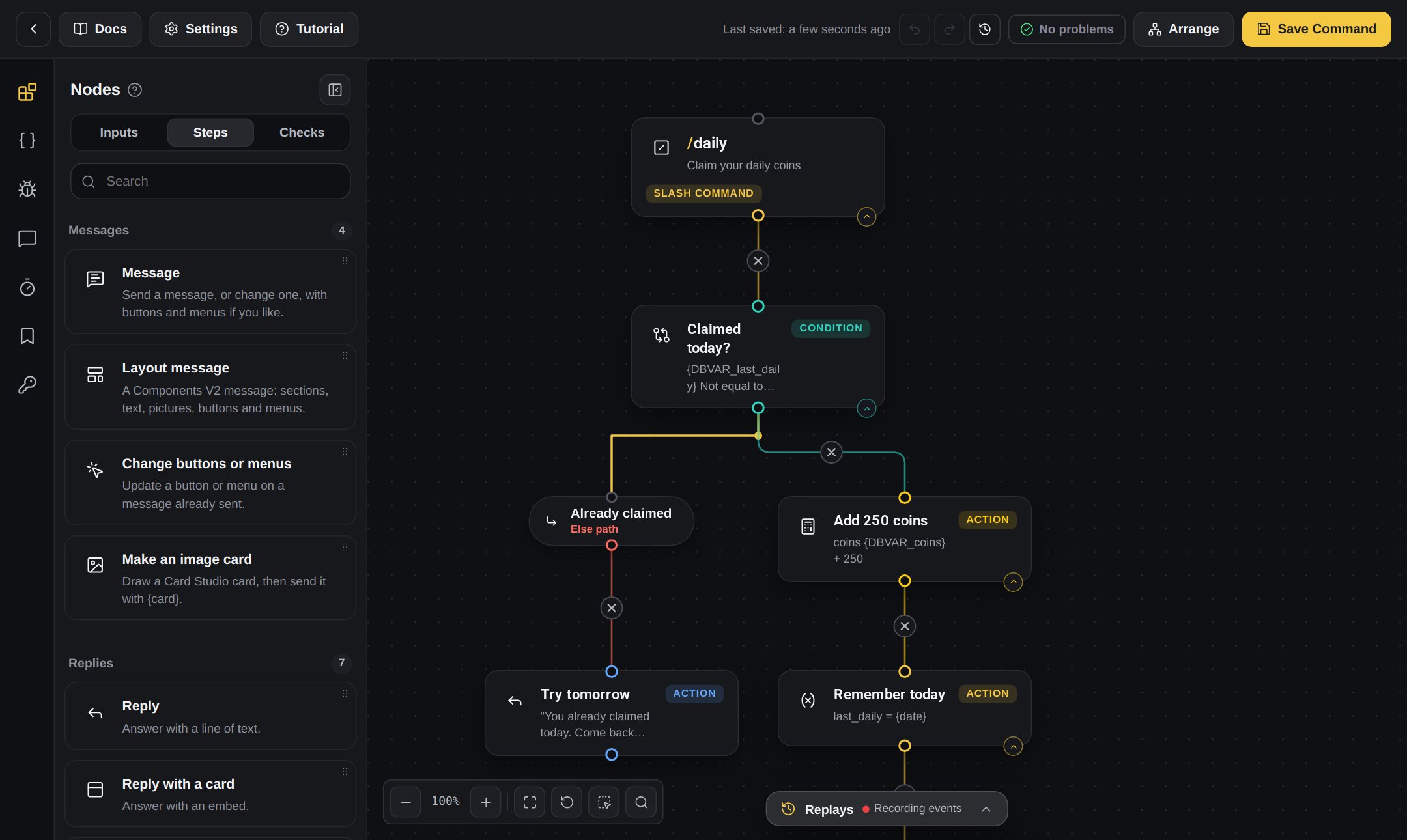
The builder: block list on the left, the board in the middle, settings on the right
Every block has a white icon, a name, a short line about what it does and a small pill that tells you what kind of block it is: Action, Condition, Event or Slash command.Blocks can also show a little tag:
Tag
What it means
Heads up
The builder thinks this block will fail when it runs, for example because a setting is missing. Press it to see why.
Error
This block failed in a real run. It gets a dashed outline. Press it to see what went wrong.
Drag a block from the list and drop it on the board. Or press the round gold + button and pick one.
2
Join it with a line
Blocks have round, hollow dots. Drag from the bottom dot of one block to the top dot of the next. Your bot always follows the lines, from top to bottom.You can also press the dashed + circle under a block to add the next block already joined.
3
Remove a line
Every line has a small round × button. Press it to remove the line.
4
Edit a block
Press a block. A gold ring appears around it, so you know which one you are editing, and its settings open on the right. Some blocks also let you type straight into the block itself.
Example: two blocks in a line
/ping (the command block) → Reply with Pong!Someone types /ping. The bot follows the line to the Reply block and answers Pong!
Add a Note block to write reminders for yourself or your team, like “this part gives the daily coins”. Notes do nothing in Discord. You can pick a colour and an icon for each note.
The top bar, moving around the board, and builder settings.
{"docsConfig":{"theme":"mint","$schema":"https://mintlify.com/docs.json","name":"DogeBot Docs","colors":{"primary":"#EAB308","light":"#FACC15","dark":"#CA8A04"},"logo":{"light":"https://mintcdn.com/doge-bot/7zABNdJHAtNhkZCI/images/doge-logo.png?fit=max\u0026auto=format\u0026n=7zABNdJHAtNhkZCI\u0026q=85\u0026s=c2eb1dd96517adc31165fe652c0d64d4","dark":"https://mintcdn.com/doge-bot/7zABNdJHAtNhkZCI/images/doge-logo.png?fit=max\u0026auto=format\u0026n=7zABNdJHAtNhkZCI\u0026q=85\u0026s=c2eb1dd96517adc31165fe652c0d64d4","href":"/"},"favicon":"https://mintcdn.com/doge-bot/7zABNdJHAtNhkZCI/images/doge-logo.png?fit=max\u0026auto=format\u0026n=7zABNdJHAtNhkZCI\u0026q=85\u0026s=c2eb1dd96517adc31165fe652c0d64d4","appearance":{"default":"dark"},"background":{"decoration":"gradient","color":{"dark":"#1A1A1A"}},"navbar":{"links":[{"href":"https://dogebot.net/dashboard","label":"Login"},{"href":"https://dogebot.net/dashboard/premium","label":"Premium"}],"primary":{"type":"button","label":"Dashboard","href":"https://dogebot.net/dashboard"}},"seo":{"metatags":{"canonical":"https://docs.dogebot.net"}},"fonts":{"family":"Poppins"},"icons":{"library":"lucide"},"contextual":{"options":["copy","view","chatgpt","claude","perplexity","mcp","cursor","vscode"],"display":"header"},"styling":{"latex":false},"navigation":{"pages":[]}},"deployment":{"deploymentMetadataValue":{"subdomain":"doge-bot","hasAudioNarration":false,"actualSubdomain":"doge-bot","customDomains":["docs.dogebot.net"],"gitSource":{"type":"github","owner":"mintlify-community","repo":"docs-doge-bot-b91ba433","deployBranch":"main","contentDirectory":"","isPrivate":true,"mountPath":"","label":""},"chroma":{"latestBuiltDeploymentHistoryId":"6ad47bf31fe2e6666c8faa4e","collectionId":"f5d88255-aa7b-446c-8f1c-66d1090ca70c","liveDeploymentHistoryId":"6ad47bf31fe2e6666c8faa4e","schemaVersion":"v3"},"entitlements":{"AI_CHAT":{"status":"ENABLED"},"WEB_MCP":{"status":"ENABLED"},"NARRATION":{"status":"ENABLED"}},"buildId":"6ad84e45858f4af642a3736a","clientVersion":"0.0.3908","searchFilterCounts":[{"language":"default","tag":"Building with blocks","count":15},{"language":"default","tag":"The builders","count":14},{"language":"default","tag":"OLD Variables","count":11},{"language":"default","tag":"Event triggers","count":10},{"language":"default","tag":"Build a system","count":9},{"language":"default","tag":"OLD Getting started","count":8},{"language":"default","tag":"Getting started","count":8},{"language":"default","tag":"Variables","count":8},{"language":"default","tag":"WhatsApp bots","count":8},{"language":"default","tag":"Dashboard pages","count":7}]},"assistantConfig":{"enableAskAiButton":false,"enableStarterQuestions":false,"enableContextualStarterQuestions":false,"enableAskAiSearchBar":true},"hasChatPermissions":true,"hasWebMcpPermissions":true,"toggles":[{"name":"kill-isr","enabled":true,"variant":{"name":"disabled","enabled":false,"feature_enabled":true},"impressionData":false},{"name":"agent-mintlify-slack","enabled":true,"variant":{"name":"disabled","enabled":false,"feature_enabled":true},"impressionData":false},{"name":"editor-v7-file-tree","enabled":true,"variant":{"name":"disabled","enabled":false,"feature_enabled":true},"impressionData":false},{"name":"agent-integrations-settings","enabled":true,"variant":{"name":"disabled","enabled":false,"feature_enabled":true},"impressionData":false},{"name":"automations-pr-grouping","enabled":true,"variant":{"name":"disabled","enabled":false,"feature_enabled":true},"impressionData":false},{"name":"custom-prefix","enabled":true,"variant":{"name":"disabled","enabled":false,"feature_enabled":true},"impressionData":false},{"name":"analytics-v7","enabled":true,"variant":{"name":"disabled","enabled":false,"feature_enabled":true},"impressionData":false},{"name":"user-flows-analytics","enabled":true,"variant":{"name":"disabled","enabled":false,"feature_enabled":true},"impressionData":false},{"name":"no-publish-flow","enabled":true,"variant":{"name":"disabled","enabled":false,"feature_enabled":true},"impressionData":false},{"name":"workos-onboarding","enabled":true,"variant":{"name":"disabled","enabled":false,"feature_enabled":true},"impressionData":false},{"name":"llms-txt-v2","enabled":true,"variant":{"name":"disabled","enabled":false,"feature_enabled":true},"impressionData":false},{"name":"pause-universal-search-reconcile","enabled":true,"variant":{"name":"disabled","enabled":false,"feature_enabled":true},"impressionData":false},{"name":"snapshot-serving-live","enabled":true,"variant":{"name":"disabled","enabled":false,"feature_enabled":true},"impressionData":false},{"name":"stripTemperatureMiddleware","enabled":true,"variant":{"name":"disabled","enabled":false,"feature_enabled":true},"impressionData":false},{"name":"per-site-search-delta","enabled":true,"variant":{"name":"disabled","enabled":false,"feature_enabled":true},"impressionData":false},{"name":"support-platform-pylon-zendesk","enabled":true,"variant":{"name":"disabled","enabled":false,"feature_enabled":true},"impressionData":false},{"name":"editor-branches-v2-autocommit","enabled":true,"variant":{"name":"disabled","enabled":false,"feature_enabled":true},"impressionData":false},{"name":"editor-branches-v2","enabled":true,"variant":{"name":"disabled","enabled":false,"feature_enabled":true},"impressionData":false},{"name":"snapshot-serving","enabled":true,"variant":{"name":"disabled","enabled":false,"feature_enabled":true},"impressionData":false},{"name":"instant-rollback","enabled":true,"variant":{"name":"disabled","enabled":false,"feature_enabled":true},"impressionData":false},{"name":"granular-notifications-server","enabled":true,"variant":{"name":"disabled","enabled":false,"feature_enabled":true},"impressionData":false},{"name":"granular-notifications","enabled":true,"variant":{"name":"disabled","enabled":false,"feature_enabled":true},"impressionData":false},{"name":"editor-private-page-search","enabled":true,"variant":{"name":"disabled","enabled":false,"feature_enabled":true},"impressionData":false},{"name":"automations-fable","enabled":true,"variant":{"name":"disabled","enabled":false,"feature_enabled":true},"impressionData":false},{"name":"fixed-ai-action-pricing","enabled":true,"variant":{"name":"disabled","enabled":false,"feature_enabled":true},"impressionData":false},{"name":"automation-resolve-merge-conflict","enabled":true,"variant":{"name":"disabled","enabled":false,"feature_enabled":true},"impressionData":false},{"name":"scoped-publishing","enabled":true,"variant":{"name":"disabled","enabled":false,"feature_enabled":true},"impressionData":false},{"name":"mintql","enabled":true,"variant":{"name":"disabled","enabled":false,"feature_enabled":true},"impressionData":false},{"name":"page-level-analytics","enabled":true,"variant":{"name":"disabled","enabled":false,"feature_enabled":true},"impressionData":false},{"name":"teamspace","enabled":true,"variant":{"name":"disabled","enabled":false,"feature_enabled":true},"impressionData":false},{"name":"editor-version-history-v2","enabled":true,"variant":{"name":"disabled","enabled":false,"feature_enabled":true},"impressionData":false},{"name":"vite-origin","enabled":true,"variant":{"name":"disabled","enabled":false,"feature_enabled":true},"impressionData":false},{"name":"editor-nav-generations","enabled":true,"variant":{"name":"disabled","enabled":false,"feature_enabled":true},"impressionData":false},{"name":"billing-page-v2","enabled":true,"variant":{"name":"disabled","enabled":false,"feature_enabled":true},"impressionData":false},{"name":"workspace-projects","enabled":true,"variant":{"name":"disabled","enabled":false,"feature_enabled":true},"impressionData":false},{"name":"assistant-v5","enabled":true,"variant":{"name":"disabled","enabled":false,"feature_enabled":true},"impressionData":false},{"name":"byok-sep-25","enabled":true,"variant":{"name":"disabled","enabled":false,"feature_enabled":true},"impressionData":false},{"name":"fork-pr-previews","enabled":true,"variant":{"name":"disabled","enabled":false,"feature_enabled":true},"impressionData":false},{"name":"revalidation-jwt","enabled":true,"variant":{"name":"disabled","enabled":false,"feature_enabled":true},"impressionData":false},{"name":"editor-agent-model-picker","enabled":true,"variant":{"name":"disabled","enabled":false,"feature_enabled":true},"impressionData":false},{"name":"client-snapshot-docs-config","enabled":true,"variant":{"name":"disabled","enabled":false,"feature_enabled":true},"impressionData":false},{"name":"hobby-abuse-scan","enabled":true,"variant":{"name":"disabled","enabled":false,"feature_enabled":true},"impressionData":false},{"name":"dashboard-inbox","enabled":true,"variant":{"name":"disabled","enabled":false,"feature_enabled":true},"impressionData":false}],"isAtlas":false,"googleFontsInlined":true},"customCss":[{"filePath":"style.css","content":"#navbar a:has(img.nav-logo){display:flex;align-items:center;gap:.625rem}#navbar a:has(img.nav-logo)::after{content:\"DogeBot Docs\";font-weight:700;font-size:1.5rem;line-height:1;white-space:nowrap;color:#111827}html.dark #navbar a:has(img.nav-logo)::after{color:#fff}"}],"page":{"pagePath":"building-with-blocks/how-blocks-work","slug":"/building-with-blocks/how-blocks-work","pageMetadata":{"title":"How blocks work","description":"The board, the blocks, the lines and every button.","icon":"workflow","href":"/building-with-blocks/how-blocks-work"},"description":{"compiledSource":"\"use strict\";\nconst {jsx: _jsx} = arguments[0];\nconst {useMDXComponents: _provideComponents} = arguments[0];\nfunction _createMdxContent(props) {\n const _components = {\n p: \"p\",\n ..._provideComponents(),\n ...props.components\n };\n return _jsx(_components.p, {\n children: \"The board, the blocks, the lines and every button.\"\n });\n}\nfunction MDXContent(props = {}) {\n const {wrapper: MDXLayout} = {\n ..._provideComponents(),\n ...props.components\n };\n return MDXLayout ? _jsx(MDXLayout, {\n ...props,\n children: _jsx(_createMdxContent, {\n ...props\n })\n }) : _createMdxContent(props);\n}\nreturn {\n default: MDXContent\n};\n","frontmatter":{},"scope":{}},"pageType":"default","mdx":{"mdxSource":{"compiledSource":"\"use strict\";const{Fragment:_Fragment,jsx:_jsx,jsxs:_jsxs}=arguments[0];const{useMDXComponents:_provideComponents}=arguments[0];function _createMdxContent(props){const _components={a:`a`,code:`code`,li:`li`,p:`p`,strong:`strong`,tbody:`tbody`,td:`td`,th:`th`,thead:`thead`,tr:`tr`,ul:`ul`,..._provideComponents(),...props.components},{Accordion,AccordionGroup,Card,CardGroup,Frame,Heading,OptimizedImage,Step,Steps,Table}=_components;if(!Accordion)_missingMdxReference(`Accordion`,true);if(!AccordionGroup)_missingMdxReference(`AccordionGroup`,true);if(!Card)_missingMdxReference(`Card`,true);if(!CardGroup)_missingMdxReference(`CardGroup`,true);if(!Frame)_missingMdxReference(`Frame`,true);if(!Heading)_missingMdxReference(`Heading`,true);if(!OptimizedImage)_missingMdxReference(`OptimizedImage`,true);if(!Step)_missingMdxReference(`Step`,true);if(!Steps)_missingMdxReference(`Steps`,true);if(!Table)_missingMdxReference(`Table`,true);return _jsxs(_Fragment,{children:[_jsx(_components.p,{children:`Every builder in DogeBot works the same way: the Command Builder, the Event Builder and the WhatsApp flow builder. Learn it once and you can use them all.`}),`\n`,_jsx(Frame,{caption:`The builder: block list on the left, the board in the middle, settings on the right`,children:_jsx(OptimizedImage,{src:`https://mintcdn.com/doge-bot/0C6-zgXTpDx1QOCe/images/guide/builder-command.png?fit=max\u0026auto=format\u0026n=0C6-zgXTpDx1QOCe\u0026q=85\u0026s=b7568b03c11d216dd65caf823f2b7d7a`,alt:`The DogeBot builder with blocks on the board`,\"data-og-width\":`2160`,width:`2160`,\"data-og-height\":`1290`,height:`1290`,\"data-path\":`images/guide/builder-command.png`,\"data-optimize\":`true`,\"data-opv\":`3`,srcset:`https://mintcdn.com/doge-bot/0C6-zgXTpDx1QOCe/images/guide/builder-command.png?w=280\u0026fit=max\u0026auto=format\u0026n=0C6-zgXTpDx1QOCe\u0026q=85\u0026s=f5cca1f31d9e83a4da02602b73221586 280w, https://mintcdn.com/doge-bot/0C6-zgXTpDx1QOCe/images/guide/builder-command.png?w=560\u0026fit=max\u0026auto=format\u0026n=0C6-zgXTpDx1QOCe\u0026q=85\u0026s=c3cda44c8c55d048c26dc43f3f0f5ae1 560w, https://mintcdn.com/doge-bot/0C6-zgXTpDx1QOCe/images/guide/builder-command.png?w=840\u0026fit=max\u0026auto=format\u0026n=0C6-zgXTpDx1QOCe\u0026q=85\u0026s=39a9590cc4a4ece2874eb390a2e0892b 840w, https://mintcdn.com/doge-bot/0C6-zgXTpDx1QOCe/images/guide/builder-command.png?w=1100\u0026fit=max\u0026auto=format\u0026n=0C6-zgXTpDx1QOCe\u0026q=85\u0026s=2970f8cb299056ae3de0b0854bc4b582 1100w, https://mintcdn.com/doge-bot/0C6-zgXTpDx1QOCe/images/guide/builder-command.png?w=1650\u0026fit=max\u0026auto=format\u0026n=0C6-zgXTpDx1QOCe\u0026q=85\u0026s=82e1f1ab088eaac636c742055542a64f 1650w, https://mintcdn.com/doge-bot/0C6-zgXTpDx1QOCe/images/guide/builder-command.png?w=2500\u0026fit=max\u0026auto=format\u0026n=0C6-zgXTpDx1QOCe\u0026q=85\u0026s=ac5e15e38c3c8f3bf7ff9d0e9e4129ae 2500w`})}),`\n`,_jsx(Heading,{level:`2`,id:`the-parts-of-the-builder`,children:`The parts of the builder`}),`\n`,_jsxs(Table,{children:[_jsx(_components.thead,{children:_jsxs(_components.tr,{children:[_jsx(_components.th,{children:`Part`}),_jsx(_components.th,{children:`Where`}),_jsx(_components.th,{children:`What it does`})]})}),_jsxs(_components.tbody,{children:[_jsxs(_components.tr,{children:[_jsx(_components.td,{children:_jsx(_components.strong,{children:`Side bar`})}),_jsx(_components.td,{children:`Far left, thin`}),_jsx(_components.td,{children:`Buttons that open panels: blocks, Timed Events, Variables, Error Logs, Commands, Templates and Secrets.`})]}),_jsxs(_components.tr,{children:[_jsx(_components.td,{children:_jsx(_components.strong,{children:`Block list`})}),_jsx(_components.td,{children:`Left, next to the side bar`}),_jsx(_components.td,{children:`All the blocks you can use, in tabs, with a search box.`})]}),_jsxs(_components.tr,{children:[_jsx(_components.td,{children:_jsx(_components.strong,{children:`Board`})}),_jsx(_components.td,{children:`Middle`}),_jsx(_components.td,{children:`The big dotted area where you place your blocks.`})]}),_jsxs(_components.tr,{children:[_jsx(_components.td,{children:_jsx(_components.strong,{children:`Settings`})}),_jsx(_components.td,{children:`Right`}),_jsx(_components.td,{children:`When you press a block, its settings open here.`})]}),_jsxs(_components.tr,{children:[_jsx(_components.td,{children:_jsx(_components.strong,{children:`Top bar`})}),_jsx(_components.td,{children:`Top`}),_jsx(_components.td,{children:`Problems, history, Find a block, Builder Settings and Save.`})]}),_jsxs(_components.tr,{children:[_jsx(_components.td,{children:_jsx(_components.strong,{children:`Replays`})}),_jsx(_components.td,{children:`Under the board`}),_jsxs(_components.td,{children:[`Recordings of your command running. See `,_jsx(_components.a,{href:`/building-with-blocks/saving-and-fixing-problems`,children:`Saving and fixing problems`}),`.`]})]})]})]}),`\n`,_jsx(Heading,{level:`2`,id:`the-side-bar-panels`,children:`The side bar panels`}),`\n`,_jsxs(AccordionGroup,{children:[_jsx(Accordion,{title:`Blocks`,icon:`blocks`,id:`blocks`,children:_jsx(_components.p,{children:`The block list.`})}),_jsx(Accordion,{title:`Timed Events`,icon:`clock`,id:`timed-events`,children:_jsxs(_components.p,{children:[`Make alarm clocks that start events. See `,_jsx(_components.a,{href:`/building-with-blocks/timed-events`,children:`Timed events`}),`.`]})}),_jsxs(Accordion,{title:`Variables`,icon:`database`,id:`variables`,children:[_jsxs(_components.p,{children:[`See your variables and make new ones without leaving the builder. See `,_jsx(_components.a,{href:`/variables/make-your-own-variables`,children:`Make a variable`}),`.`]}),_jsx(Frame,{caption:`The Variables panel inside the builder`,children:_jsx(OptimizedImage,{src:`https://mintcdn.com/doge-bot/0C6-zgXTpDx1QOCe/images/guide/builder-variables.png?fit=max\u0026auto=format\u0026n=0C6-zgXTpDx1QOCe\u0026q=85\u0026s=99c1f429c4097e276f4c33574d6e08c2`,alt:`The Variables panel in the builder`,\"data-og-width\":`2160`,width:`2160`,\"data-og-height\":`1290`,height:`1290`,\"data-path\":`images/guide/builder-variables.png`,\"data-optimize\":`true`,\"data-opv\":`3`,srcset:`https://mintcdn.com/doge-bot/0C6-zgXTpDx1QOCe/images/guide/builder-variables.png?w=280\u0026fit=max\u0026auto=format\u0026n=0C6-zgXTpDx1QOCe\u0026q=85\u0026s=ab5542e8447facd40c08b42c6d4344c9 280w, https://mintcdn.com/doge-bot/0C6-zgXTpDx1QOCe/images/guide/builder-variables.png?w=560\u0026fit=max\u0026auto=format\u0026n=0C6-zgXTpDx1QOCe\u0026q=85\u0026s=c20cdec322b51f8ea30e968cbbac15b0 560w, https://mintcdn.com/doge-bot/0C6-zgXTpDx1QOCe/images/guide/builder-variables.png?w=840\u0026fit=max\u0026auto=format\u0026n=0C6-zgXTpDx1QOCe\u0026q=85\u0026s=cac9506525d0247bd522aad99dd03ec7 840w, https://mintcdn.com/doge-bot/0C6-zgXTpDx1QOCe/images/guide/builder-variables.png?w=1100\u0026fit=max\u0026auto=format\u0026n=0C6-zgXTpDx1QOCe\u0026q=85\u0026s=d31a5687a470422acacf0a273251a1d8 1100w, https://mintcdn.com/doge-bot/0C6-zgXTpDx1QOCe/images/guide/builder-variables.png?w=1650\u0026fit=max\u0026auto=format\u0026n=0C6-zgXTpDx1QOCe\u0026q=85\u0026s=eb5f1ffec8d1567c5acedc1369ed8f60 1650w, https://mintcdn.com/doge-bot/0C6-zgXTpDx1QOCe/images/guide/builder-variables.png?w=2500\u0026fit=max\u0026auto=format\u0026n=0C6-zgXTpDx1QOCe\u0026q=85\u0026s=034be6bf7ebec137cf1ab7ca8245985d 2500w`})})]}),_jsx(Accordion,{title:`Error Logs`,icon:`bug`,id:`error-logs`,children:_jsx(_components.p,{children:`Problems from real runs of this bot.`})}),_jsx(Accordion,{title:`Commands`,icon:`square-slash`,id:`commands`,children:_jsx(_components.p,{children:`Jump to your other commands or events.`})}),_jsx(Accordion,{title:`Templates`,icon:`layout-template`,id:`templates`,children:_jsx(_components.p,{children:`Ready-made sets of blocks to start from.`})}),_jsx(Accordion,{title:`Secrets`,icon:`key-round`,id:`secrets`,children:_jsxs(_components.p,{children:[`Passwords and keys you can use in blocks. See `,_jsx(_components.a,{href:`/connections/secrets`,children:`Secrets`}),`.`]})})]}),`\n`,_jsx(_components.p,{children:`The close button hides the open panel so you have more room.`}),`\n`,_jsx(Heading,{level:`2`,id:`blocks-come-in-groups`,children:`Blocks come in groups`}),`\n`,_jsx(_components.p,{children:`In the block list, the blocks sit in tabs:`}),`\n`,_jsxs(CardGroup,{cols:3,children:[_jsx(Card,{title:`Inputs`,icon:`text-cursor-input`,children:_jsxs(_components.p,{children:[`Boxes the person fills in when they use a slash command, like picking a member or typing a number. Only `,_jsx(_components.strong,{children:`slash commands`}),` have Inputs.`]})}),_jsx(Card,{title:`Steps`,icon:`play`,children:_jsxs(_components.p,{children:[`Blocks that `,_jsx(_components.strong,{children:`do`}),` something, like send a message, give a role or save a value.`]})}),_jsx(Card,{title:`Checks`,icon:`git-branch`,children:_jsxs(_components.p,{children:[`Blocks that `,_jsx(_components.strong,{children:`ask a question`}),` and go one way or the other, like “does this person have the Moderator role?”.`]})})]}),`\n`,_jsxs(_components.p,{children:[`Right-click commands and the Event Builder only show `,_jsx(_components.strong,{children:`Steps`}),` and `,_jsx(_components.strong,{children:`Checks`}),`.`]}),`\n`,_jsx(Heading,{level:`2`,id:`what-a-block-looks-like`,children:`What a block looks like`}),`\n`,_jsxs(_components.p,{children:[`Every block has a `,_jsx(_components.strong,{children:`white icon`}),`, a `,_jsx(_components.strong,{children:`name`}),`, a short line about what it does and a small `,_jsx(_components.strong,{children:`pill`}),` that tells you what kind of block it is: `,_jsx(_components.strong,{children:`Action`}),`, `,_jsx(_components.strong,{children:`Condition`}),`, `,_jsx(_components.strong,{children:`Event`}),` or `,_jsx(_components.strong,{children:`Slash command`}),`.`]}),`\n`,_jsx(_components.p,{children:`Blocks can also show a little tag:`}),`\n`,_jsxs(Table,{children:[_jsx(_components.thead,{children:_jsxs(_components.tr,{children:[_jsx(_components.th,{children:`Tag`}),_jsx(_components.th,{children:`What it means`})]})}),_jsxs(_components.tbody,{children:[_jsxs(_components.tr,{children:[_jsx(_components.td,{children:_jsx(_components.strong,{children:`Heads up`})}),_jsx(_components.td,{children:`The builder thinks this block will fail when it runs, for example because a setting is missing. Press it to see why.`})]}),_jsxs(_components.tr,{children:[_jsx(_components.td,{children:_jsx(_components.strong,{children:`Error`})}),_jsx(_components.td,{children:`This block failed in a real run. It gets a dashed outline. Press it to see what went wrong.`})]})]})]}),`\n`,_jsx(Heading,{level:`2`,id:`placing-and-joining-blocks`,children:`Placing and joining blocks`}),`\n`,_jsxs(Steps,{children:[_jsx(Step,{title:`Drag a block in`,children:_jsxs(_components.p,{children:[`Drag a block from the list and drop it on the board. Or press the round gold `,_jsx(_components.strong,{children:`+`}),` button and pick one.`]})}),_jsxs(Step,{title:`Join it with a line`,children:[_jsxs(_components.p,{children:[`Blocks have round, hollow `,_jsx(_components.strong,{children:`dots`}),`. Drag from the `,_jsx(_components.strong,{children:`bottom dot`}),` of one block to the `,_jsx(_components.strong,{children:`top dot`}),` of the next. Your bot always follows the lines, from top to bottom.`]}),_jsxs(_components.p,{children:[`You can also press the dashed `,_jsx(_components.strong,{children:`+`}),` circle under a block to add the next block already joined.`]})]}),_jsx(Step,{title:`Remove a line`,children:_jsxs(_components.p,{children:[`Every line has a small round `,_jsx(_components.strong,{children:`×`}),` button. Press it to remove the line.`]})}),_jsx(Step,{title:`Edit a block`,children:_jsxs(_components.p,{children:[`Press a block. A `,_jsx(_components.strong,{children:`gold ring`}),` appears around it, so you know which one you are editing, and its settings open on the right. Some blocks also let you type straight into the block itself.`]})})]}),`\n`,_jsxs(Card,{title:`Example: two blocks in a line`,icon:`sparkles`,children:[_jsxs(_components.p,{children:[_jsx(_components.code,{children:`/ping`}),` (the command block) → `,_jsx(_components.strong,{children:`Reply`}),` with `,_jsx(_components.code,{children:`Pong!`})]}),_jsxs(_components.p,{children:[`Someone types `,_jsx(_components.code,{children:`/ping`}),`. The bot follows the line to the Reply block and answers `,_jsx(_components.strong,{children:`Pong!`})]})]}),`\n`,_jsx(Heading,{level:`2`,id:`ways-out-of-a-block`,children:`Ways out of a block`}),`\n`,_jsxs(_components.ul,{children:[`\n`,_jsxs(_components.li,{children:[_jsx(_components.strong,{children:`Checks`}),` have two ways out: one for `,_jsx(_components.strong,{children:`yes`}),` and one for `,_jsx(_components.strong,{children:`no`}),`. See `,_jsx(_components.a,{href:`/building-with-blocks/checks-and-paths`,children:`Checks and paths`}),`.`]}),`\n`,_jsxs(_components.li,{children:[`Many action blocks can also show a `,_jsx(_components.strong,{children:`green`}),` path (it worked) and a `,_jsx(_components.strong,{children:`red`}),` path (it failed). See `,_jsx(_components.a,{href:`/building-with-blocks/saving-and-fixing-problems`,children:`Saving and fixing problems`}),`.`]}),`\n`]}),`\n`,_jsx(Heading,{level:`2`,id:`notes`,children:`Notes`}),`\n`,_jsxs(_components.p,{children:[`Add a `,_jsx(_components.strong,{children:`Note`}),` block to write reminders for yourself or your team, like “this part gives the daily coins”. Notes do nothing in Discord. You can pick a colour and an icon for each note.`]}),`\n`,_jsx(Heading,{level:`2`,id:`learn-more`,children:`Learn more`}),`\n`,_jsxs(CardGroup,{cols:2,children:[_jsx(Card,{title:`Your first command`,icon:`terminal`,href:`/building-with-blocks/your-first-command`,children:_jsx(_components.p,{children:`Try it yourself with a /ping command.`})}),_jsx(Card,{title:`Tips and shortcuts`,icon:`lightbulb`,href:`/building-with-blocks/tips-and-shortcuts`,children:_jsx(_components.p,{children:`The top bar, moving around the board, and builder settings.`})})]})]})}function MDXContent(props={}){const{wrapper:MDXLayout}={..._provideComponents(),...props.components};return MDXLayout?_jsx(MDXLayout,{...props,children:_jsx(_createMdxContent,{...props})}):_createMdxContent(props)}return{default:MDXContent};function _missingMdxReference(id,component){throw new Error(`Expected `+(component?`component`:`object`)+\" `\"+id+\"` to be defined: you likely forgot to import, pass, or provide it.\")}","frontmatter":{},"scope":{"config":{},"pageMetadata":{"title":"How blocks work","description":"The board, the blocks, the lines and every button.","icon":"workflow","href":"/building-with-blocks/how-blocks-work"}}},"mdxSourceWithNoJs":null},"mdxExtracts":{"tableOfContents":[{"title":"The parts of the builder","slug":"the-parts-of-the-builder","depth":2,"children":[]},{"title":"The side bar panels","slug":"the-side-bar-panels","depth":2,"children":[]},{"title":"Blocks come in groups","slug":"blocks-come-in-groups","depth":2,"children":[]},{"title":"What a block looks like","slug":"what-a-block-looks-like","depth":2,"children":[]},{"title":"Placing and joining blocks","slug":"placing-and-joining-blocks","depth":2,"children":[]},{"title":"Ways out of a block","slug":"ways-out-of-a-block","depth":2,"children":[]},{"title":"Notes","slug":"notes","depth":2,"children":[]},{"title":"Learn more","slug":"learn-more","depth":2,"children":[]}],"codeExamples":{}},"jsLinks":[],"subdomain":"doge-bot","siteName":"DogeBot Docs","title":"How blocks work - DogeBot Docs","navMaps":{"firstHrefInVersion":{},"firstHrefInLanguage":{}},"lastModified":"2026-10-21T05:31:58.565Z","originalFileLocation":"building-with-blocks/how-blocks-work.mdx"},"headHtml":"\u003cscript data-mint-head>(function(){var d=document.documentElement,p=null;if(!p){try{p=localStorage.getItem(\"isDarkMode\")}catch(e){}if(p==='true')p='dark';else if(p==='false')p='light';if(p!=='light'\u0026\u0026p!=='dark'\u0026\u0026p!=='system')p=\"dark\"}var r=p==='system'?(matchMedia(\"(prefers-color-scheme: dark)\").matches?'dark':'light'):p;d.classList.remove(r==='dark'?'light':'dark');d.classList.add(r);d.setAttribute(\"data-theme-preference\",p)})();\u003c/script>\u003cmeta data-mint-head name=\"description\" content=\"The board, the blocks, the lines and every button.\">\u003cmeta data-mint-head name=\"application-name\" content=\"DogeBot Docs\">\u003cmeta data-mint-head name=\"generator\" content=\"Mintlify\">\u003clink data-mint-head rel=\"icon\" type=\"image/png\" sizes=\"192x192\" href=\"/mintlify-assets/_mintlify/favicons/doge-bot/G9Z_OhfkcW0ROwkd/_generated/favicon/android-chrome-192x192.png\" media=\"(prefers-color-scheme: light)\">\u003clink data-mint-head rel=\"apple-touch-icon\" type=\"image/png\" sizes=\"180x180\" href=\"/mintlify-assets/_mintlify/favicons/doge-bot/G9Z_OhfkcW0ROwkd/_generated/favicon/apple-touch-icon.png\">\u003clink data-mint-head rel=\"icon\" type=\"image/png\" sizes=\"16x16\" href=\"/mintlify-assets/_mintlify/favicons/doge-bot/G9Z_OhfkcW0ROwkd/_generated/favicon/favicon-16x16.png\" media=\"(prefers-color-scheme: light)\">\u003clink data-mint-head rel=\"icon\" type=\"image/png\" sizes=\"32x32\" href=\"/mintlify-assets/_mintlify/favicons/doge-bot/G9Z_OhfkcW0ROwkd/_generated/favicon/favicon-32x32.png\" media=\"(prefers-color-scheme: light)\">\u003clink data-mint-head rel=\"shortcut icon\" type=\"image/x-icon\" href=\"/mintlify-assets/_mintlify/favicons/doge-bot/G9Z_OhfkcW0ROwkd/_generated/favicon/favicon.ico\" media=\"(prefers-color-scheme: light)\">\u003clink data-mint-head rel=\"icon\" type=\"image/png\" sizes=\"192x192\" href=\"/mintlify-assets/_mintlify/favicons/doge-bot/G9Z_OhfkcW0ROwkd/_generated/favicon-dark/android-chrome-192x192.png\" media=\"(prefers-color-scheme: dark)\">\u003clink data-mint-head rel=\"icon\" type=\"image/png\" sizes=\"16x16\" href=\"/mintlify-assets/_mintlify/favicons/doge-bot/G9Z_OhfkcW0ROwkd/_generated/favicon-dark/favicon-16x16.png\" media=\"(prefers-color-scheme: dark)\">\u003clink data-mint-head rel=\"icon\" type=\"image/png\" sizes=\"32x32\" href=\"/mintlify-assets/_mintlify/favicons/doge-bot/G9Z_OhfkcW0ROwkd/_generated/favicon-dark/favicon-32x32.png\" media=\"(prefers-color-scheme: dark)\">\u003clink data-mint-head rel=\"shortcut icon\" type=\"image/x-icon\" href=\"/mintlify-assets/_mintlify/favicons/doge-bot/G9Z_OhfkcW0ROwkd/_generated/favicon-dark/favicon.ico\" media=\"(prefers-color-scheme: dark)\">\u003cmeta data-mint-head property=\"og:title\" content=\"How blocks work - DogeBot Docs\">\u003cmeta data-mint-head property=\"og:description\" content=\"The board, the blocks, the lines and every button.\">\u003cmeta data-mint-head property=\"og:site_name\" content=\"DogeBot Docs\">\u003cmeta data-mint-head property=\"og:url\" content=\"https://docs.dogebot.net/building-with-blocks/how-blocks-work\">\u003cmeta data-mint-head property=\"og:type\" content=\"website\">\u003cmeta data-mint-head name=\"twitter:card\" content=\"summary_large_image\">\u003cmeta data-mint-head name=\"twitter:title\" content=\"How blocks work - DogeBot Docs\">\u003cmeta data-mint-head name=\"twitter:description\" content=\"The board, the blocks, the lines and every button.\">\u003cmeta data-mint-head name=\"msapplication-config\" content=\"/mintlify-assets/_mintlify/favicons/doge-bot/G9Z_OhfkcW0ROwkd/_generated/favicon/browserconfig.xml\">\u003cmeta data-mint-head name=\"apple-mobile-web-app-title\" content=\"DogeBot Docs\">\u003cmeta data-mint-head name=\"msapplication-TileColor\" content=\"#EAB308\">\u003clink data-mint-head rel=\"canonical\" href=\"https://docs.dogebot.net/building-with-blocks/how-blocks-work\">\u003clink data-mint-head rel=\"alternate\" type=\"application/xml\" href=\"/sitemap.xml\">\u003clink data-mint-head rel=\"alternate\" type=\"text/markdown\" href=\"/building-with-blocks/how-blocks-work.md\">\u003cscript data-mint-head type=\"application/ld+json\">{\"@context\":\"https://schema.org\",\"@graph\":[{\"@type\":\"Organization\",\"@id\":\"https://docs.dogebot.net/#organization\",\"name\":\"DogeBot Docs\",\"url\":\"https://docs.dogebot.net\",\"logo\":{\"@type\":\"ImageObject\",\"url\":\"https://mintcdn.com/doge-bot/7zABNdJHAtNhkZCI/images/doge-logo.png?fit=max\u0026auto=format\u0026n=7zABNdJHAtNhkZCI\u0026q=85\u0026s=c2eb1dd96517adc31165fe652c0d64d4\"}},{\"@type\":\"WebSite\",\"@id\":\"https://docs.dogebot.net#website\",\"name\":\"DogeBot Docs\",\"url\":\"https://docs.dogebot.net\",\"publisher\":{\"@id\":\"https://docs.dogebot.net/#organization\"}},{\"@type\":\"WebPage\",\"@id\":\"https://docs.dogebot.net/building-with-blocks/how-blocks-work#webpage\",\"url\":\"https://docs.dogebot.net/building-with-blocks/how-blocks-work\",\"name\":\"How blocks work\",\"description\":\"The board, the blocks, the lines and every button.\",\"dateModified\":\"2026-10-21T05:31:58.565Z\",\"isPartOf\":{\"@id\":\"https://docs.dogebot.net#website\"},\"breadcrumb\":{\"@id\":\"https://docs.dogebot.net/building-with-blocks/how-blocks-work#breadcrumb\"}},{\"@type\":\"BreadcrumbList\",\"@id\":\"https://docs.dogebot.net/building-with-blocks/how-blocks-work#breadcrumb\",\"itemListElement\":[{\"@type\":\"ListItem\",\"position\":1,\"name\":\"Building with blocks\",\"item\":\"https://docs.dogebot.net/building-with-blocks\"},{\"@type\":\"ListItem\",\"position\":2,\"name\":\"How blocks work\",\"item\":\"https://docs.dogebot.net/building-with-blocks/how-blocks-work\"}]},{\"@type\":[\"Article\",\"TechArticle\"],\"@id\":\"https://docs.dogebot.net/building-with-blocks/how-blocks-work#article\",\"headline\":\"How blocks work\",\"name\":\"How blocks work\",\"description\":\"The board, the blocks, the lines and every button.\",\"url\":\"https://docs.dogebot.net/building-with-blocks/how-blocks-work\",\"mainEntityOfPage\":{\"@id\":\"https://docs.dogebot.net/building-with-blocks/how-blocks-work#webpage\"},\"dateModified\":\"2026-10-21T05:31:58.565Z\",\"publisher\":{\"@id\":\"https://docs.dogebot.net/#organization\"},\"isPartOf\":{\"@id\":\"https://docs.dogebot.net#website\"}}]}\u003c/script>\u003cscript data-mint-head type=\"application/ld+json\">{\"@context\":\"https://schema.org\",\"@type\":\"WebSite\",\"name\":\"DogeBot Docs\",\"creator\":{\"@type\":\"Organization\",\"name\":\"Mintlify\",\"url\":\"https://mintlify.com\"}}\u003c/script>","siteName":"DogeBot Docs","nav":{"global":null,"groups":[{"group":"Getting started","pages":[{"title":"What is DogeBot?","icon":"circle-help","href":"/getting-started/what-is-dogebot"},{"title":"Words you'll see","icon":"book-open","href":"/getting-started/words-youll-see"},{"title":"Make your DogeBot account","icon":"user-plus","href":"/getting-started/make-your-dogebot-account"},{"title":"Make a Discord bot","icon":"bot","href":"/getting-started/make-a-discord-bot"},{"title":"Connect your bot to DogeBot","icon":"plug","href":"/getting-started/connect-your-bot-to-dogebot"},{"title":"Invite your bot to your server","icon":"user-round-plus","href":"/getting-started/invite-your-bot-to-your-server"},{"title":"Turn your bot on","icon":"power","href":"/getting-started/turn-your-bot-on"},{"title":"A tour of the dashboard","icon":"layout-dashboard","href":"/getting-started/a-tour-of-the-dashboard"}]},{"group":"Build real systems","pages":[{"title":"Build real systems","icon":"hammer","href":"/build-real-systems"},{"title":"Daily coins","icon":"coins","href":"/build-real-systems/daily-coins"}]},{"group":"Building with blocks","pages":[{"title":"Building with blocks","description":"How to build commands and events with blocks.","icon":"blocks","href":"/building-with-blocks"},{"title":"How blocks work","icon":"workflow","href":"/building-with-blocks/how-blocks-work"},{"title":"Your first command","description":"Build a /ping command that answers Pong!","icon":"terminal","href":"/building-with-blocks/your-first-command"},{"title":"Commands and inputs","icon":"square-slash","href":"/building-with-blocks/commands-and-inputs"},{"title":"Events","icon":"zap","href":"/building-with-blocks/events"},{"title":"Checks and paths","icon":"git-branch","href":"/building-with-blocks/checks-and-paths"},{"title":"Messages, buttons and menus","icon":"mouse-pointer-click","href":"/building-with-blocks/messages-buttons-and-menus"},{"title":"Pop-up forms","icon":"clipboard-list","href":"/building-with-blocks/pop-up-forms"},{"title":"Repeats and waiting","icon":"repeat","href":"/building-with-blocks/repeats-and-waiting"},{"title":"Web requests","icon":"globe","href":"/building-with-blocks/web-requests"},{"title":"Saving and fixing problems","icon":"wrench","href":"/building-with-blocks/saving-and-fixing-problems"},{"title":"Folders, history and sharing","icon":"folder","href":"/building-with-blocks/folders-history-and-sharing"},{"title":"Timed events","icon":"clock","href":"/building-with-blocks/timed-events"},{"title":"Tips and shortcuts","icon":"lightbulb","href":"/building-with-blocks/tips-and-shortcuts"},{"title":"Message Builder","icon":"message-square","href":"/message-builder"}]},{"group":"Block library","pages":[{"title":"Block library","icon":"blocks","href":"/block-library"},{"title":"Message blocks","icon":"message-square","href":"/block-library/message-blocks"},{"title":"Command input blocks","icon":"text-cursor-input","href":"/block-library/command-input-blocks"},{"title":"Repeat and wait blocks","icon":"repeat","href":"/block-library/repeat-and-wait-blocks"}]},{"group":"Event triggers","pages":[{"title":"Event triggers","icon":"zap","href":"/event-triggers"},{"title":"Message events","icon":"message-square","href":"/event-triggers/message-events"},{"title":"Member events","icon":"users","href":"/event-triggers/member-events"},{"title":"Reaction events","icon":"smile-plus","href":"/event-triggers/reaction-events"},{"title":"Voice events","icon":"mic","href":"/event-triggers/voice-events"},{"title":"Channel and thread events","icon":"hash","href":"/event-triggers/channel-and-thread-events"},{"title":"Role, boost and invite events","icon":"shield","href":"/event-triggers/role-boost-and-invite-events"},{"title":"Timed events list","icon":"clock","href":"/event-triggers/timed-events-list"},{"title":"Bot, alerts and other events","icon":"bot","href":"/event-triggers/bot-social-and-other-events"},{"title":"Server, scheduled, stage and sticker events","icon":"server","href":"/event-triggers/server-stage-sticker-and-poll-events"}]},{"group":"Variables","pages":[{"title":"What is a variable?","icon":"box","href":"/variables/what-variables-are"},{"title":"Make a variable","icon":"circle-plus","href":"/variables/make-your-own-variables"},{"title":"Use variables in blocks","icon":"calculator","href":"/variables/use-your-variables-in-blocks"},{"title":"Lists and objects","icon":"boxes","href":"/variables/lists-objects-and-members"},{"title":"The Database page","icon":"table","href":"/variables/variable-tools"},{"title":"Server Specific or Global","icon":"globe","href":"/variables/server-specific-or-global"},{"title":"Short-lived values","icon":"timer","href":"/variables/short-lived-values"},{"title":"Find and fix variable problems","icon":"search-check","href":"/variables/find-and-fix-variable-problems"}]},{"group":"Card Studio","pages":[{"title":"Make your first card","icon":"sparkles","href":"/card-studio/make-your-first-card"},{"title":"Layers","icon":"layers","href":"/card-studio/layers"},{"title":"Templates and your pictures","icon":"layout-template","href":"/card-studio/templates-and-your-pictures"},{"title":"Send cards from your bot","icon":"send","href":"/card-studio/send-cards-from-your-bot"}]},{"group":"WhatsApp bots","pages":[{"title":"WhatsApp bots","icon":"message-circle","href":"/whatsapp"},{"title":"Connect a WhatsApp number","icon":"smartphone","href":"/whatsapp/connect-a-whatsapp-number"},{"title":"Flows and triggers","icon":"git-branch","href":"/whatsapp/flows-and-triggers"},{"title":"WhatsApp blocks","icon":"blocks","href":"/whatsapp/whatsapp-blocks"},{"title":"The Inbox","icon":"inbox","href":"/whatsapp/the-inbox"},{"title":"Apps and services","icon":"plug-zap","href":"/whatsapp/apps-and-services"},{"title":"Ready-made flows","icon":"copy","href":"/whatsapp/ready-made-flows"},{"title":"WhatsApp variables","icon":"braces","href":"/whatsapp/whatsapp-variables"}]},{"group":"Connections","pages":[{"title":"Connections","icon":"plug","href":"/connections"},{"title":"Inbound webhooks","icon":"webhook","href":"/connections/inbound-webhooks"},{"title":"YouTube, Twitch and TikTok alerts","icon":"bell","href":"/connections/youtube-twitch-and-tiktok-alerts"},{"title":"Secrets","icon":"key-round","href":"/connections/secrets"}]},{"group":"Your bot","pages":[{"title":"Your bot","icon":"bot","href":"/your-bot"},{"title":"Bot settings","icon":"sliders-horizontal","href":"/your-bot/bot-settings"},{"title":"Servers","icon":"server","href":"/your-bot/servers"},{"title":"Insights","icon":"chart-line","href":"/your-bot/insights"},{"title":"Error Logs","icon":"bug","href":"/your-bot/error-logs"},{"title":"Collaborators","icon":"users","href":"/your-bot/collaborators"},{"title":"Marketplace","icon":"store","href":"/your-bot/marketplace"}]},{"group":"Account and plans","pages":[{"title":"Your account and security","icon":"shield-check","href":"/your-account-and-security"}]},{"group":"Help and fixes","pages":[]},{"group":"OLD Getting started","pages":[{"icon":"house","title":"Welcome to DogeBot","href":"/index"},{"icon":"rocket","title":"Getting started","href":"/getting-started"},{"title":"Make an account","icon":"user-plus","href":"/getting-started/make-an-account"},{"title":"Connect your Discord bot","icon":"plug","href":"/getting-started/connect-your-discord-bot"},{"title":"Connect a WhatsApp number","icon":"smartphone","href":"/getting-started/connect-a-whatsapp-number"},{"title":"Your dashboard","icon":"layout-dashboard","href":"/getting-started/your-dashboard"},{"title":"Your first command","icon":"terminal","href":"/getting-started/your-first-command"},{"title":"Words to know","icon":"book-open","href":"/words-to-know"}]},{"group":"The builders","pages":[{"title":"The builders","icon":"blocks","href":"/the-builders"},{"title":"How the builder works","icon":"workflow","href":"/the-builders/how-the-builder-works"},{"title":"Builder settings","icon":"settings","href":"/the-builders/builder-settings"},{"title":"Commands","icon":"square-slash","href":"/the-builders/commands"},{"title":"Inputs","icon":"text-cursor-input","href":"/the-builders/inputs"},{"title":"Events","icon":"zap","href":"/the-builders/events"},{"title":"Messages and the Message Builder","icon":"message-square","href":"/the-builders/messages-and-the-message-builder"},{"title":"Error Logs","icon":"bug","href":"/the-builders/error-logs"},{"title":"Replays","icon":"history","href":"/the-builders/replays"},{"title":"When something goes wrong","icon":"triangle-alert","href":"/the-builders/when-something-goes-wrong"},{"title":"Buttons and menus","icon":"mouse-pointer-click","href":"/the-builders/buttons-and-menus"},{"title":"Pop-up forms","icon":"clipboard-list","href":"/the-builders/pop-up-forms"},{"title":"Loops and waiting","icon":"repeat","href":"/the-builders/loops-and-waiting"},{"title":"Copy, share and history","icon":"copy","href":"/the-builders/copy-share-and-history"}]},{"group":"OLD Variables","pages":[{"title":"Variables","icon":"database","href":"/variables"},{"title":"The Database page","icon":"table","href":"/variables/the-database-page"},{"title":"Make your first variable","icon":"circle-plus","href":"/variables/make-your-first-variable"},{"title":"Types of variables","icon":"shapes","href":"/variables/types-of-variables"},{"title":"Server or Global","icon":"globe","href":"/variables/server-or-global"},{"title":"Show a variable in a message","icon":"braces","href":"/variables/show-a-variable-in-a-message"},{"title":"Change a variable with blocks","icon":"calculator","href":"/variables/change-a-variable-with-blocks"},{"title":"Objects and Collections","icon":"boxes","href":"/variables/objects-and-collections"},{"title":"Run-only values","icon":"timer","href":"/variables/run-only-values"},{"title":"Built-in variables","icon":"package","href":"/variables/built-in-variables"},{"title":"Check and fix your variables","icon":"search-check","href":"/variables/check-and-fix-your-variables"}]},{"group":"Build a system","pages":[{"title":"Build a system","icon":"hammer","href":"/build-a-system"},{"title":"Economy","icon":"coins","href":"/build-a-system/economy"},{"title":"Levels and XP","icon":"trending-up","href":"/build-a-system/levels-and-xp"},{"title":"Welcome and goodbye","icon":"hand","href":"/build-a-system/welcome-and-goodbye"},{"title":"Verification","icon":"shield-check","href":"/build-a-system/verification"},{"title":"Tickets","icon":"ticket","href":"/build-a-system/tickets"},{"title":"Button roles","icon":"toggle-right","href":"/build-a-system/button-roles"},{"title":"Warnings and moderation","icon":"gavel","href":"/build-a-system/warnings-and-moderation"},{"title":"Scheduled messages","icon":"calendar-clock","href":"/build-a-system/scheduled-messages"}]},{"group":"OLD Card Studio","pages":[{"icon":"image","title":"Card Studio","href":"/card-studio"},{"title":"The card editor","icon":"pen-tool","href":"/card-studio/the-card-editor"},{"title":"Looks","icon":"palette","href":"/card-studio/looks"},{"title":"Templates","icon":"layout-template","href":"/card-studio/templates"},{"icon":"type","title":"Fonts","href":"/card-studio/fonts"},{"title":"Send a card from your bot","icon":"send","href":"/card-studio/send-a-card-from-your-bot"}]},{"group":"Dashboard pages","pages":[{"title":"Dashboard pages","icon":"panels-top-left","href":"/dashboard-pages"},{"title":"Bot settings","icon":"sliders-horizontal","href":"/dashboard-pages/bot-settings"},{"title":"Secrets","icon":"key-round","href":"/dashboard-pages/secrets"},{"title":"Integrations and webhooks","icon":"webhook","href":"/dashboard-pages/integrations-and-webhooks"},{"title":"Servers","icon":"server","href":"/dashboard-pages/servers"},{"title":"Analytics","icon":"chart-line","href":"/dashboard-pages/analytics"},{"title":"Premium, codes and Link Discord","icon":"crown","href":"/dashboard-pages/premium-codes-and-link-discord"}]},{"group":"OLD WhatsApp bots","pages":[{"title":"WhatsApp bots","icon":"message-circle","href":"/whatsapp-bots"},{"title":"Your first flow","icon":"git-branch","href":"/whatsapp-bots/your-first-flow"},{"title":"The Inbox","icon":"inbox","href":"/whatsapp-bots/the-inbox"},{"title":"Apps and services","icon":"plug-zap","href":"/whatsapp-bots/apps-and-services"}]},{"group":"Modules and Marketplace","pages":[{"title":"Modules and Marketplace","icon":"puzzle","href":"/modules-and-marketplace"},{"title":"Using modules","icon":"toggle-left","href":"/modules-and-marketplace/using-modules"}]},{"group":"Your account","pages":[{"title":"Your account","icon":"circle-user","href":"/your-account"},{"title":"Collaborators","icon":"users","href":"/your-account/collaborators"},{"title":"Two-step sign-in","icon":"lock","href":"/your-account/two-step-sign-in"},{"title":"Password and sign-in","icon":"key","href":"/your-account/password-and-sign-in"},{"title":"Delete your account","icon":"trash-2","href":"/your-account/delete-your-account"}]},{"group":"Help","pages":[{"title":"Plans and limits","icon":"credit-card","href":"/plans-and-limits"},{"title":"Help and questions","icon":"circle-help","href":"/help-and-questions"},{"title":"What's new","icon":"sparkles","href":"/whats-new"}]}]},"title":"How blocks work - DogeBot Docs","buildId":"dpl_CUnGQP1HgFUzoxatVC37y4zP83Vx","deploymentId":"dpl_CUnGQP1HgFUzoxatVC37y4zP83Vx","dynamics":["07c022d89b","a74be98ba7"],"chunks":["Frame-BCFzRGe_.js","DynamicMarkdown-BUuAYxJE.js","zoom-image-lightbox-DQ5W4Q2v.js","PlusIcon-jZ8vgk6R.js","lightbox-handle-r17bVUz3.js"]}