
/hello or /coins. You build them by joining blocks together. Saving sends the command to Yapin straight away, so it shows in the / menu.
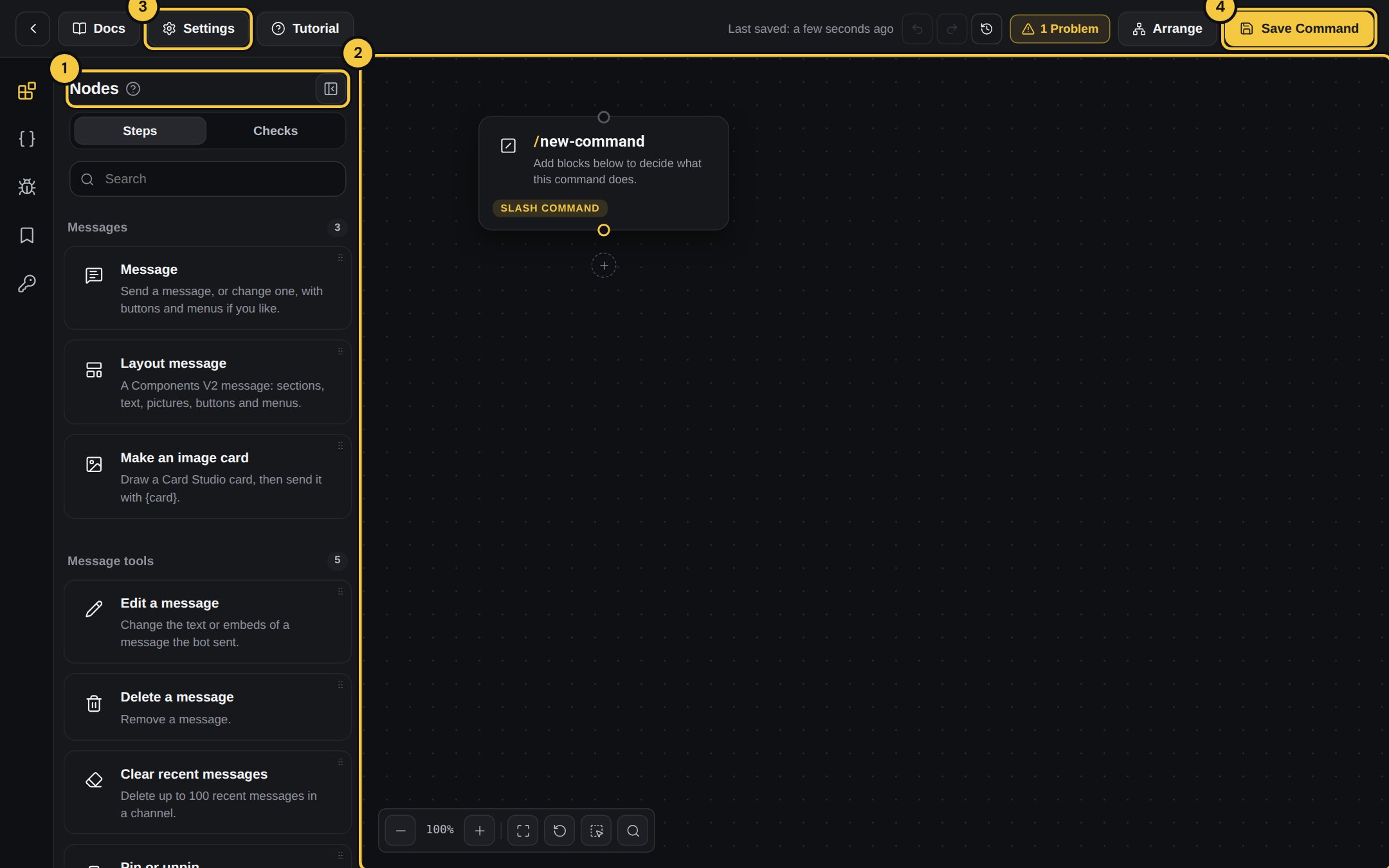
1
1. Nodes
Every block you can use, grouped by what it does: messages, replies, members, moderation, channels, voice, variables and logic. Drag one onto the canvas, or press the + under a block.
2
2. Your command
The top block of every command. Click it to set the name, description and cooldown.
3
3. Settings
Options for the whole command, like who may use it.
4
4. Save Command
Saves and sends it to Yapin. The button turns gold when there are changes to save.
Command settings
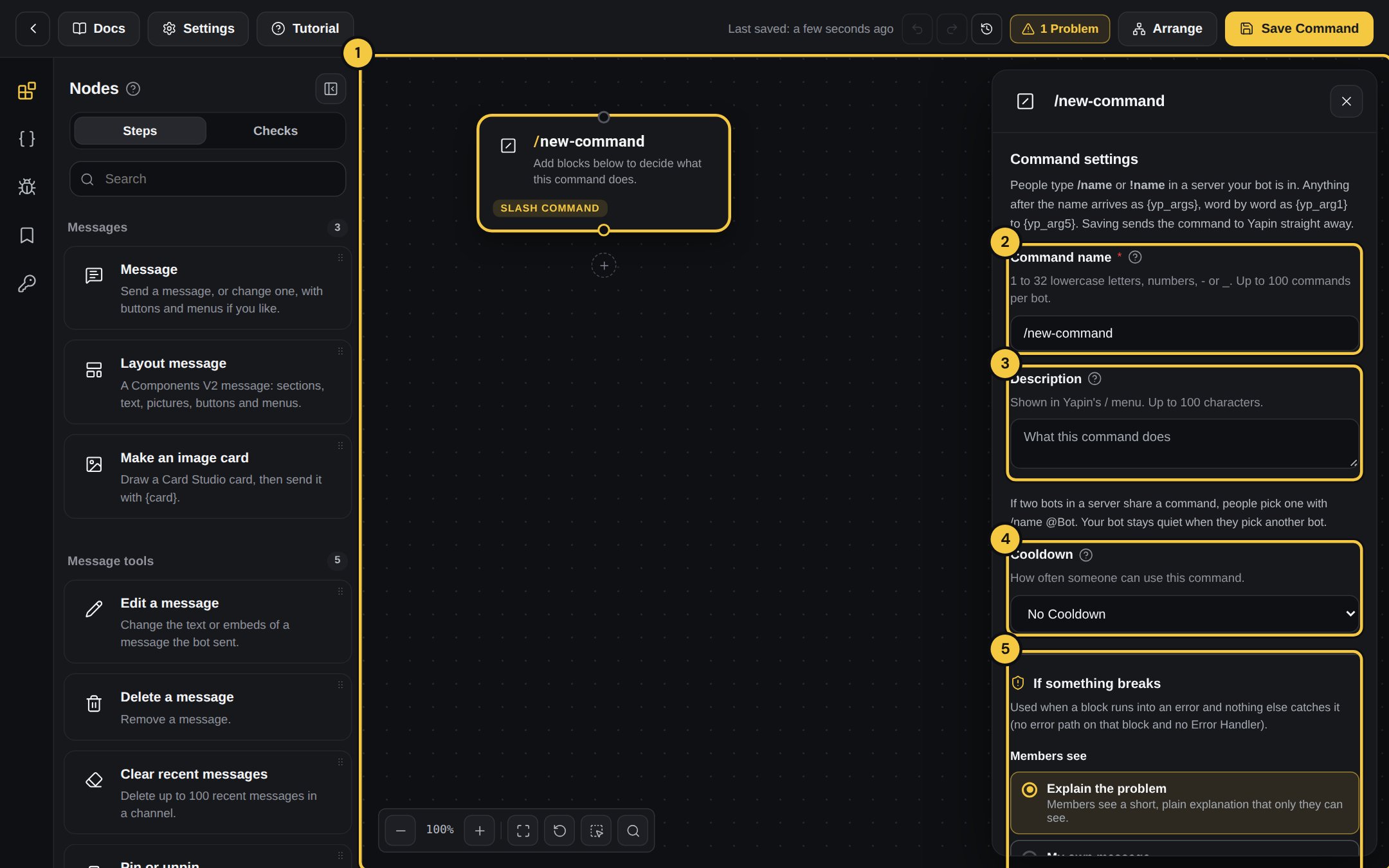
1
1. The command block
Click it to open these settings.
2
2. Command name
1 to 32 lowercase letters, numbers,
- or _. This is what people type after /.3
3. Description
Shown in Yapin’s
/ menu, up to 100 characters. Say what the command does.4
4. Cooldown
How often someone can use it: per person or for the whole server, with your own “slow down” message.
5
5. If something breaks
What members see when a block runs into an error: a short explanation, your own message, or nothing.
Words after a command
Yapin commands don’t have option boxes. Whatever someone types after the command name arrives as words:
Use them anywhere:
Giving {yp_arg2} coins to {yp_arg1}!. Blocks that need a member (like Kick or Give a role) accept a mention such as {yp_arg1} directly.
Example: /hello
1
Name it
Click the command block and name it
hello, description Say hi.2
Add a Message
Drag Message under it and write
Hi {yp_user_mention}! Welcome to {yp_server_name} 👋.3
Save
Press Save Command, then type
/hello in your server.Example: /coinflip with a cooldown
1
Name it
coinflip, cooldown User Cooldown, 10 seconds.2
Add a condition
Add Random chance set to 50%.
3
Two answers
Under the main path add a Message
🪙 Heads!, under Else a Message 🪙 Tails!.Right-click (context) commands don’t exist on Yapin, so they aren’t offered. A bot can have up to 100 commands, including module commands.