
1. Sign in with Yapin
On the login page press Continue with Yapin and allow DogeBot to see your Yapin name. The first time, pick an email and a username for your DogeBot account. Already have an account? Link Yapin under Account → Yapin sign-in and you can sign in with either.2. Create the bot on Yapin
1
Open the developer settings
In Yapin go to Settings → Developer and create a new bot. Give it a name and a picture.
2
Copy the token
Press Copy token. Treat it like a password: anyone with it can control the bot.
3
Invite it to your server
Use the invite link on the same page to add the bot to your Yapin server.
3. Add it to DogeBot
Open the bot switcher in the sidebar and choose Add a bot → Yapin bot, then paste the token. DogeBot checks it with Yapin, stores it encrypted, and starts your bot. It comes online within a few seconds.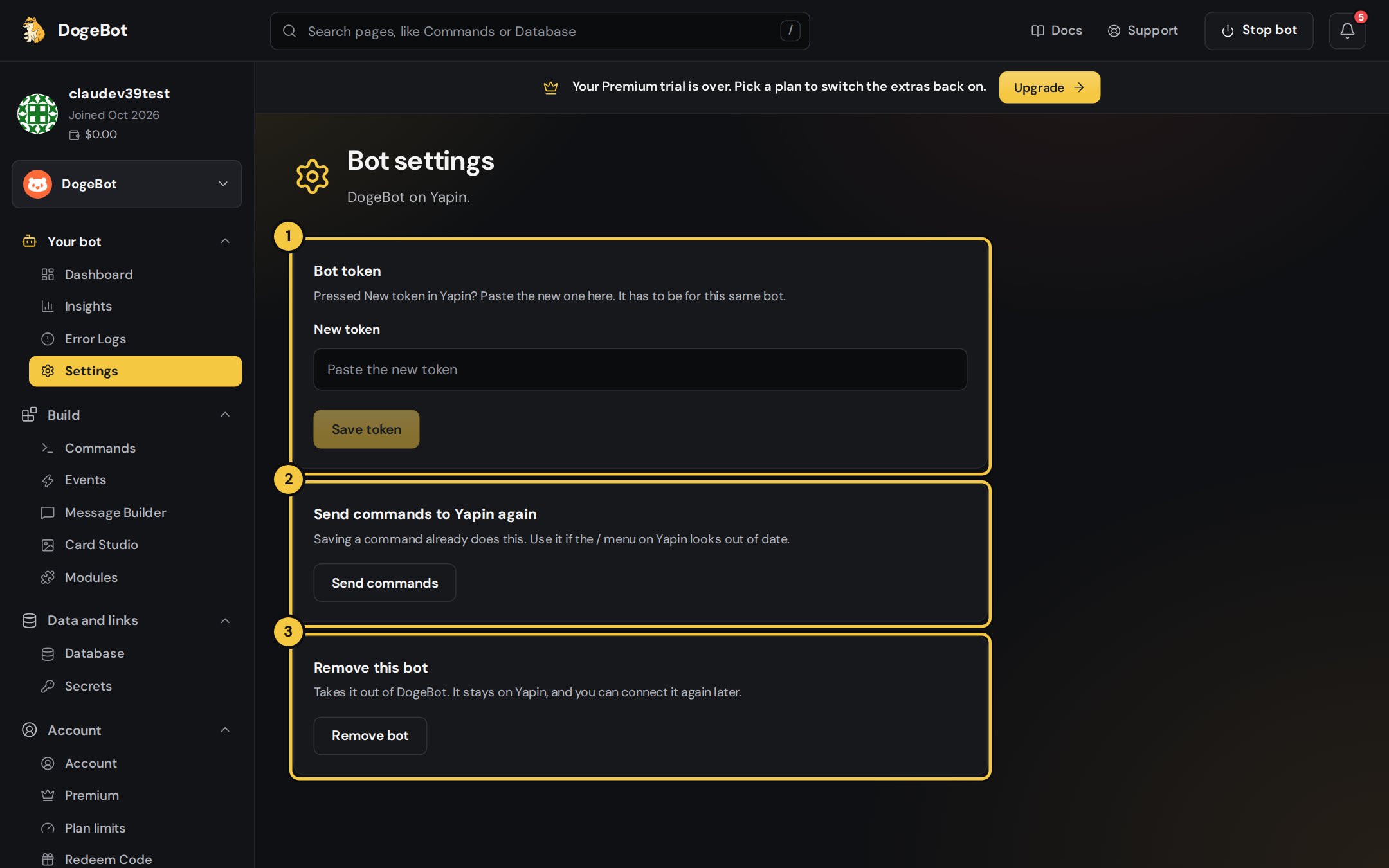
1
1. Bot token
Reset the token on Yapin? Paste the new one here and the bot reconnects by itself.
2
2. Send commands to Yapin again
Saving a command already sends it. Use this if the
/ menu on Yapin ever looks out of date.3
3. Remove this bot
Takes it out of DogeBot. It stays on Yapin and you can connect it again later.
4. Give the bot permissions
On Yapin, give your bot’s role the permissions your commands need:Free bots switch off after 24 hours with no activity and start again when you press Start. Premium bots stay on all the time.